
Verification Policies
Verification Policies are used to 'identify' the user when using the Password Reset Portal. The basic 3 step process is:
- Identify - specify their Active Directory Account
- Verify - verify the account, based on the Verification Policy selected for their account
- Reset Password - either reset the password for their account, or unlock the account also
There are 8 different Verification Policies available to be used, each requiring certain configuration settings to be specified/confirmed, before you apply the policy to any user's accounts. The basic process to follow here is:
- Specify appropriate settings for the Verification Policy you want to use
- Apply the policies to users (it is recommended you use Security Groups for this purpose)
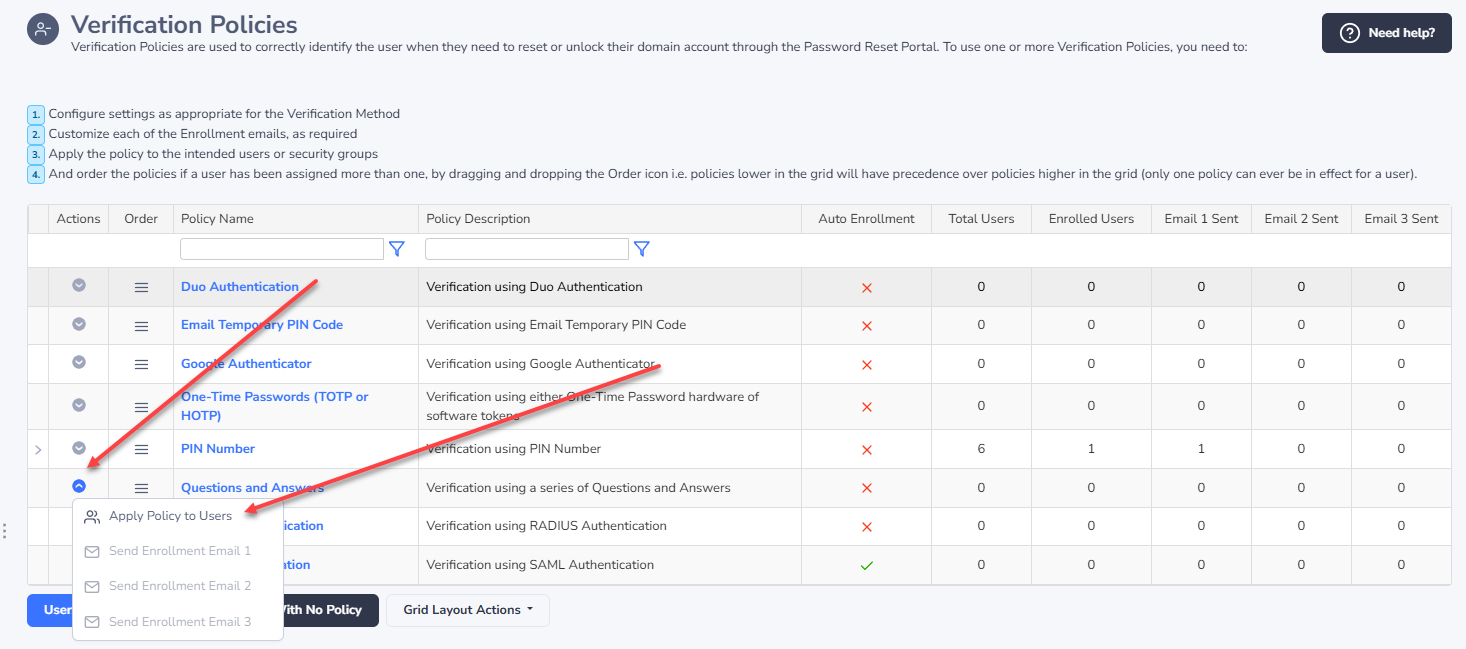
- And then send the initial Enrollment Email 1 to all users of the policies - assuming you are not using the Auto-Enroll feature for the Verification Policies.
Note 1: Verification Policies can also be applied to users in a specific order, by dragging and dropping the rows from within the 'Order' column i.e. apply a certain policy to 'All Users and Security Groups', but then also apply a certain policy to only specific users or security groups. For example, you can configure the policies so the whole business uses a Pin Number to verify, but then force IT to use some form of Two-Factor Authentication instead.
Note 2: If you enable auto-enrollment when user accounts have already been added into Passwordstate, they will be auto-enrolled next time the scheduled AD sync occurs, assuming they are not enrolled already.
User Initiated Enrollment
By default, the Verification Policies are configured to allow users to enroll themselves to use the Password Reset Portal. This means a variety of enrollment emails can be sent to your users, reminding them to enroll.
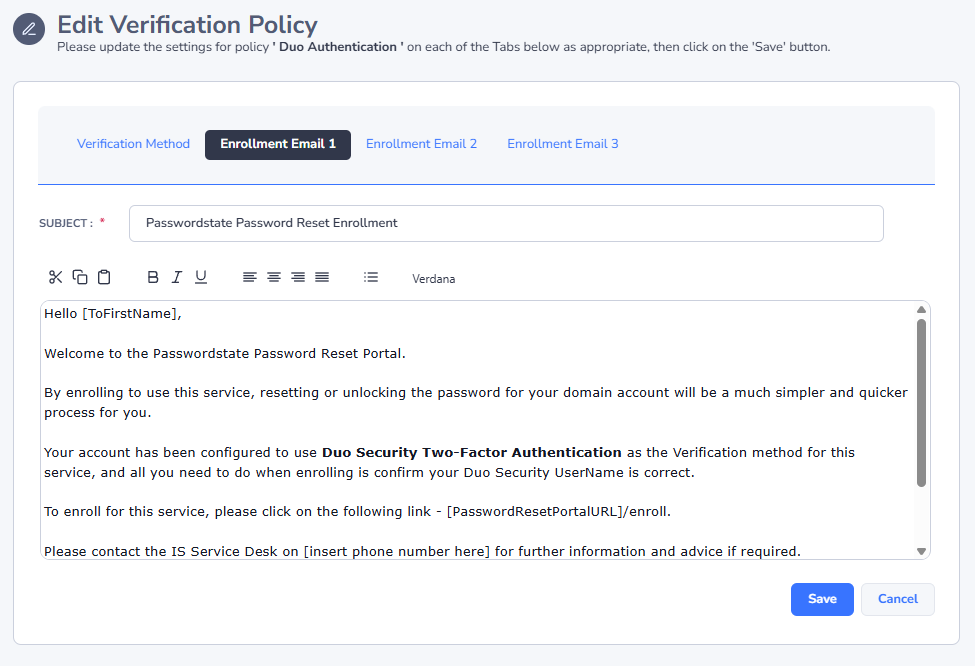
On each Verification Policy screens, you can customize the 3 different Enrollment emails, specific to the selected Verification Policy. Below is a screenshot from the Duo Authentication Verification Policy.
Note 1: Once the initial Enrollment email has been sent, the Passwordstate Windows Service will then send subsequent enrollment emails to users who are yet to enroll.
Note 2: If one of the Enrollment emails is sent to a user, selecting that same Menu item again will not send the email a second time to them.
Auto-Enrollment
5 out of the 8 Verification Policies can be configured for auto-enrollment, meaning your users do not need to enroll to use the Password Reset Portal. Google, One-Time Passwords, and Questions and Answers, all require user input to enroll, which is why auto-enrollment is not possible for these policies.
The Auto-Enrollment can be done in one of two ways:
- By specifying various settings on each Verification Policy, when the scheduled synchronization of Active Directory Security Groups occurs, then auto-enrollment will happen for any accounts not already enrolled. This process is initiated by the Password Windows Service, and the schedule for this can be found on the screen Administration -> Password Reset Portal Administration -> System Settings -> Active Directory Options tab. Please note the 'Manual Synchronization' menu option within the UI does not perform the auto-enroll process, only the Passwordstate Windows Service does this.
- Via the API(s), it's also possible to script the auto-enrollment for users (please refer to the API Documentation for more information)
Please refer to screenshots/descriptions for each policy of what's required for auto-enrollment.
Duo Authentication
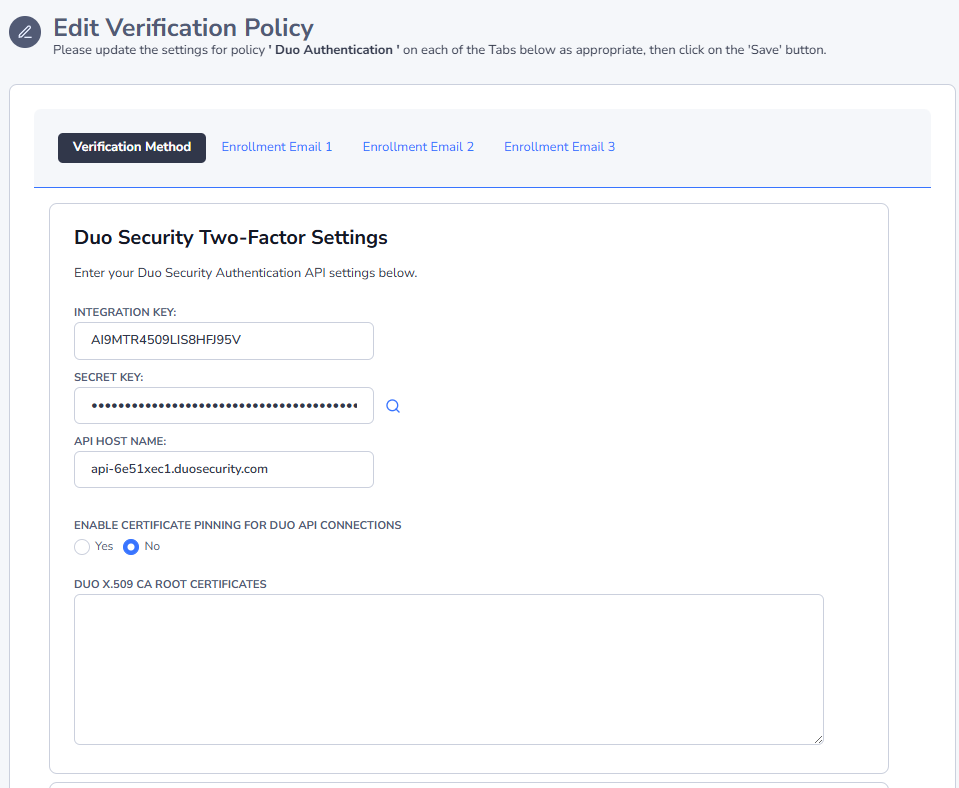
Duo Authentication is a two-factor authentication option from Duo Security - https://duo.com/
For auto-enrollment, by default the 'sAMAccountName' Active Directory Attribute is queried for the user's account, but this can be changed to any AD attribute you like.
If you want to implement certificate pinning for Duo's API, you can download their certificates from their Githob respository here - https://github.com/duosecurity/duo_api_csharp/blob/master/duo_api_csharp/ca_certs.pem
Email Temporary PIN Code
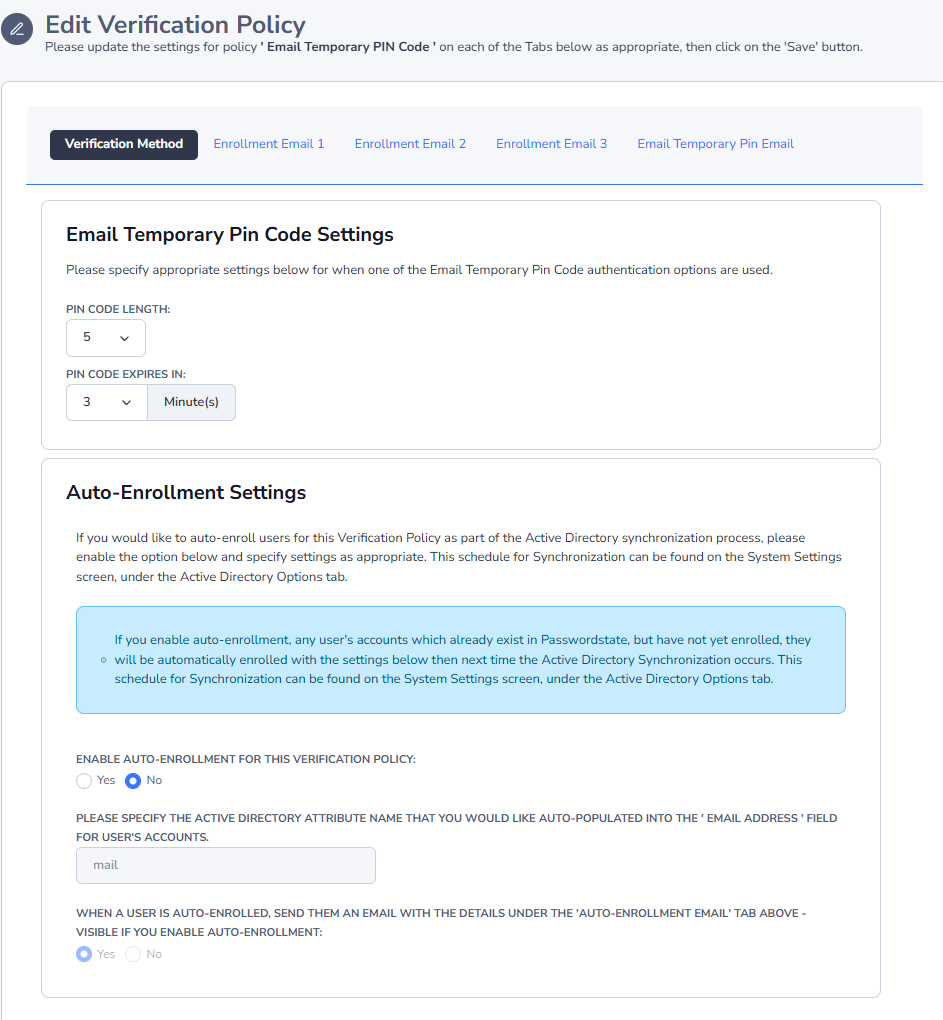
Emailing a Temporary PIN Code can also be used, and will only be valid for a specified amount of time.
For auto-enrollment, by default the 'mail' Active Directory Attribute is queried for the user's account, but this can be changed to any AD attribute you like.
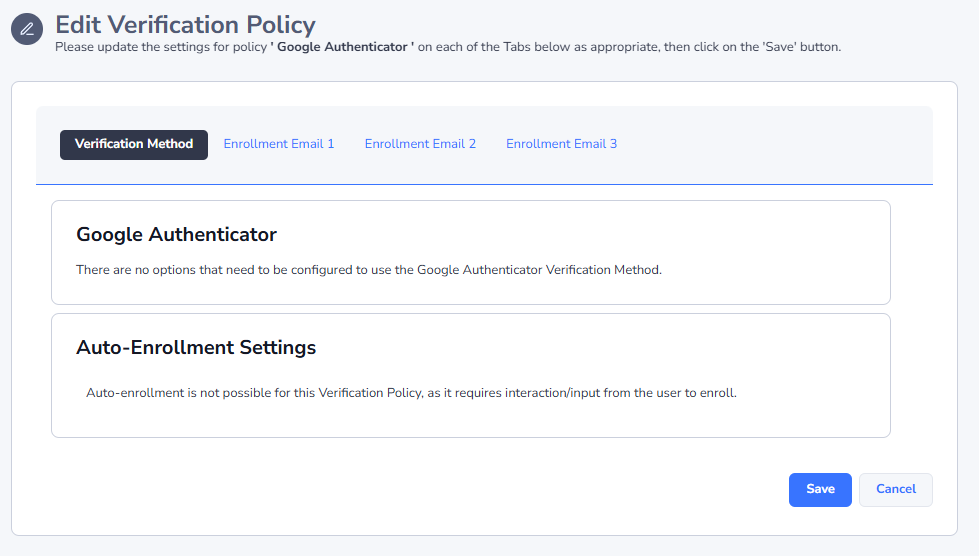
Google Authenticator
Google Authenticator is a free two-factor authentication option which can be used on most mobile phones, and desktops.
Note: There is no Auto-Enrollment option available for this Verification Policy.
One-Time Passwords (TOTP or HOTP)
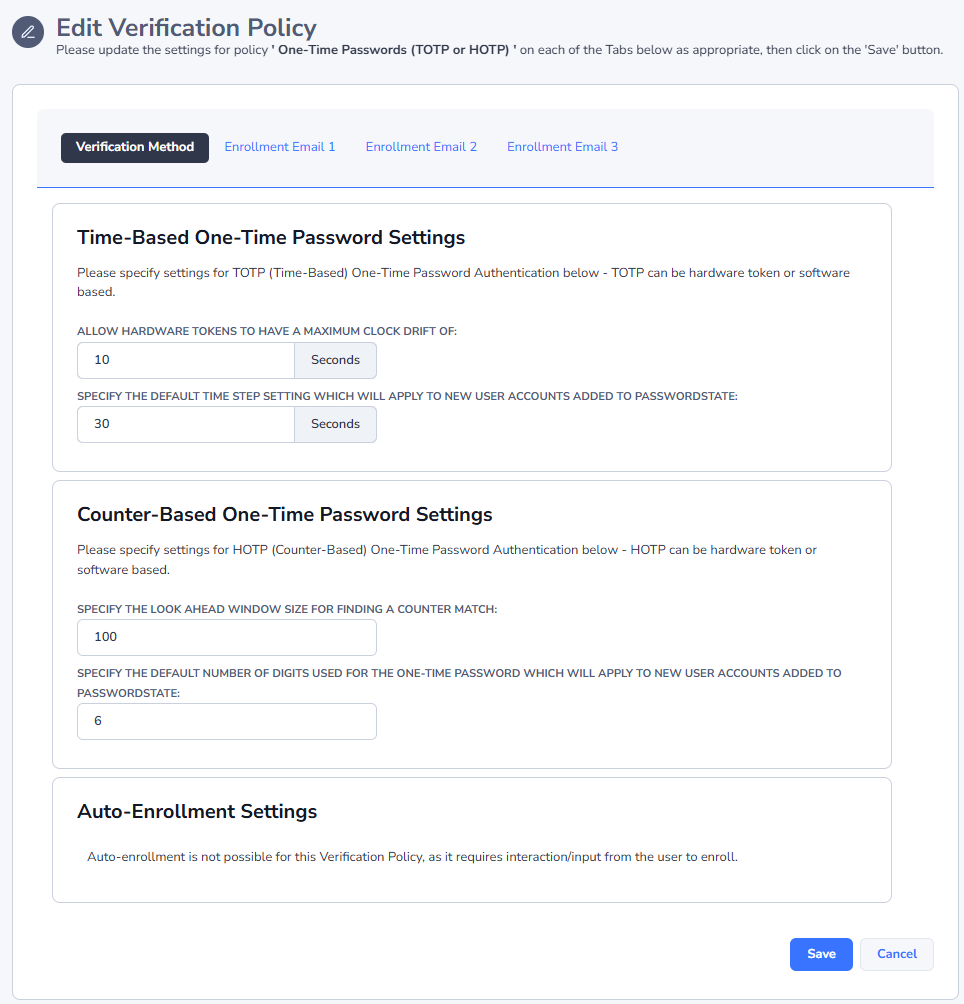
One-Time Password authentication supports the TOTP and HOTP algorithms - TOTP being time-based, and HOTP being counter-based. Both hardware and software tokens can be used for this authentication method. If you enable this authentication option, and users have not configured their preferences for their token, they will be prompted to specify their own settings the next time they access Passwordstate.
Note: There is no Auto-Enrollment option available for this Verification Policy.
PIN Number
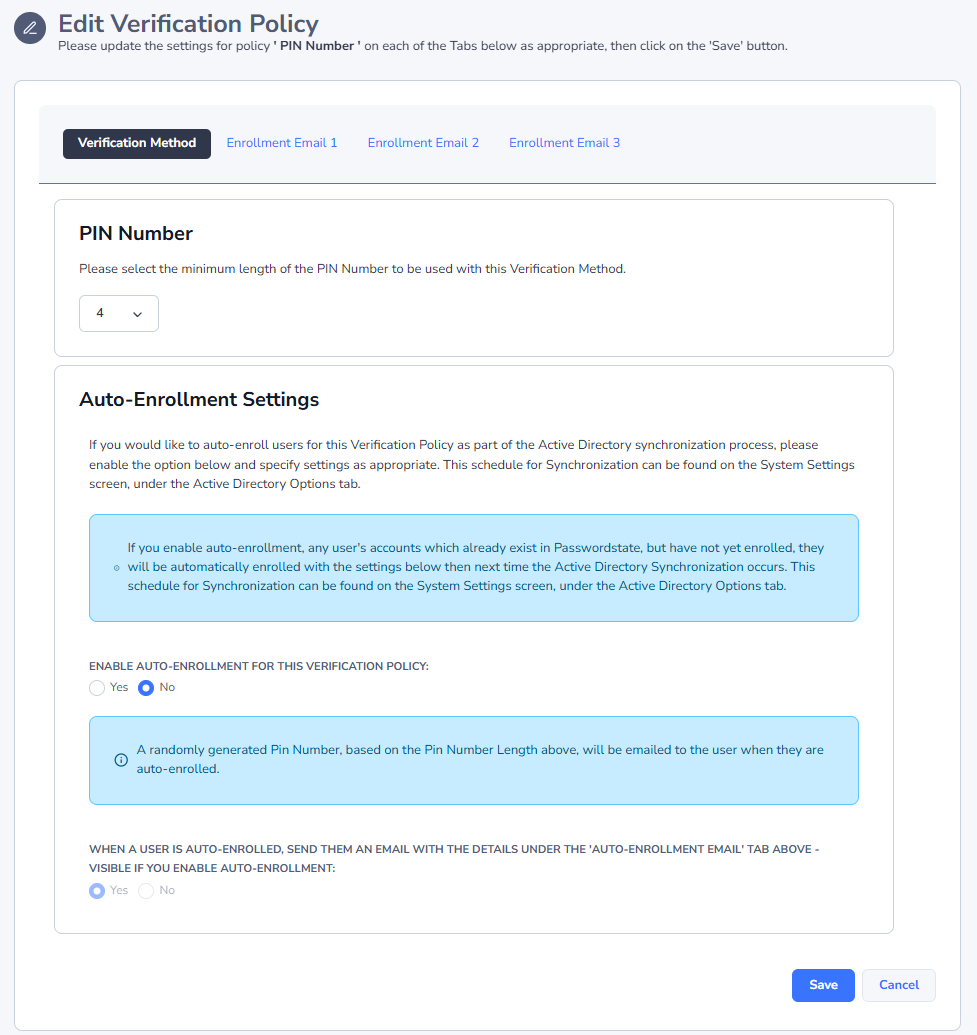
Similar to a PIN Number for credit cards, a PIN Number can also be used to verify the user's account.
For auto-enrollment, a randomly generated Pin Number, based on the Pin Length Specified, will be generated for the user. It's important the auto-enrollment email option is enabled here, otherwise the user will not know what their Pin Number is.
Questions and Answers
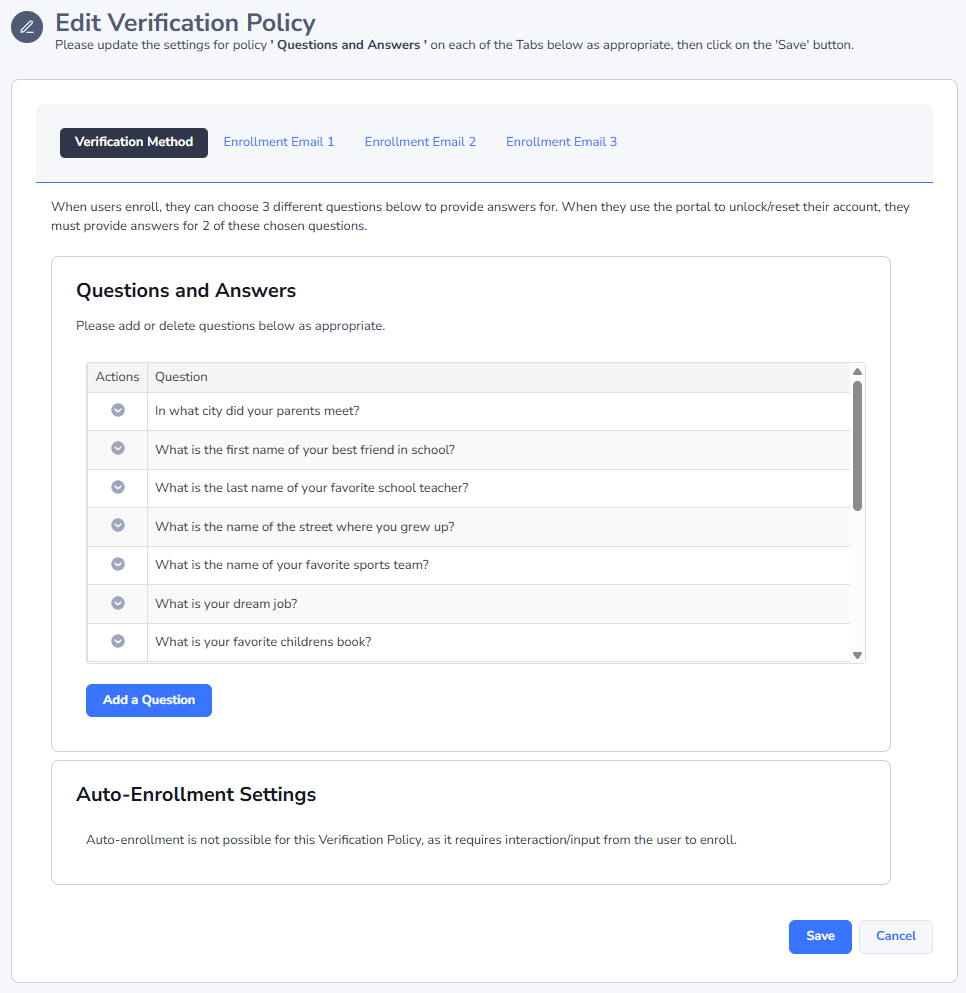
The Questions and Answers Verification Policy allows the user to choose various questions to enroll with, and then when they attempt to reset their domain account, they must answer two of the questions successfully.
Note: There is no Auto-Enrollment option available for this Verification Policy.
You can also add your own questions, or delete any of the default questions.
RADIUS Authentication
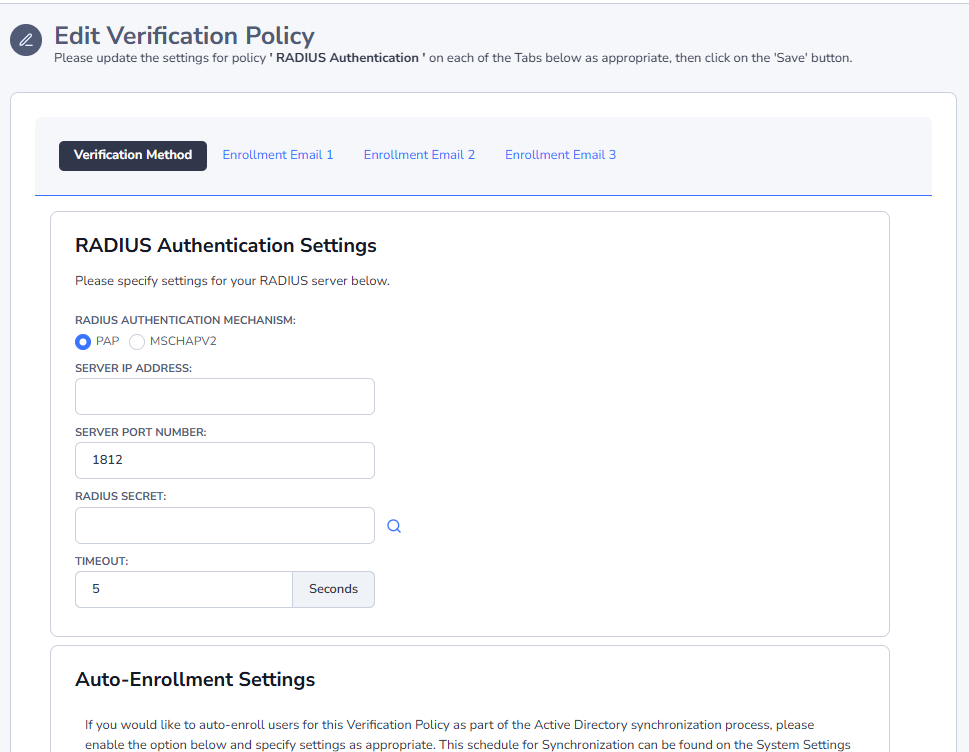
If you have a RADIUS server available within your organization, you can simply specify your RADIUS server configuration details on this screen.
For auto-enrollment, by default the 'sAMAccountName' Active Directory Attribute is queried for the user's account, but this can be changed to any AD attribute you like.
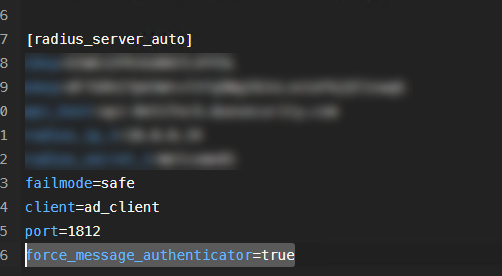
Note: If using a RADIUS server like Duo's Authentication Proxy, and additional configuration line is required in the Radius section of the authproxy.cfg file, to support RFC 5080 / RFC 2869's, for improved security.
The line is force_message_authenticator=true, as per the screenshot below.
SAML Authentication
The Password Reset Portal can also authenticate to any SAML2 compliant provider for a verification policy.
In order to use SAML2 authentication, you must specify the following settings - each of these settings can be obtained within the 'Application' configured in your SAML2 Provider account:
- Certificate Type - either SHA1 or SHA256
- X.509 Certificate
- IDP Target URL
- IDP Issuer URL
- Audience Restriction (Mandatory for Entra ID and ADFS, and for Entra ID, it is the 'Identifier' value, and ADFS is the 'Relying party trust identifier' setting) - If required, this should be set to your Passwordstate URL.
SAML User Identifier
Passwordstate can be configured to match certain "identifiers" for a user's account i.e. UserID, Email Address or UserPrincipalName
Additional Authentication Option
If required, you can also enforce an additional authentication option on user's, once they have successfully finished their SAML Authentication
Logout URL
If you specify a Logout URL for your SAML Provider, then when users log out of the Portal they will also be redirected to your SAML provider to log out of the active SAML session.
Each SAML2 Provider has different terminology for configuring the required URLs in their 'Application', and you can view several examples in the following section - KB Articles
When specifying settings for your SAML provider, there are specific URLs that need to be set for your Password Reset Portal URL - do not specify the URL for your normal instance of Passwordstate. Below is an example for Entra ID:
Entra ID Field Passwordstate Value
Identifier (Entity ID): Audience Restriction - If required, this should be set to your Reset Portal URL - for example https://myportal.domain.com
Reply URL: https://myportal.domain.com/account/SAMLLogin
Sign on URL: https://myportal.domain.com
Relay State: https://myportal.domain.com/account/SAMLLogin