
Mobile App Pairing
This screen facilitates pairing with the Passwordstate App Server instance, and is required on a fresh install, when the Passwordstate administrators make changes to the app server's SSL certificate or rotate of the mobile app pairing key.
Steps to pair the mobile app:
Step 1
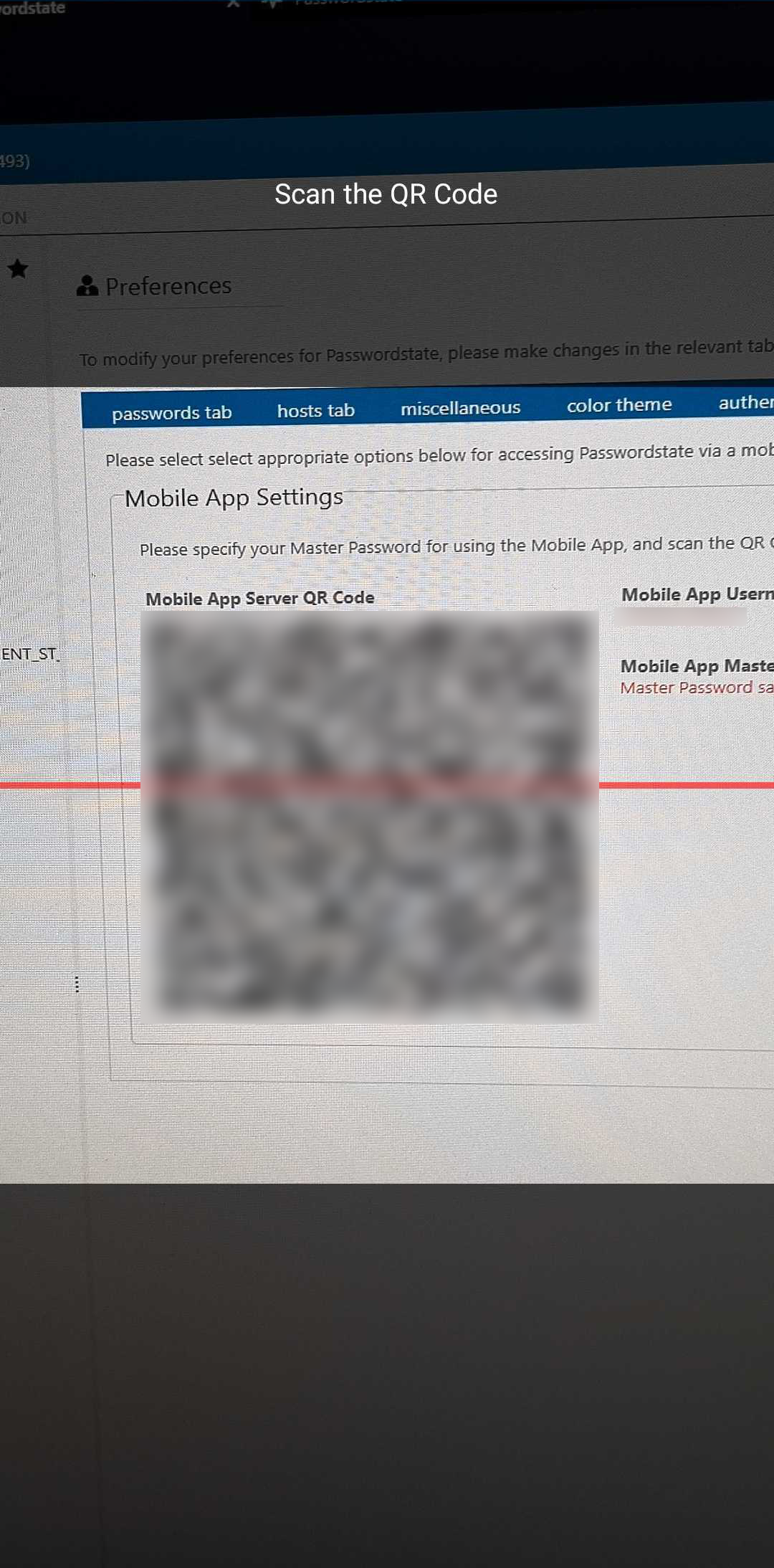
On your PC open Passwordstate in the web browser, authenticate and then navigate to the user preferences screen (see user preferences).
Step 2
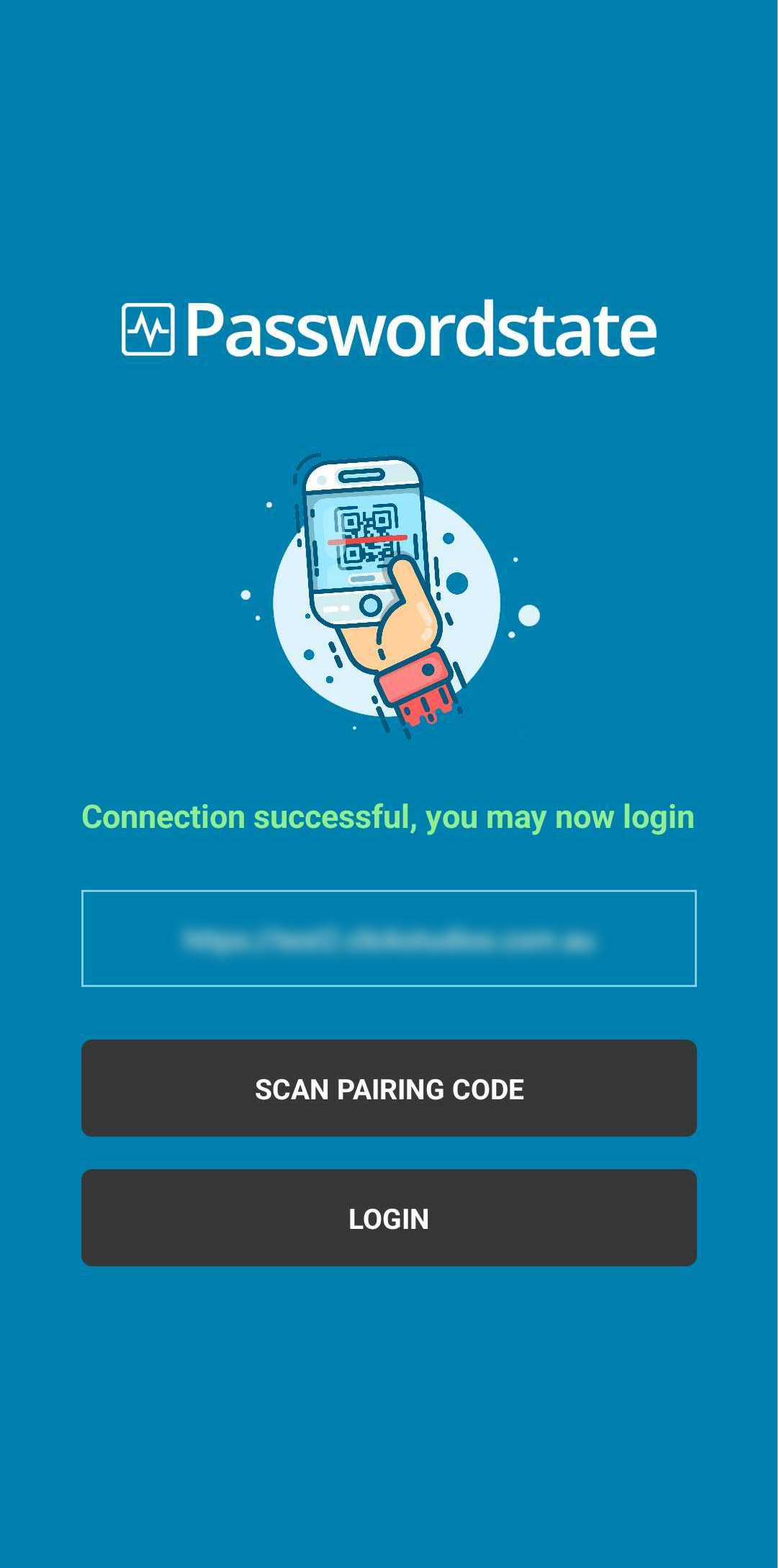
On your mobile device open the Passwordstate Mobile App, if this is a fresh install then you should be presented with the pairing screen.
Step 3
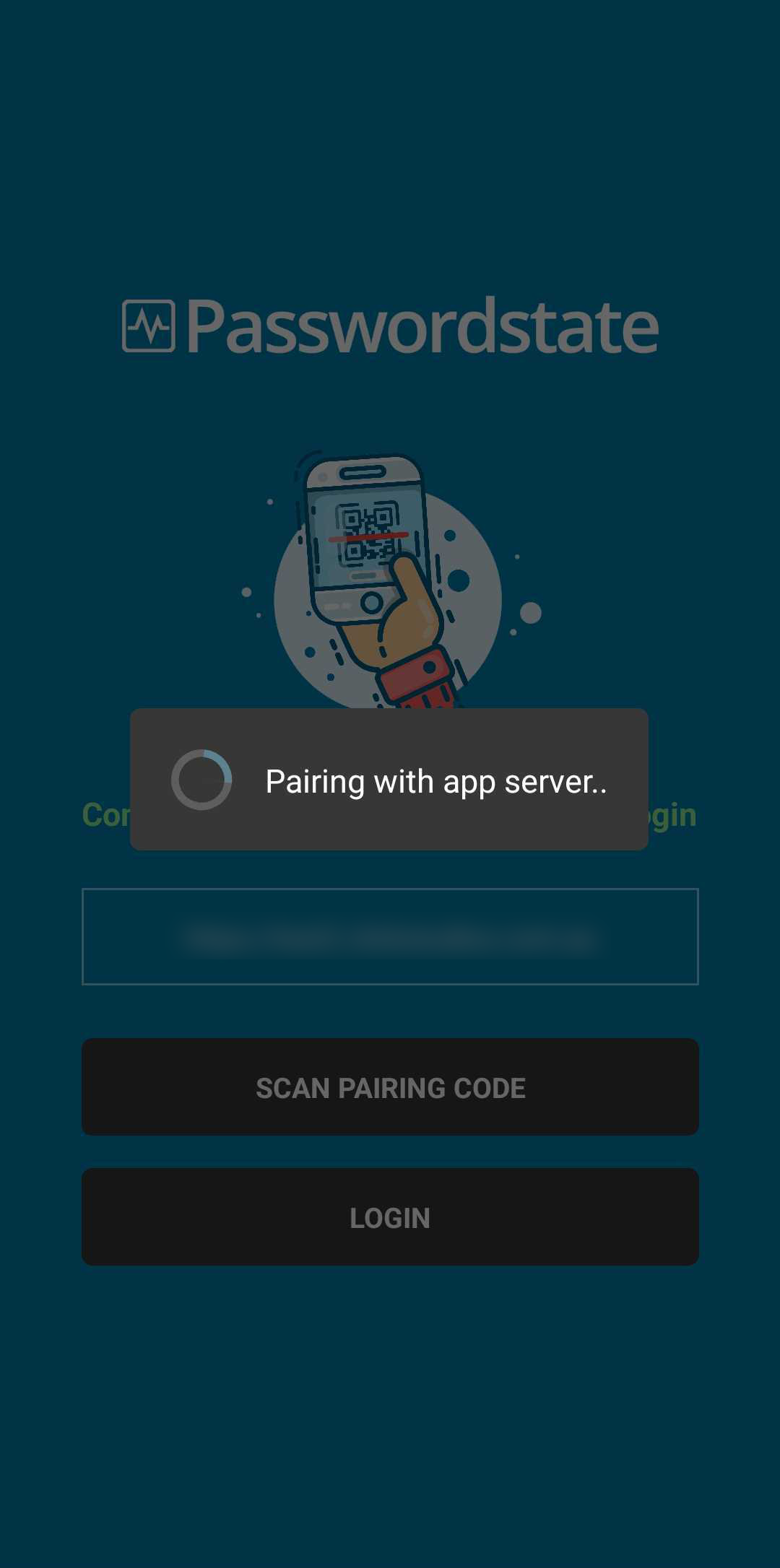
Simply tap 'Scan the Pairing Code' button (you may need to grant camera access if not already) and then place the red guideline in the camera view over the pairing code on the user preference screen from step 1.
Step 4
If the pairing was successful, you will now have the option to log on with your username and master password.
 |  |  |
How do I re-pair the mobile app?
As previously mentioned, there are some scenarios aside from a fresh install where you would be required to re-scan the pairing code. This can be when the Passwordstate administrators have made changes to the app server's SSL certificate or performed a rotation of the mobile app pairing key.
In order to reach the pairing screen again, on the mobile app you should navigate to Settings -> Re-pair with Passwordstate App Server. There is a chance you are unable to log on to reach the settings page, if so, the re-pairing option will be shown after a failed login attempt.