
SSL Certificate Considerations
The installer for Password Reset Portal installs a self-signed SSL certificate on your web server, and binds it to the Password Reset Portal website.
Note It is highly recommended to use a purchased SSL certificate from an online trusted certificate authority, which will ensure a more secure and user-friendly experience for your users, on all types of devices.
If you have your own SSL certificate installed on the web server you’d prefer to use, you can modify the bindings for the site in IIS, and select the appropriate certificate. If you wish to continue using the self-signed SSL certificate, then you may want to instruct your users to “Install” the certificate on their computer, so the various Internet browsers don’t display errors about the certificate not being issued by a trusted authority. This is difficult to do on mobile phones though, which is why we recommend using trusted SSL certificates.
To install the certificate, you can follow these steps:
- Using Internet Explorer, view a Self Destruct Message you’ve been sent
- When you see the following screen, click on the ‘Continue to this website’ link
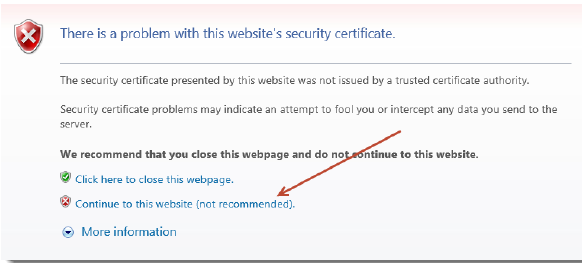
- Now click on the ‘Certificate error’ link at the top of your screen

- The click on ‘View Certificates’, then on the ‘Install Certificate…’ button
- Select the ‘Local Machine’ Store Location, then click on the ‘Next’ button
- Select ‘Place all certificates in the following store’ option, click on the ‘Browse’ button, and select ‘Trusted Root Certification Authorities’ as per the next screenshot
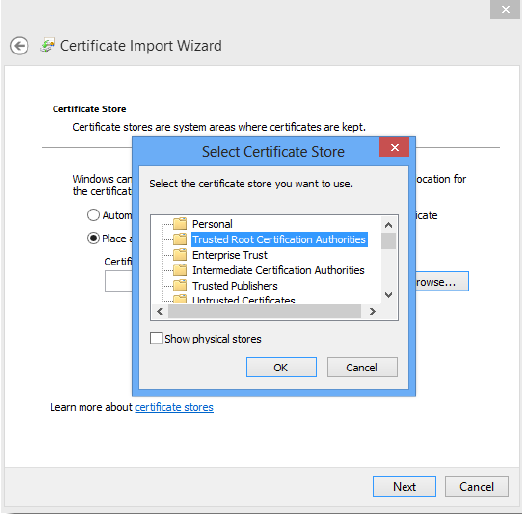
- Now click on the ‘OK’ button, then the ‘Next’ and ‘Finish’ buttons