Installing Self Destruct Message Web Site (Push/Pull Version)
Please use the following screens as a guide for installing the Self Destruct Message website:
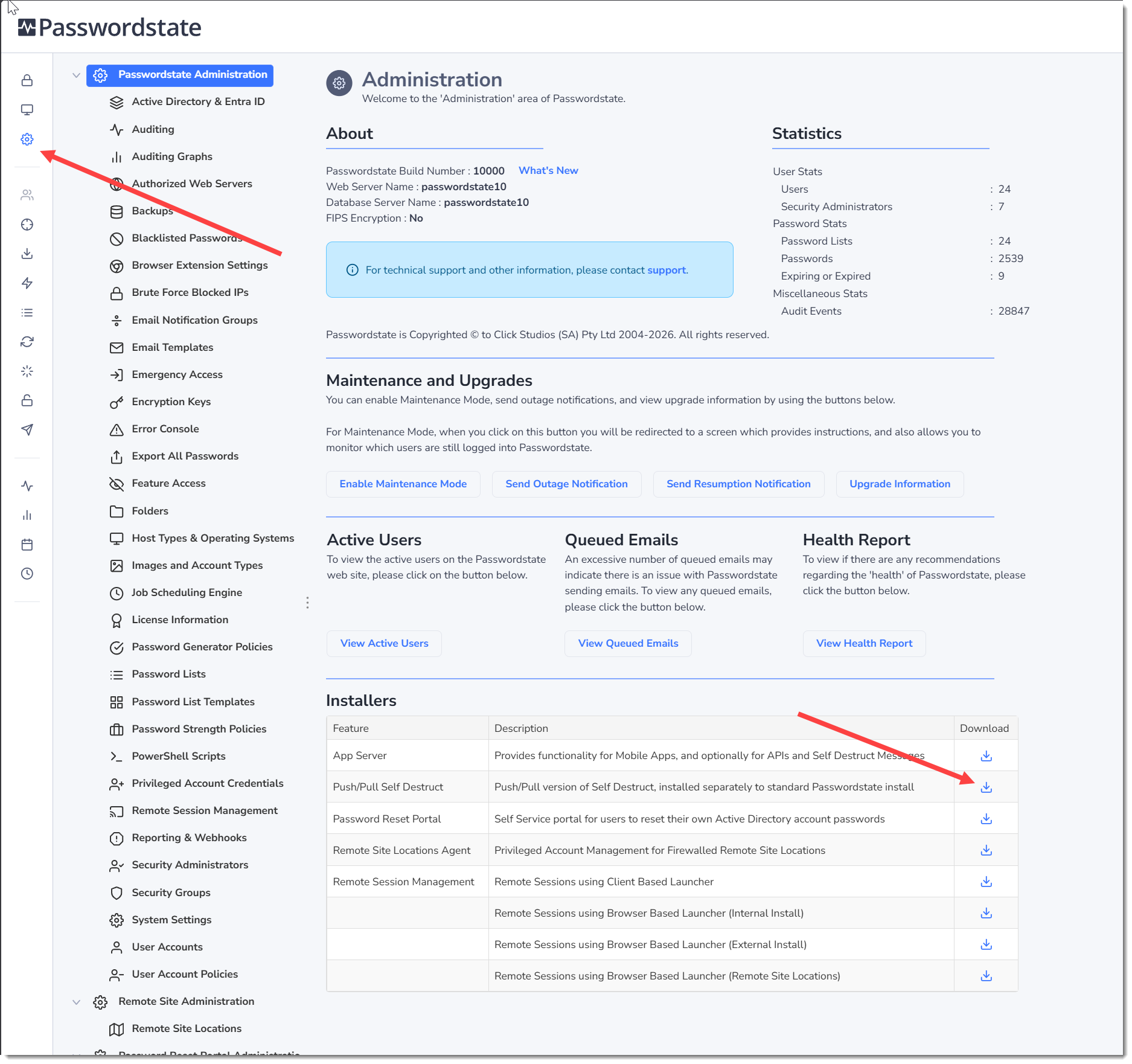
- In Passwordstate, go to Passwordstate Administration home page and click the download button for the Password Reset Portal. A file will download in your browser, and you’ll need to transfer this to the server you are installing the Password Reset portal on
- Right click the PasswordstateSelfDestruct.exe and select Run as Administrator
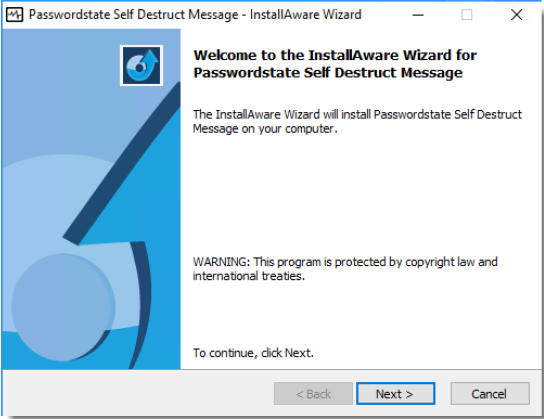
- At the Welcome screen, click on the Next button
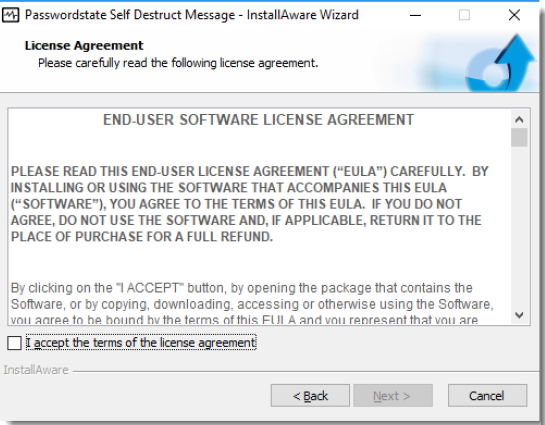
- Accept the Licence Agreement and click Next
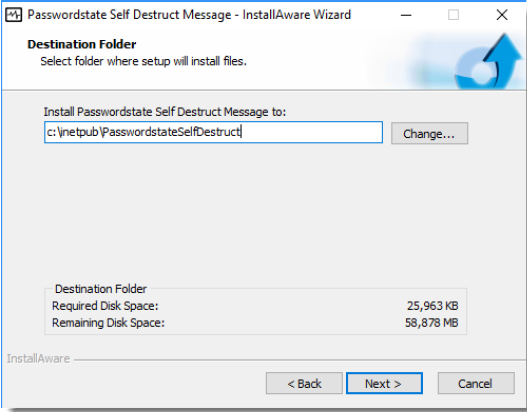
- Accept the default installation path, and click Next
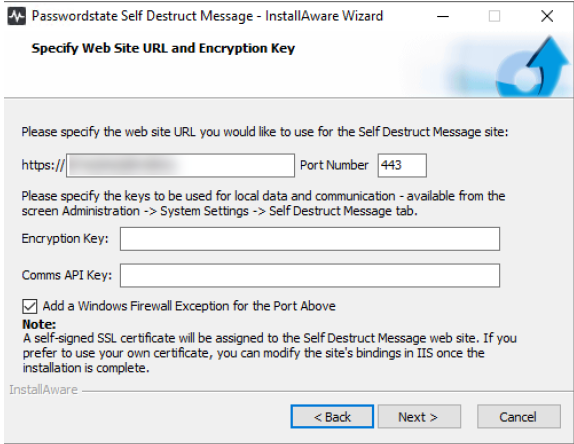
- Next you will need to specify a URL for your Self Destruct website, as well as the Encryption and Comms API keys to be used for encrypting and accessing local data. The two keys you see below in the screenshot can be generated on the screen Administration -> System Settings -> Self Destruct Messages tab, and you must also set your new URL on the same screen. This URL will be used in emails sent out to your users.
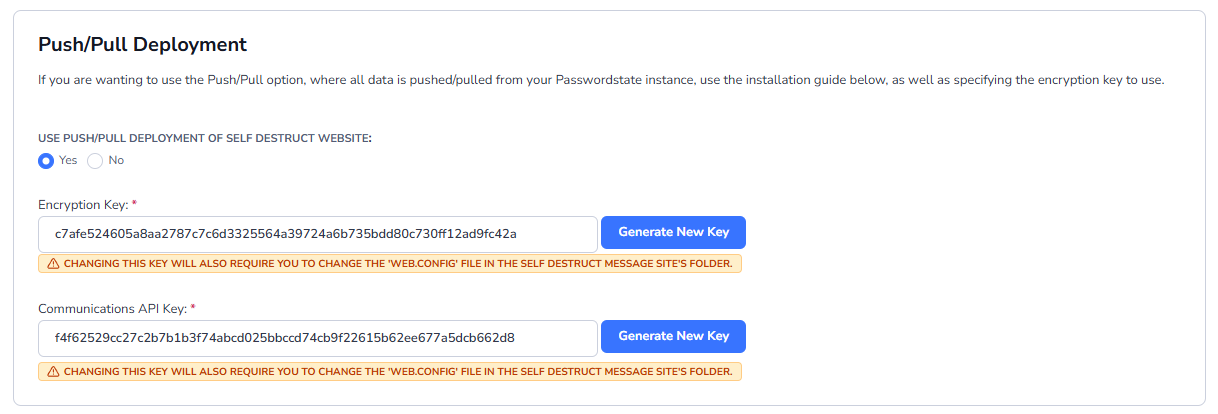
When you generate the keys on the screen below, do not click the Save button on the System Settings screen until you have finished the install above. Clicking the Save button will cause a test connection to the API of the Self Destruct Website, to validate the keys exist and are accurate.
By default, the installer will attempt to use your server name as the Self Destruct URL, as DNS should already be present for this. It will also automatically create a Self-Signed certificate to match this URL which means the Self Destruct Portal can be accessible immediately after completing this install process.
After setting this URL in Administration -> System Settings -> Self Destruct Messages, ensure you restart your Passwordstate Windows service on your main Passwordstate webserver.
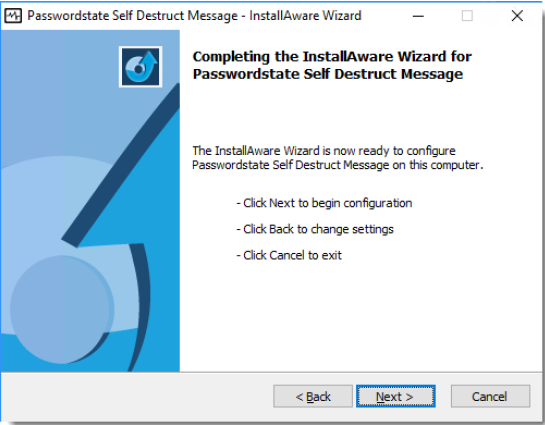
- To begin the installation, click ‘Next’
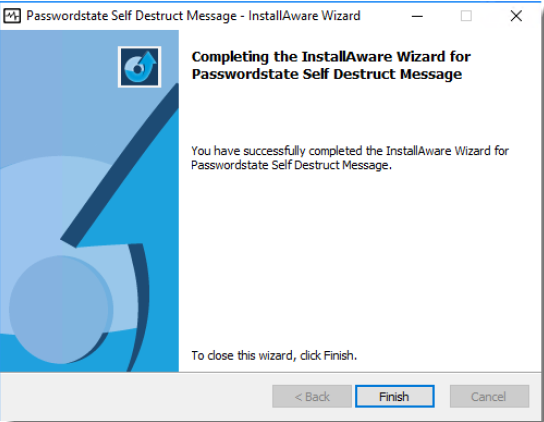
- To finalize the installation, click ‘Finish’