
SSL Certificate Considerations
The installer for Password Reset Portal (PRP) installs a self-signed SSL certificate on your web server, and binds it to the Password Reset Portal website.
Note: It is highly recommended to use a purchased SSL certificate from an online trusted certificate authority, which will ensure a more secure and user-friendly experience for your users, on all types of devices on any type of connection (internal, internet etc).
If you have your own SSL certificate you’d prefer to use, install it on your PRP server and bind it to your HTTPS binding.
If you wish to continue using the self-signed SSL certificate, then you may want to instruct your users to “Install” the certificate on their computer, so the various Internet browsers don’t complain about the certificate not being issued by a trusted authority.
To install the certificate, you can follow these steps below. You will effectively be exporting the certificate and reimporting it into your Trusted Root Certificate store on your machine. The example below uses Google Chrome as the browser, but you can achieve the same thing in other browsers.
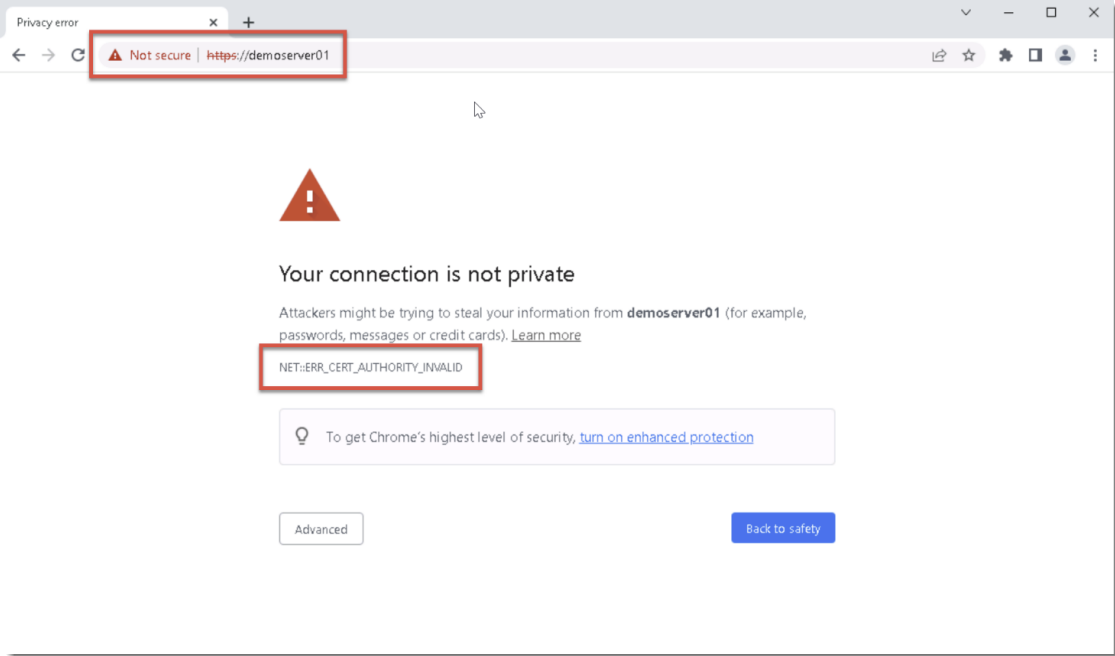
Using Chrome, browse to your Password Reset Portal website and you should see a screenshot with an error saying NET:ERR_CERT_AUTHORITY_INVALID
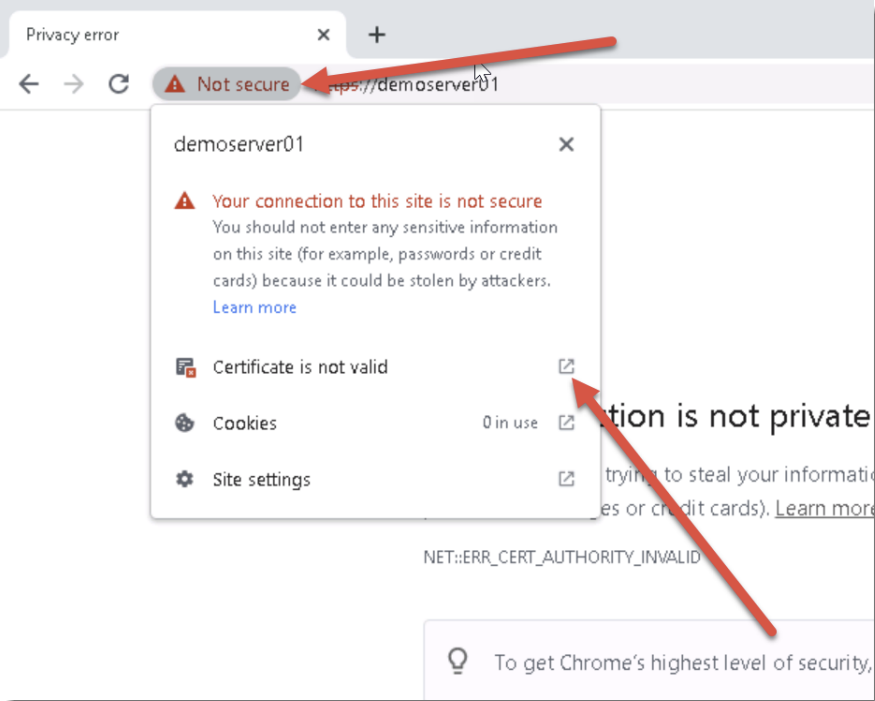
Click on the Not Secure button, and then click on the Show Certificate button:
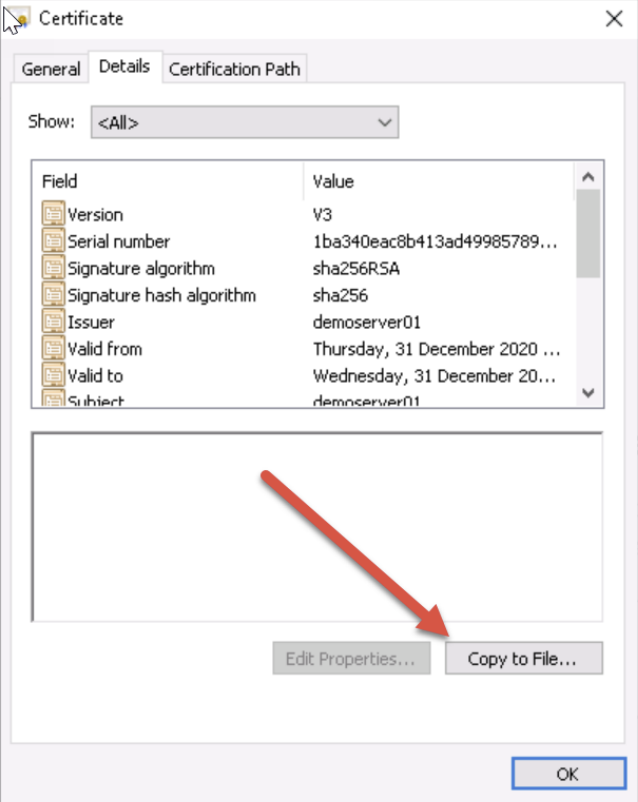
Under the Details tab, click Copy to File…
Run through the Certificate Export Wizard, leaving all default options. During the process, set a name for your certificate (which can be anything), and save it to disk.
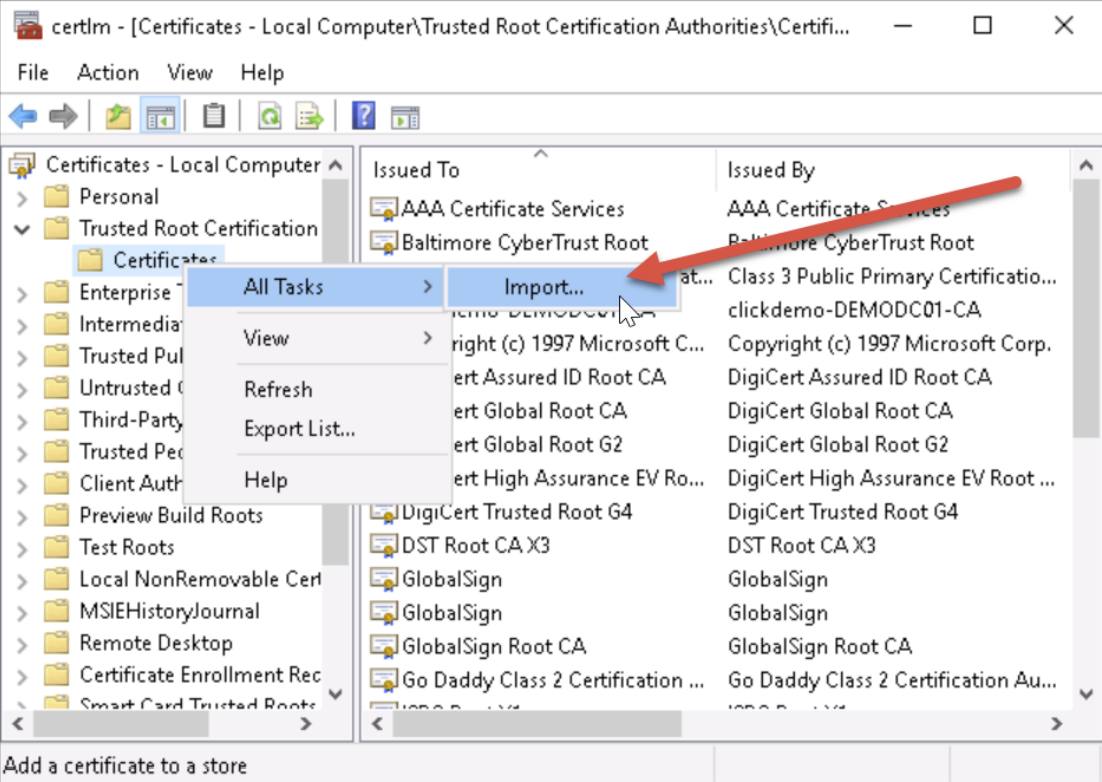
Now go to Start -> Run and type in certlm.msc and hit enter. This opens up the Local Computer Certificate Store on your computer.
Expand out Trusted Root Certificate Authorities and right click Certificates, and choose All Tasks -> Import:
Now run through the import process, using all default options, and browse to the certificate you saved to disk in the step above. Once this completes, you will see a Successful Import message.
You can now restart your browser and try browsing to your Password Reset Portal URL again, and you will no longer see the browser warning about the certificate.
Note: For an in-depth explanation of the different types of certificates you can use on your PRP website, please see this KB Article: Passwordstate Certificates Explained