Installing Password Reset Portal
Please use the following screens as a guide for installing the Password Reset portal website:
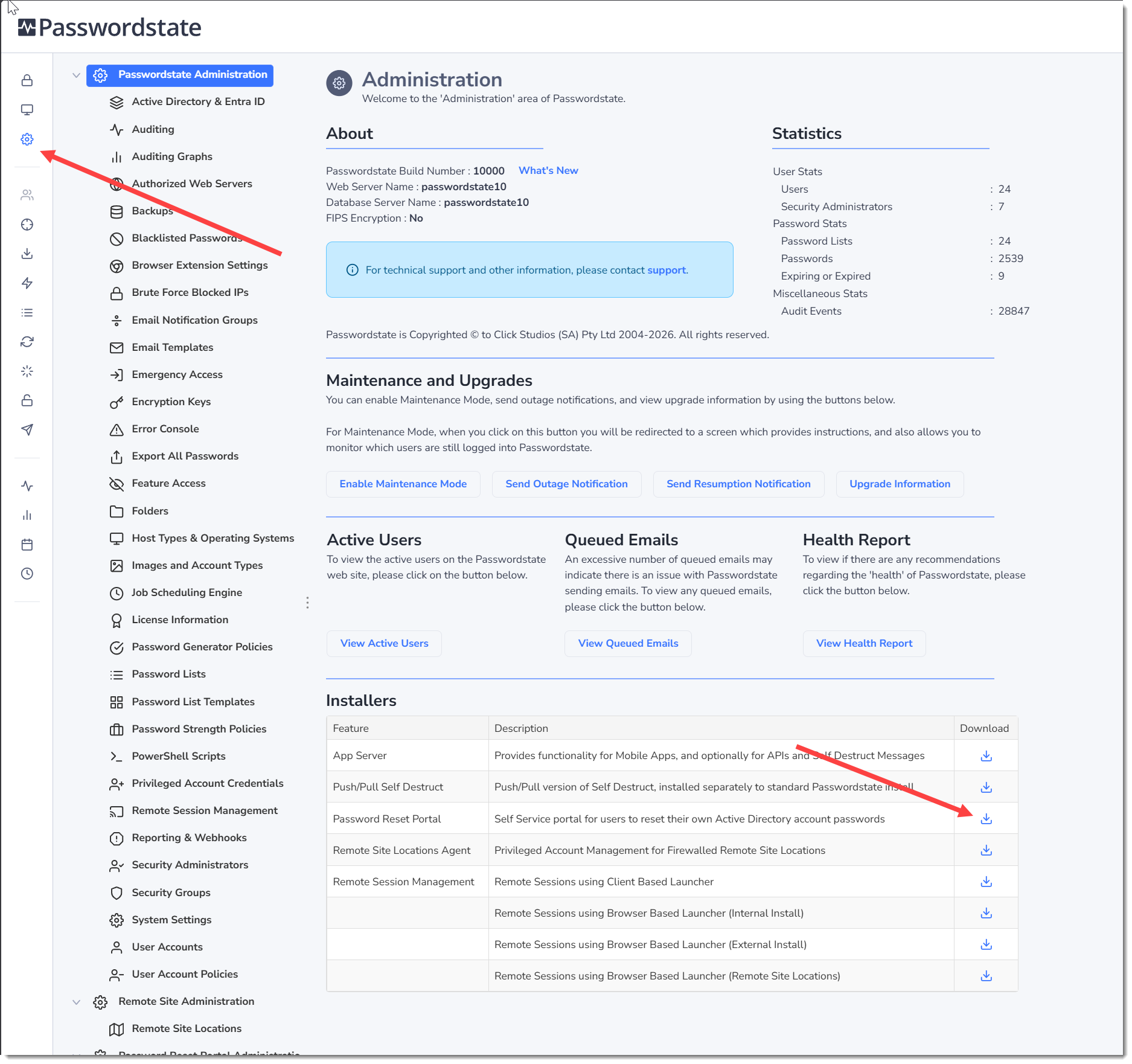
- In Passwordstate, go to Passwordstate Administration home page and click the download button for the Password Reset Portal. A file will download in your browser, and you’ll need to transfer this to the server you are installing the Password Reset portal on
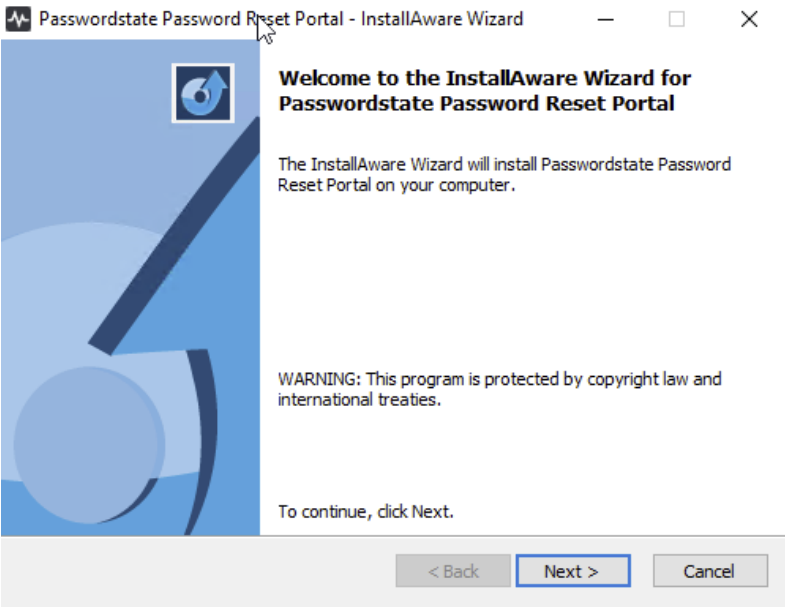
- Right click the PasswordResetPortal.exe and select Run as Administrator
- At the Password Reset Portal screen, click on the Next button
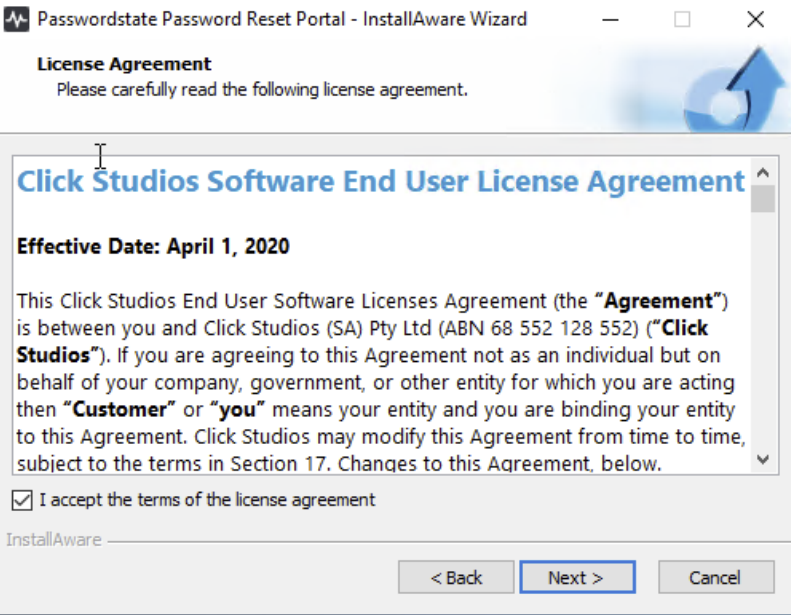
- Accept the Licence Agreement and click Next
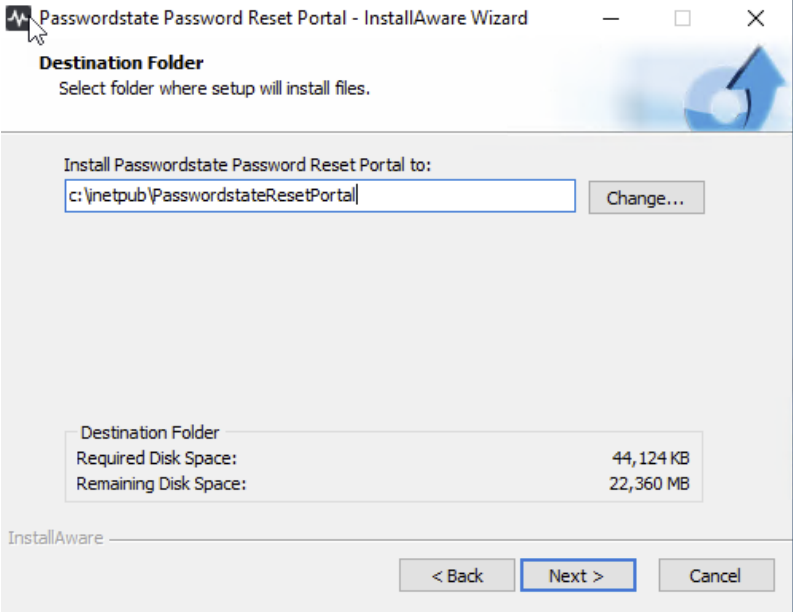
- Accept the default installation path, and click Next
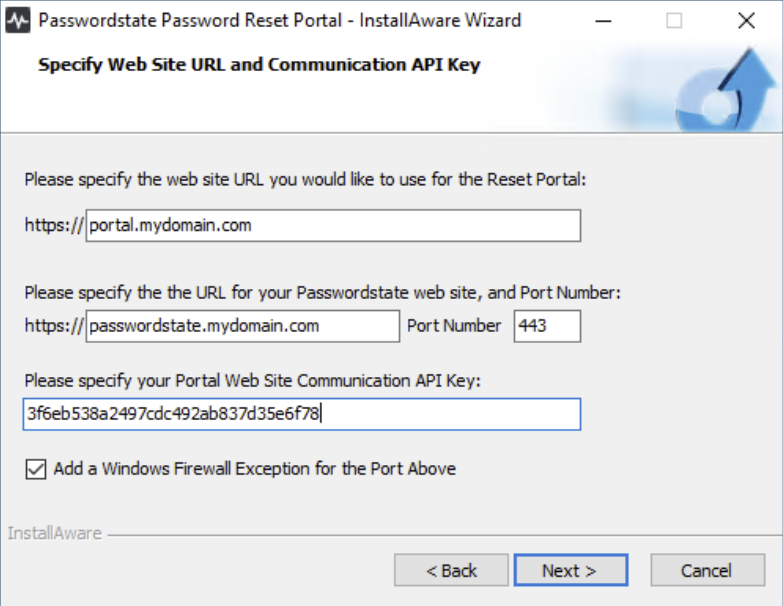
Now you will need to specify a URL for your Password Reset Portal website, and also the URL of your existing Passwordstate website. By default, the installer will choose your server netbios name as the URL as this will already have functioning DNS, but it is possible to change this to any value you like. If any changes are made to this URL, a matching DNS CNAME record will need to be created, and a matching SSL certificate must be assigned in Internet Information Services (IIS) after the installation has completed
You must also specify the Portal Website Communication API Key, which you can obtain from the screen Administration -> Password Reset Portal Administration -> System Settings -> API tab in Passwordstate:
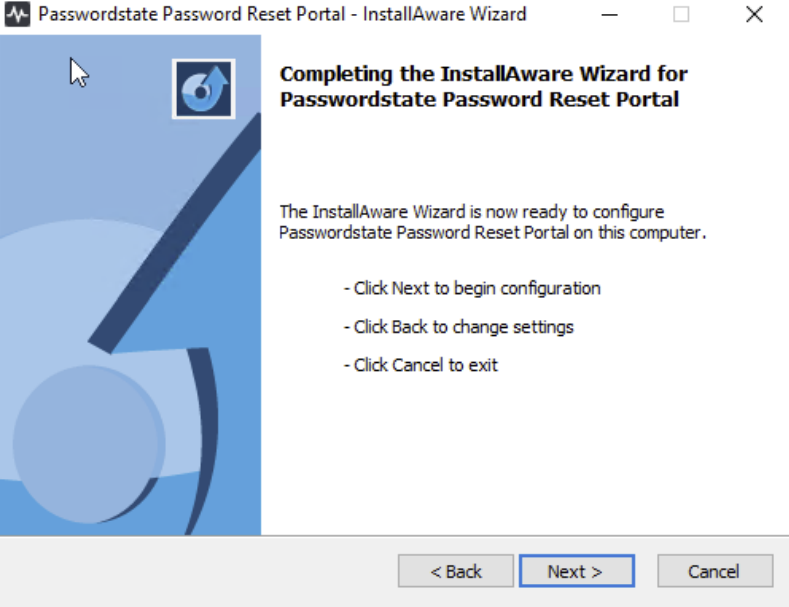
- To begin the installation, click ‘Next’
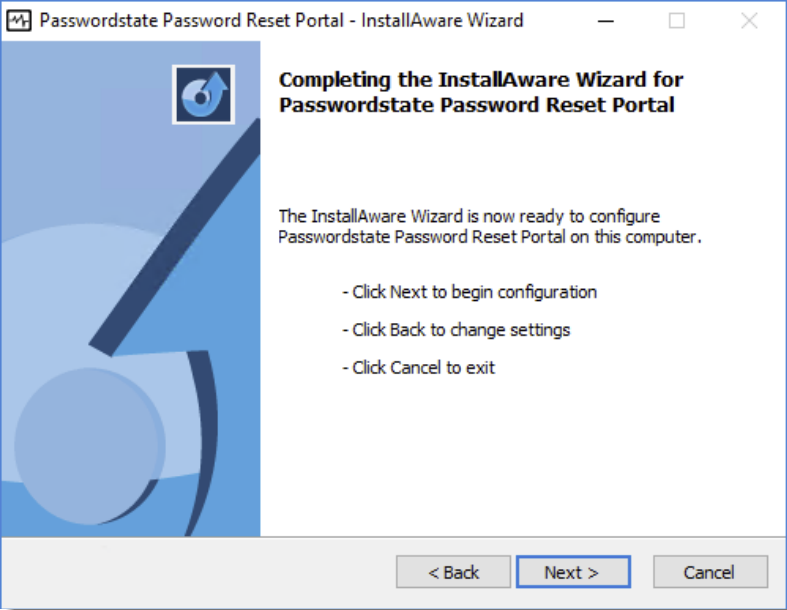
- To finalize the installation, click ‘Next’ and then ‘Finish