
FAQ
Manual Backups
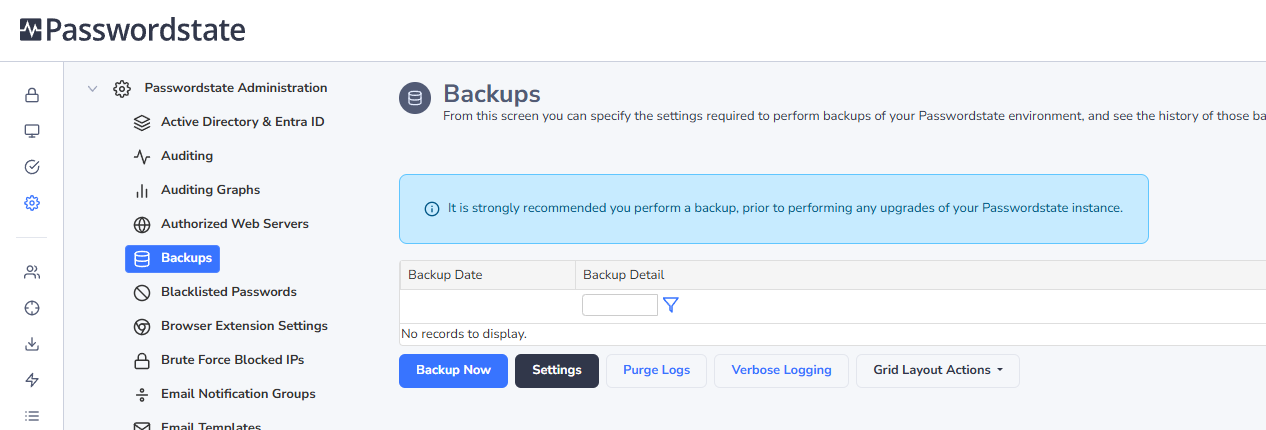
You can run a manual backup at any time if you have configured your settings correctly by clicking the Backup Now button:
Session Recording Files
If using the Browser Based version of the Remote Session Launcher, Session Recordings will not be included in the standard Passwordstate backup functionality, due to the potential size of the files. If you have left the recording folder in the default path, then you need to organize your own backups of these files
Password Protecting the Backup Files
One of the options on the backups page is to Password Protect your zip files. If you have selected this option, then it is imperative you know the password. We’d recommend storing this in a safe place outside of Passwordstate. Without knowing this password, you will not be able to access your backup files.
Automatic Reset of Backup Account
If you select the option ’Enable for Resets’ for your account on your Password Record, and you have the option to password protect your zip files on the backups page, then it is imperative you know the password after it is reset. We’d recommend storing this in a safe place outside of Passwordstate. Without knowing this password, you will not be able to access your backup files.
Backup Split Secrets
Backup Split Secrets is another option on the backup Settings page you can choose to ensure you have a copy of your encryption keys, half of which reside in your web.config file, and the other half are located in your database. These encryption keys are critical when restoring your environment. By enabling this option, these keys will get backed up to the Web Files Backup Path.
Access Denied Errors when Performing Backup Tests
If you have configured everything as per this documentation, but are still getting errors performing the Permission Tests, please check the following:
Troubleshooting Step #1:
Confirm that the account you set up for backups, has a correct password set within Passwordstate. You can confirm this by opening the Password Record you created, and click on the Heartbeat icon.
Troubleshooting Step #2:
Ensure the account is not locked out in Active Directory
Troubleshooting Step #3:
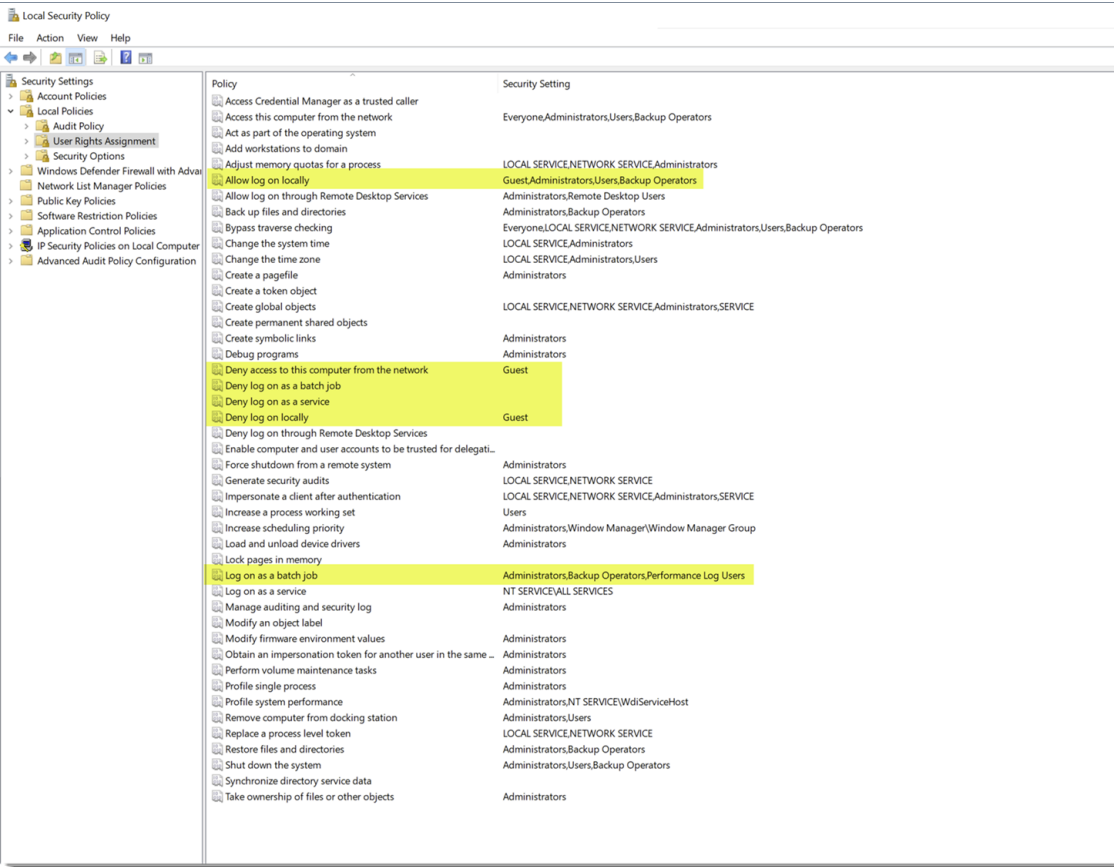
Investigate if you have a policy applying to your server that is denying the Backup Account from logging on. To check this, run the command “secpol.msc” on your Passwordstate server, and the server where you have your network share located, and investigate these options:
Troubleshooting Step #4:
Another reason this error may happen is due to the way we impersonate the backup account. As the Passwordstate website runs under the identity of Network Service by default, which is a built-in IIS account, we need to impersonate the backup account when performing tests, so it’s the backup account you have configured that effectively performs the backup.
There are three Microsoft values for this impersonation, and the default value is 2. You can change this impersonation type to either 4, or 9 using SQL Management Studio Tools, when connected to your Passwordstate database server.
To change the Impersonation value to 4, run the following SQL Script: (change values to 9 if 4 does not work)
SQL
Use Passwordstate
Update BackupSettings Set BackupDatabaseImpersonation = 4
Update BackupSettings Set BackupEncryptionKeysImpersonation = 4
Update BackupSettings Set BackupFilesImpersonation = 4
Update BackupSettings Set BackupTest1Impersonation = 4
Update BackupSettings Set BackupTest2Impersonation = 4
Update BackupSettings Set BackupTest3Impersonation = 4
Update BackupSettings Set BackupTest4Impersonation = 4
Update BackupSettings Set UIImpersonation = 4
Update BackupSettings Set ServiceImpersonation = 4
If neither of these impersonation values work, please revert the values back to the default values of 2.
If you still have issues running the tests, please contact Click Studio Support and send a screenshot of the test results for further analysis.
Troubleshooting Step #5:
If you find that the Passwordstate SQL database is not being backed up, either on a schedule or you notice an error when doing a test, please check the following settings:
- If your database resides on a separate server to where you have Passwordstate installed, ensure you have configured the “Database Location” setting on the backups page appropriately
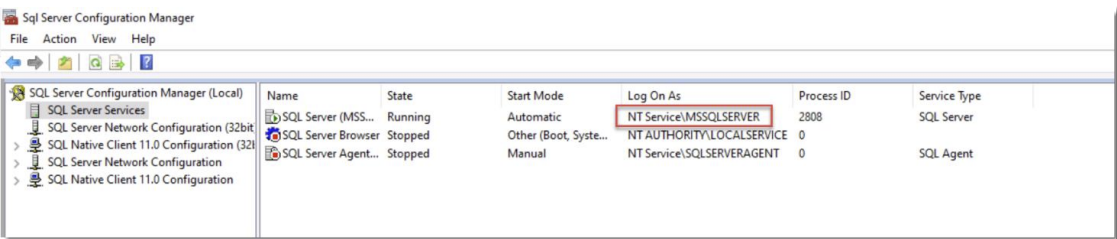
- If your SQL Services are configured to run under the identity of a custom account, then that account too will need access to your database, and network share. Unless you have a specific reason to run your services under a custom account, it may be easier to change the Log On As value back to the defaults, which can be seen in the screenshot below:
Backup File Naming Convention
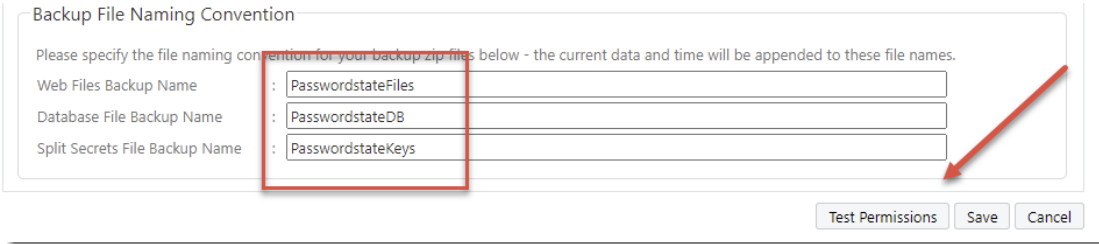
The last section of the settings page gives you control of what your zip files should be called. These values can be changed to anything you like. The current date and time of the backup operation will be appended to these file names below.
The Test Permissions button at the bottom of the page can be used to check all your settings are valid.
SQL Server Express Considerations
If you're using SQL Server Express on a different server to where you installed Passwordstate, please ensure the TCP/IP Protocol is enabled (use SQL Server Configuration Manager -> Protocols for SQLEXPRESS)
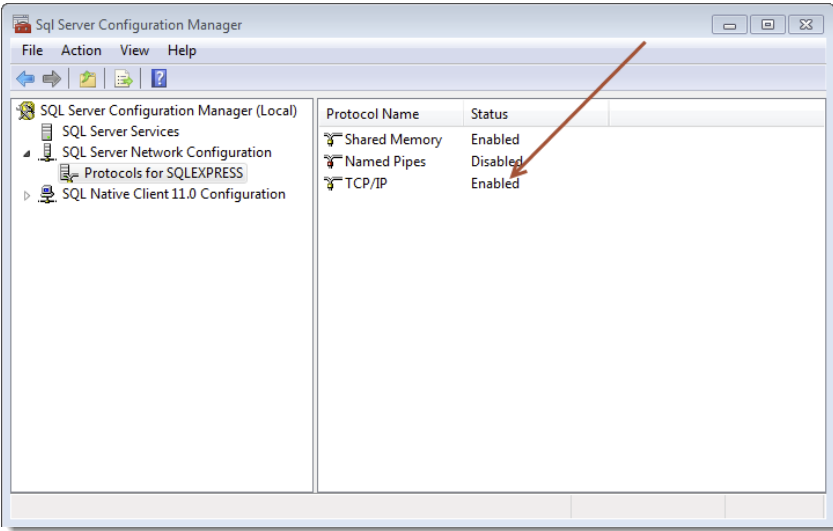
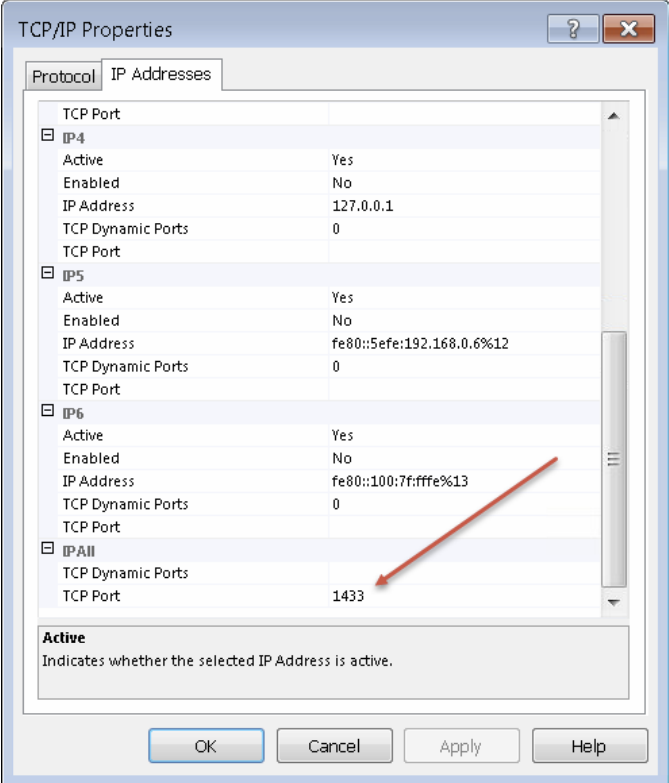
By default, SQL Express configures the TCP/IP Protocol to communicate on a dynamic port. If you have a firewall enabled on your database server, you may need to set a static port in the TCP/IP properties which will match your firewall rule. Restart the service again after configuring the option in the screenshot below:
Azure and Amazon SQL Databases
If you are using either an Azure or Amazon SQL database service to host your Passwordstate data, our backup process will not work with those services as they do not support the Powershell backup commands we use.
We’d recommend configuring those cloud services to back up your database, and then deselect the database backup option in Passwordstate.
Server Permission Matrix
So far, this document used an example of having your Passwordstate database hosted in SQL on a separate server to where you have Passwordstate installed. It also assumed you had your backup share on a third, separate server. Below is a matrix to consider if you have a slightly different setup to the above example.
| Database on Passwordstate Web Server | Share Permissions | Share Folder NTFS Permissions | Database Permissions |
|---|---|---|---|
| Local Share on Passwordstate Web Server | Change for Backup Account Change for SQL Server Service - Log On As Account | Modify for Backup Account | db_backupoperator Permissions in SQL Server for Backup Account |
| Local Folder on Passwordstate Web Server | Modify for Backup Account | db_backupoperator Permissions in SQL Server for Backup Account | |
| Remote Network Share | Change for Backup Account Change for SQL Server Host Name | Modify for Backup Account | db_backupoperator Permissions in SQL Server for Backup Account |
| Remote Network Share, or Local Share on Passwordstate Web Server | Change for Backup Account Change for SQL Server Host Name | Modify for Backup Account | db_backupoperator Permissions in SQL Server for Backup Account Backup Account in Remote Management Users Security Group PowerShell Remoting on SQL Server Host |