Account Unlock/Reset
After your account has been enrolled, unlocking or resetting your Active Directory account is a 3 step process.
Account Unlock/Reset - Step 1: Identify
Now that you have finished the enrollment process, in the event you have forgotten your domain password, or your account has been locked out, you can now use the portal to resolve this issue.
To access the portal, simply use your web browser on any computer, laptop or mobile device to access the Portal URL your IT Department has provided to you. It’s strongly recommended to bookmark this URL in your browser for future reference.
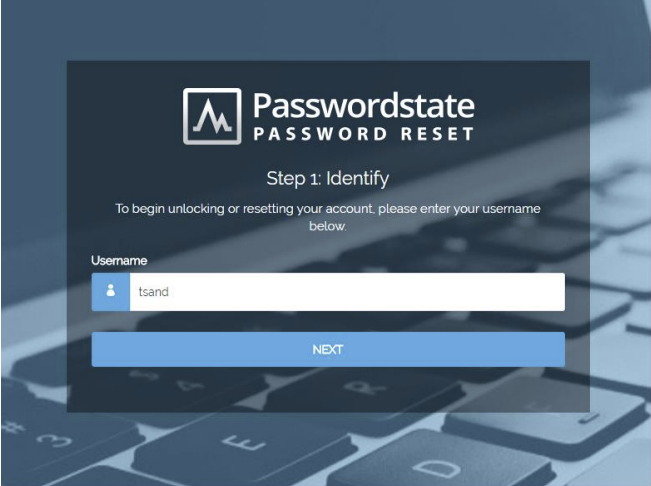
In Step 1, you’ll be asked to enter your domain username and click NEXT to continue:
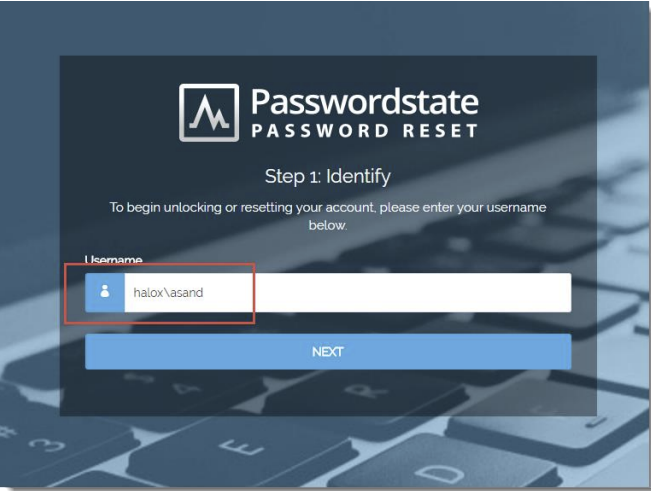
As in the Enrollment process, if there are duplicate usernames, you will be asked to prefix your username with your domain, as follows:
Account Unlock/Reset - Step 2: Verify
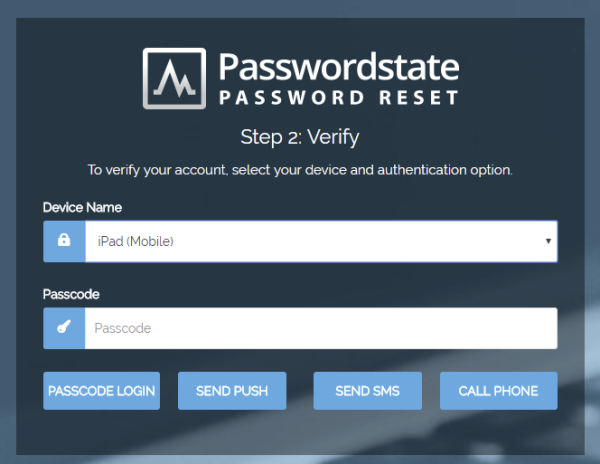
In Step 2, you’ll need to verify your identity (account) by entering in the correct information. The information required on this screen will be different depending on what Verification Policy your IT Department has assigned to your account.
Following are example screenshots of each of the 9 different Verification screens, of which only one will be assigned to your account:
Example 1: Duo Authentication
Example 2: Email Temporary PIN Code
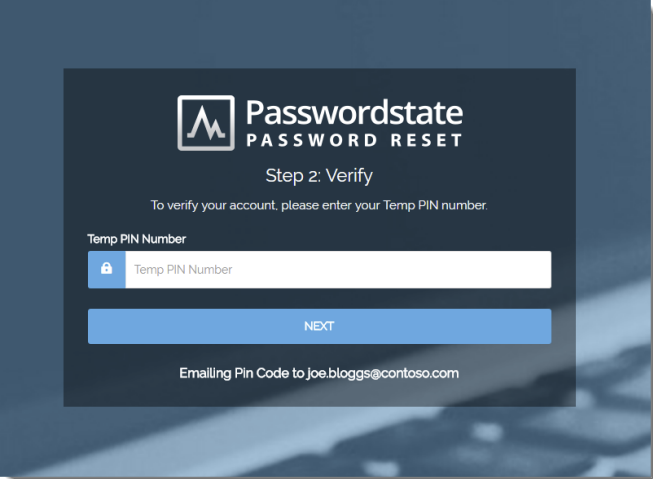
Example 3: Google Authenticator
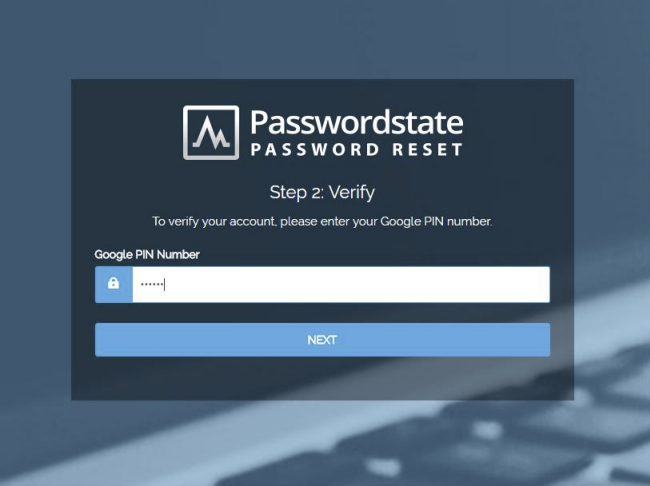
Example 4: One-Time Passwords (TOTP or HOTP)
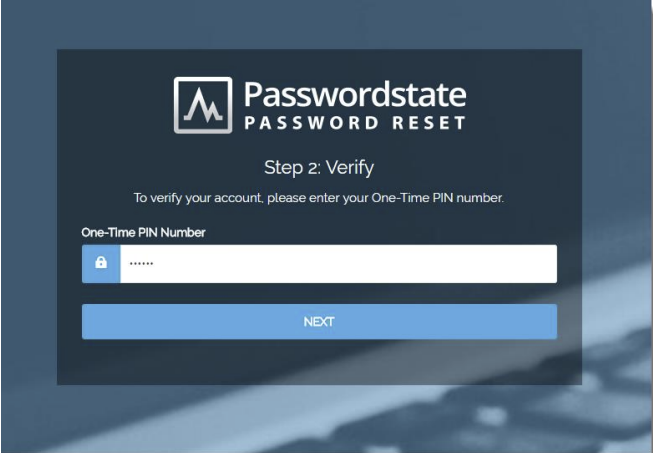
Example 5: PIN Number
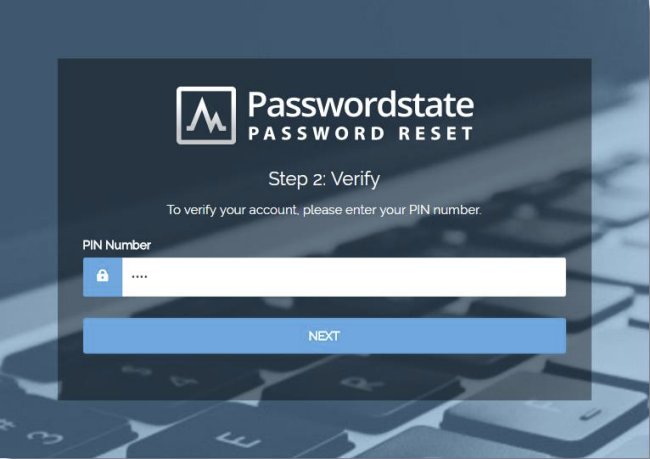
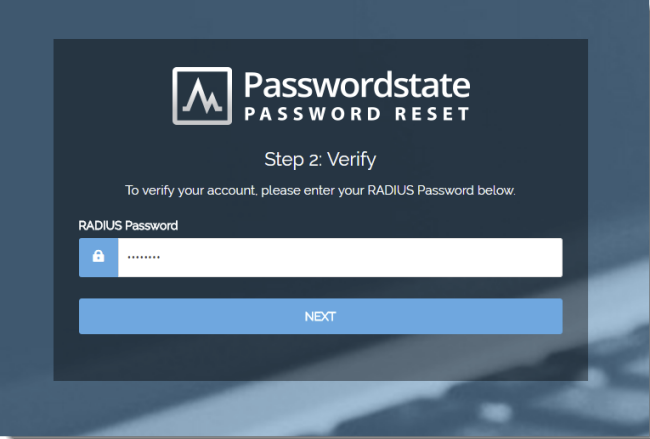
Example 6: RADIUS Authentication
Account Unlock/Reset - Step 3: Reset Password
If you’ve successfully verified your account in Step 2, you’ll now be able to reset your password to a new value, or unlock your account. Simply enter the new password, confirm the password, and click RESET:
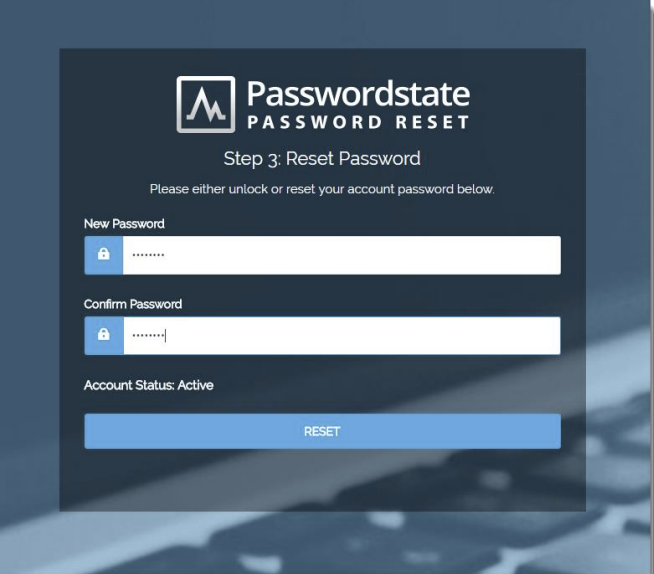
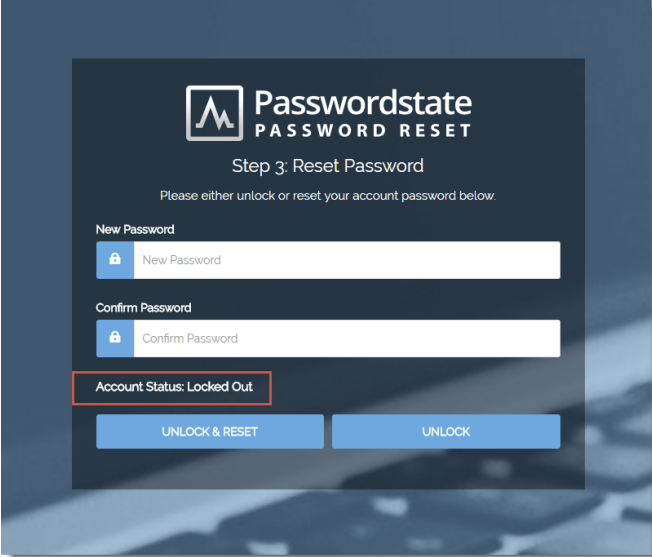
If your account is currently locked, you will be presented with a slightly different screen. In this scenario, you are able to unlock your account as well as changing your password, or just simply unlock your account.
The below screenshot shows your account status message, and different actions you can take.