Enrolling
To use the Self Service Password Reset portal, you must first enroll your account, using the instructions below.
It is possible your Passwordstate Security Administrator may also have "auto-enrolled" your account.
Enrolling – Step 1: Authenticate
As a once off process, you are required to enroll in the Password Reset Portal. To do this, you will need to access the enrollment web URL that has been provided to you from your IT department.
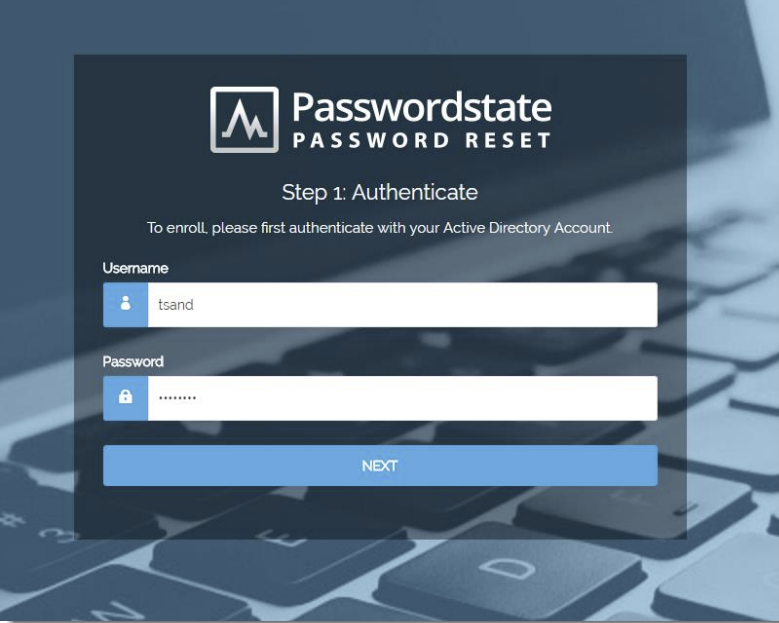
The first screen called Step 1: Authenticate requires you to enter your domain username and current password, and click NEXT to continue:
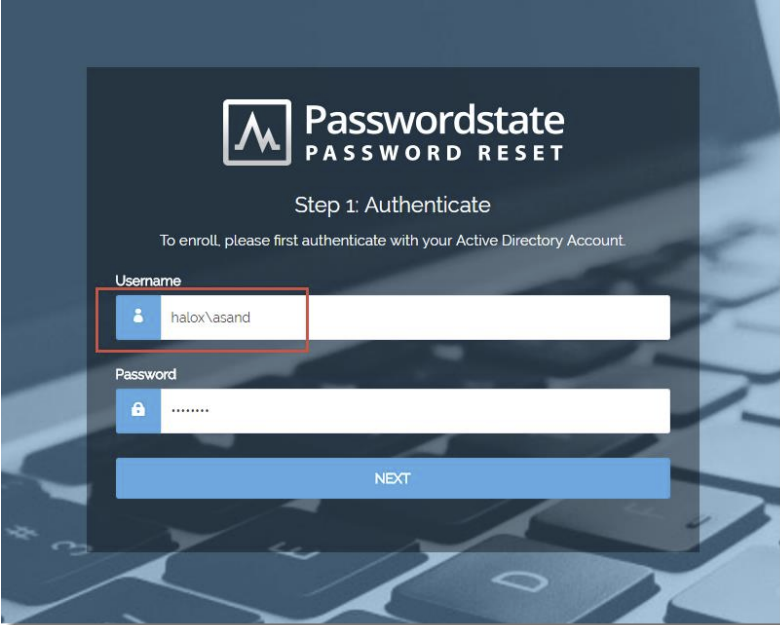
If your organization has multiple domains, and there is a duplicate user account in both domains, you will be required to prefix your username with the correct domain name. If you forget to prefix it, you will be given a warning message asking to enter the domain:
Enrolling – Step 2: Enrollment Settings
Upon successful authentication in Step 1, you will now be asked to set your enrollment settings in Step 2 of the enrollment process.
The information you need to confirm on this screen will vary, depending on the Verification Policy your IT Department has specified for your account.
The information you set here will be used at a later stage to reset or unlock your account. Once you click SAVE, the enrollment process is complete.
Following are example screenshots of each of the 9 different Enrollment screens, of which only one will be assigned to your account:
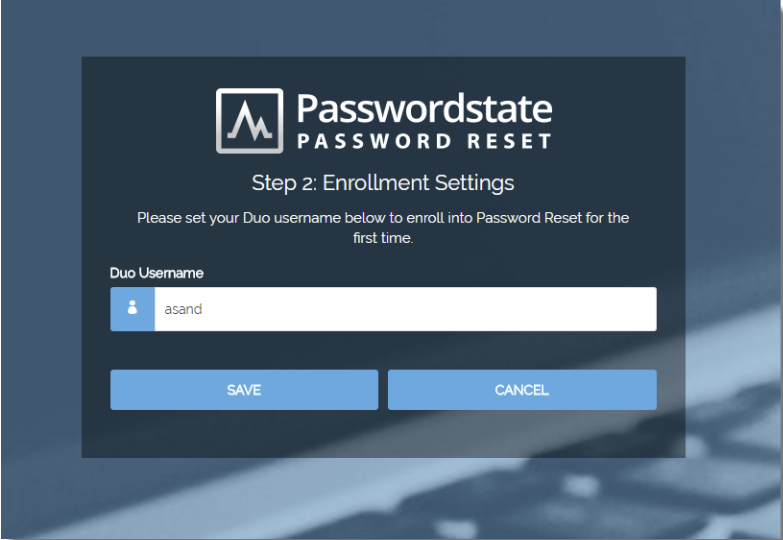
Example 1: Duo Authentication
Example 2: Email Temporary PIN Code
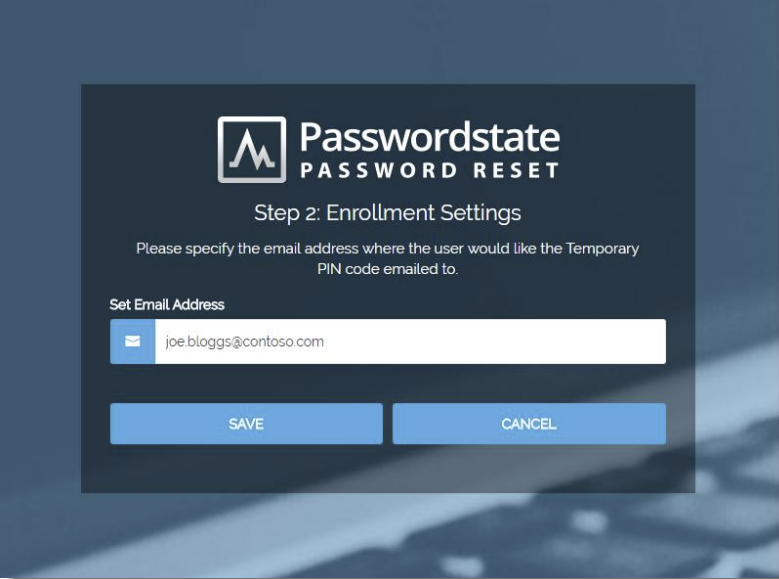
Example 3: Google Authenticator
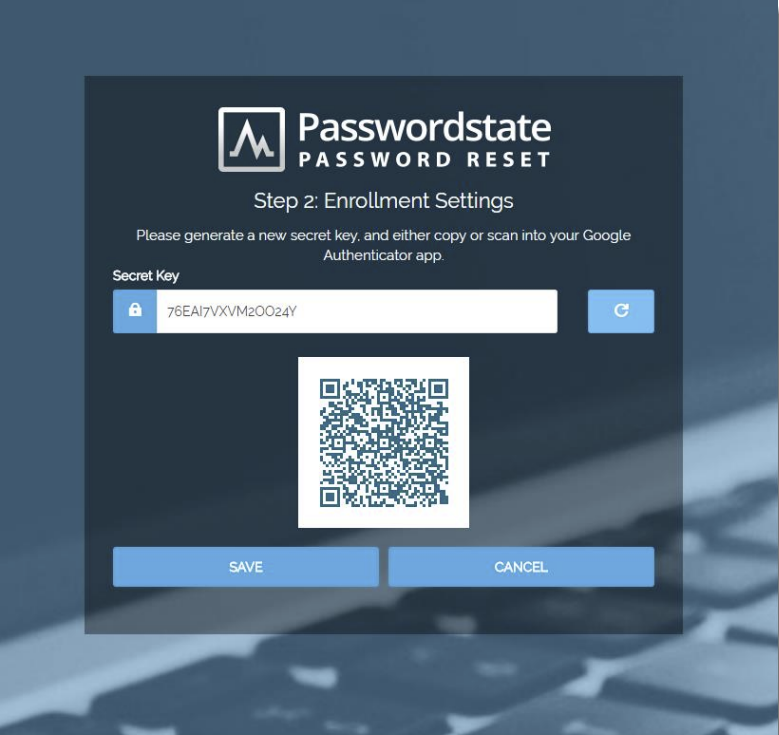
Example 4: One-Time Passwords (TOTP or HOTP)
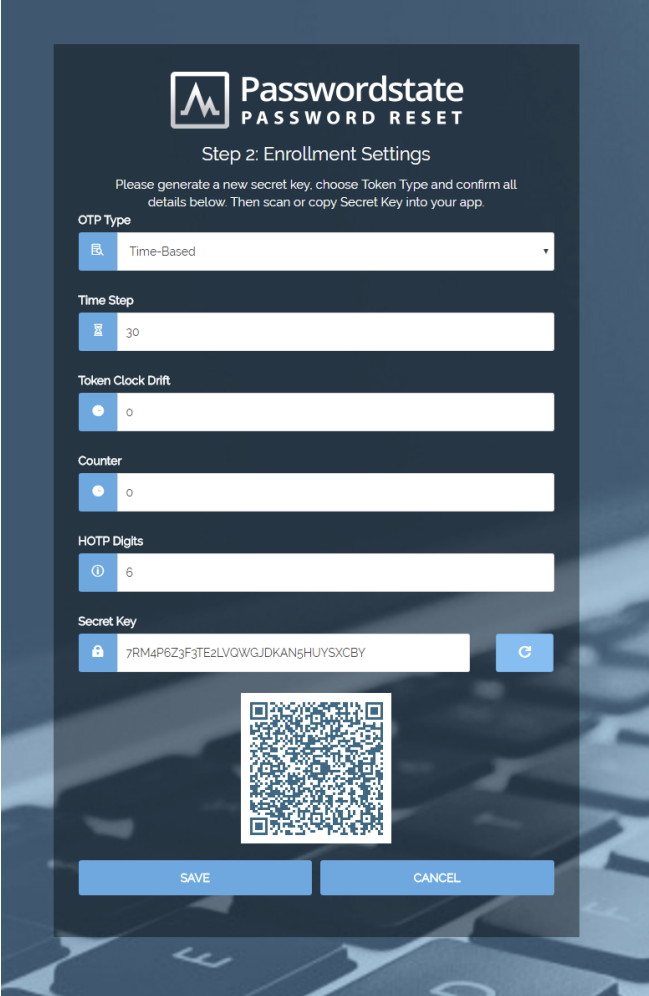
Example 5: PIN Number
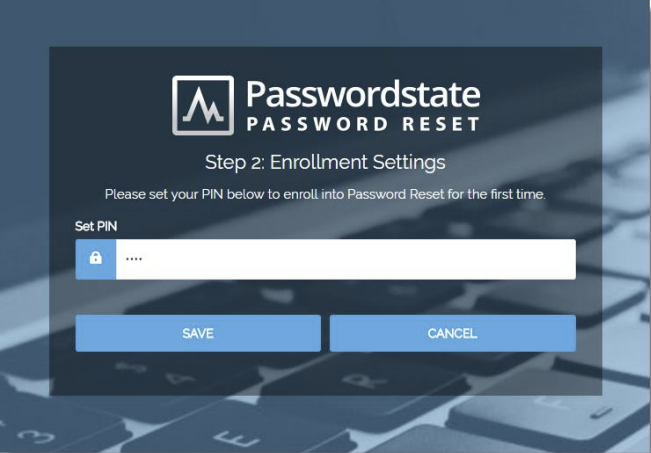
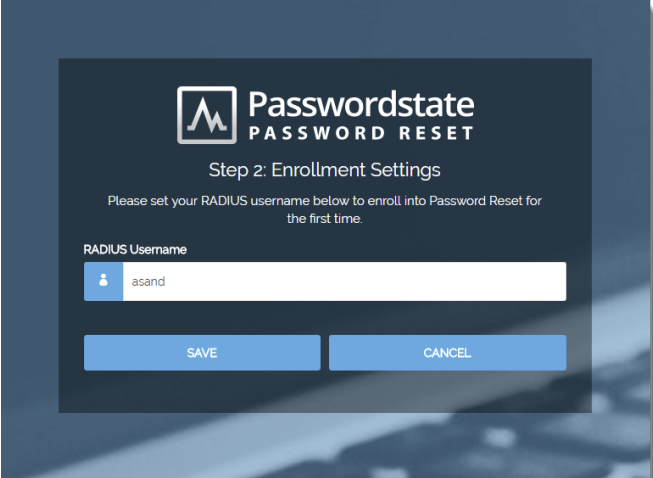
Example 6: RADIUS Authentication