KB: Changing the Passwordstate URL
To change to Passwordstate URL, there are a few things that are required to be completed:
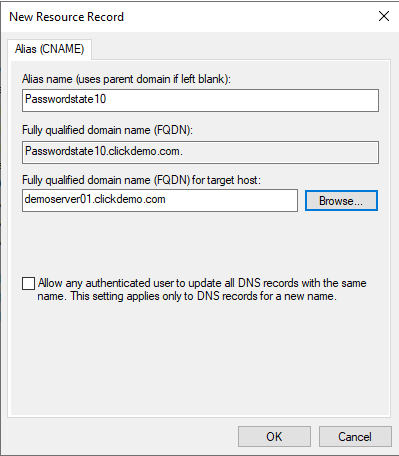
- Ensure you have a functioning DNS entry for the new URL as per below screenshot:
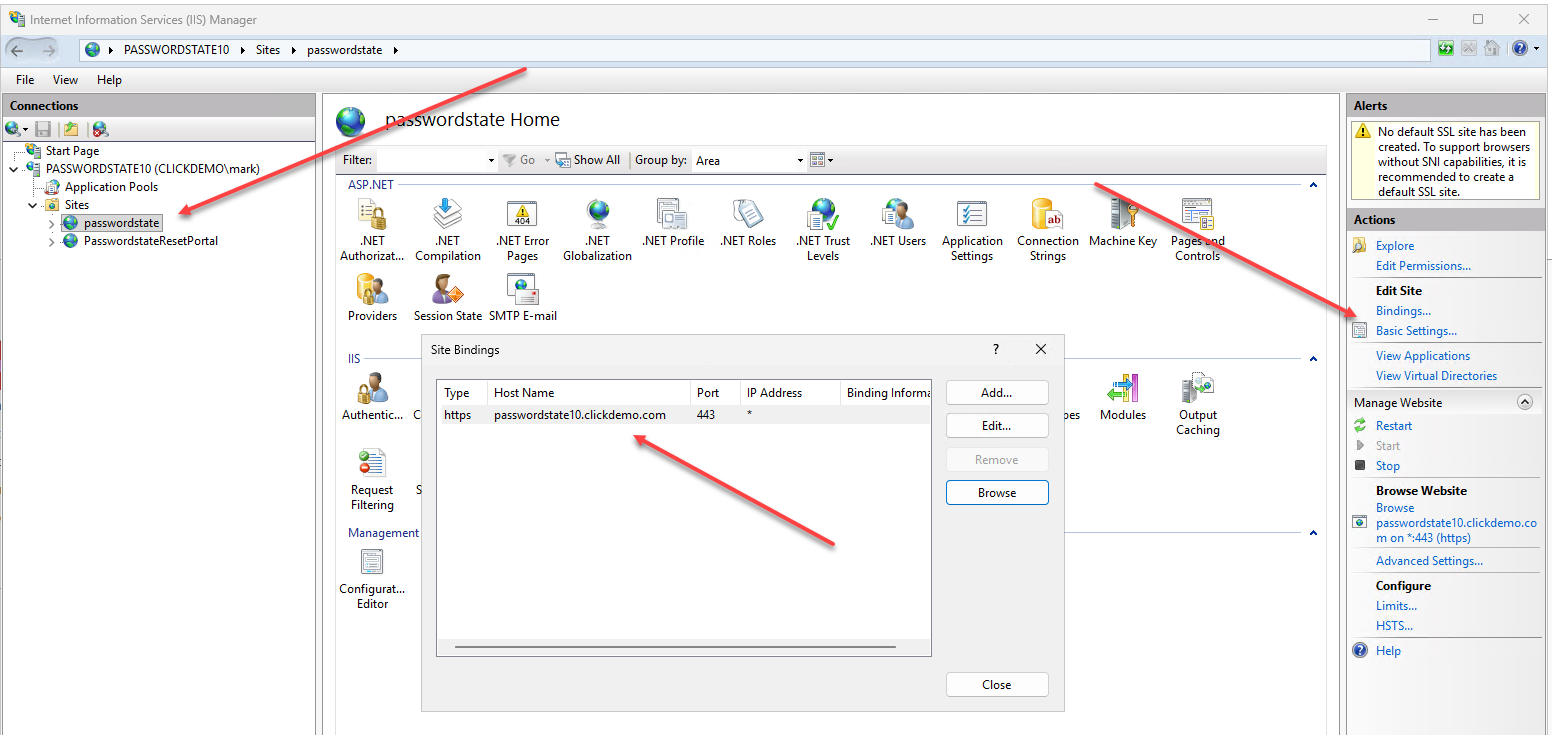
- On your Web server, modify the bindings in IIS like screenshot below to match the URL you set in DNS. Using port 443 means you don't have to append the port number to the end of your URL, which makes for an easier URL to remember"
- If you are using the Self-Signed Certificate that Passwordstate installs, you will need to create a new one with Powershell, using the below instructions.
If you would prefer to set up an internal Certificate Authority, and generate a more secure certificate to use on your Passwordstate website, please see this KB Article:How to set up a internal Certificate Authority
This KB Article describes how to generate a certificate from an internal Certificate Authority: Generate a new Certificate from Active Directory Certificate Authority
Creating a new Self Signed Certificate:
On your web server, open Powershell ISE "As Administrator"
Ensure Powershell 5.0 is installed and being used. Type $host into console and run the script to see what version you are running, and if required, download PowerShell 5 from Microsft's web site.
Copy the following code into your Powershell ISE console, and change the URL in the second line to be your new URL - run the script and it will create a new certificate for you.
powershell
# Begin script
$URL = "https://passwordstate10.clickdemo.com/"

$StartDate = '01/01/' + (Get-Date).Year
$EndDate = '01/01/' + (Get-Date).AddYears(5).Year
$cert = New-SelfSignedCertificate -DnsName $URL -CertStoreLocation Cert:\LocalMachine\My -FriendlyName $URL -NotBefore $StartDate -NotAfter $EndDate

$rootStore = New-Object System.Security.Cryptography.X509Certificates.X509Store -ArgumentList Root, LocalMachine
$rootStore.Open("MaxAllowed")
$rootStore.Add($cert)
$rootStore.Close()
Now in IIS, go to the bindings for the site, double-click on the https binding, and select the new certificate you just created from the drop-down list
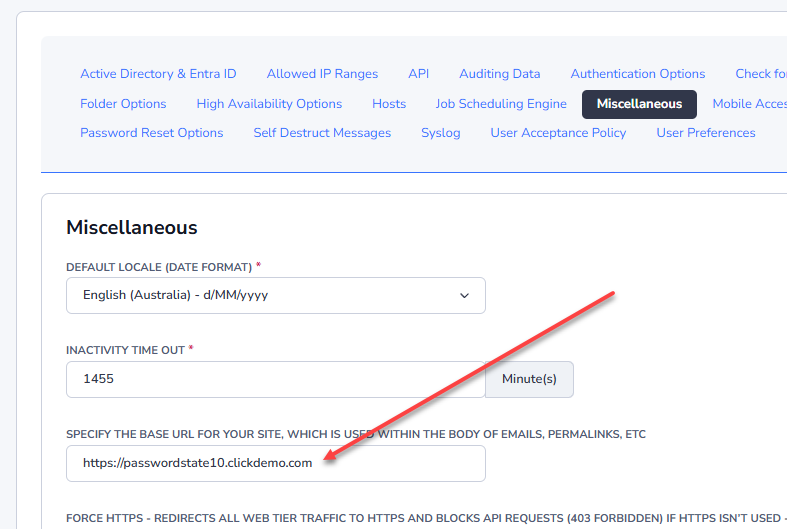
Back in Passwordstate, go to the screen Administration -> System Settings -> Miscellaneous tab, and update the "Specify the Base URL used in any emails generated by Passwordstate" field you see here with the new URL so all the links in the emails sent out are accurate, and various other functionality works as well.