
Configuring Passwordstate for First Time Use
Introduction - Now that Passwordstate is installed, you can direct your browser to the URL you specified during the initial Windows Installer.
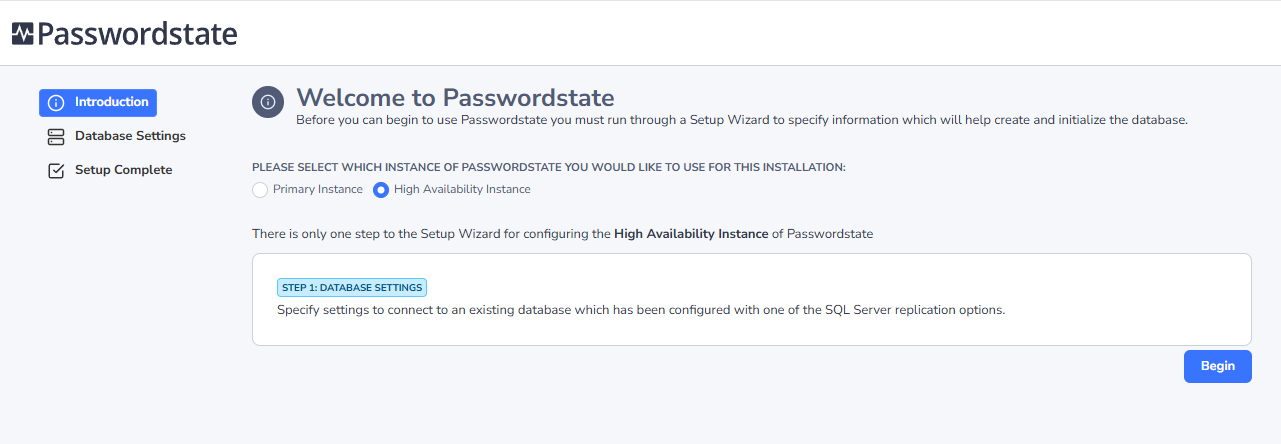
Click on the ‘High availability Instance’ option and you will be presented with the following screen.
Database Settings – Connect to existing database – On this screen you will need to specify database settings to connect to your Passwordstate database. Please consider the following:
- You can either specify database connection settings to point directly to your database server, or to an SQL Listener if using Basic or Always On Availability Groups
- If you are wanting to connect using a Managed Service Account, you must first configure the Passwordstate IIS Application Pools to run under the identity of this MSA account
- You will need to copy across the Secret1 & Secret2 values from your primary site’s web.config file
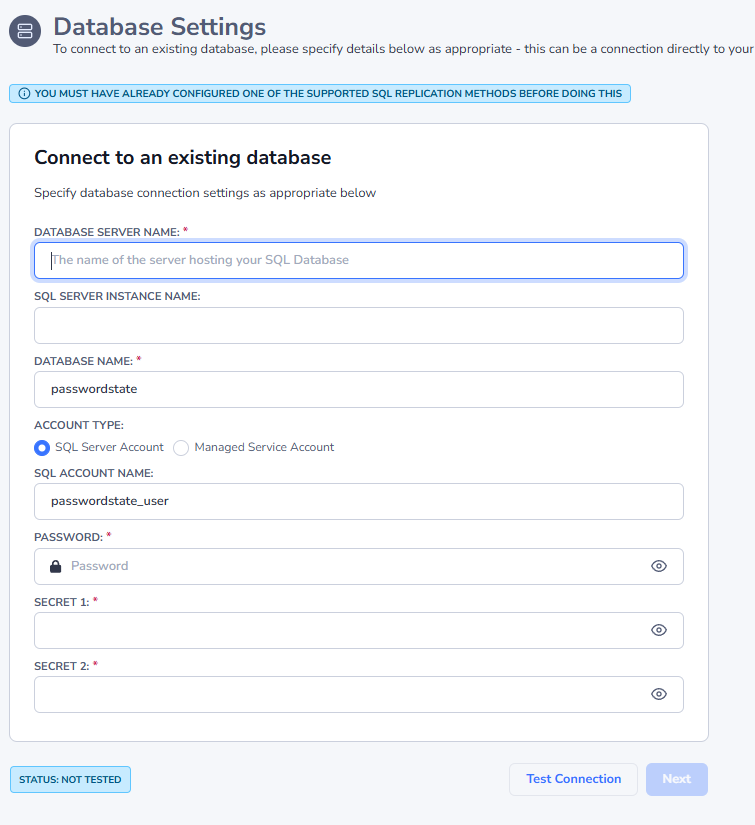
Once all the correct details have been specified, use the 'Test Connection' button, and then the 'Next' button.