
Passwordstate Database Restore
To restore a copy of your database, please follow these instructions:
- Start SQL Server Management Studio
- Right click on 'Databases' and select 'Restore Database...'
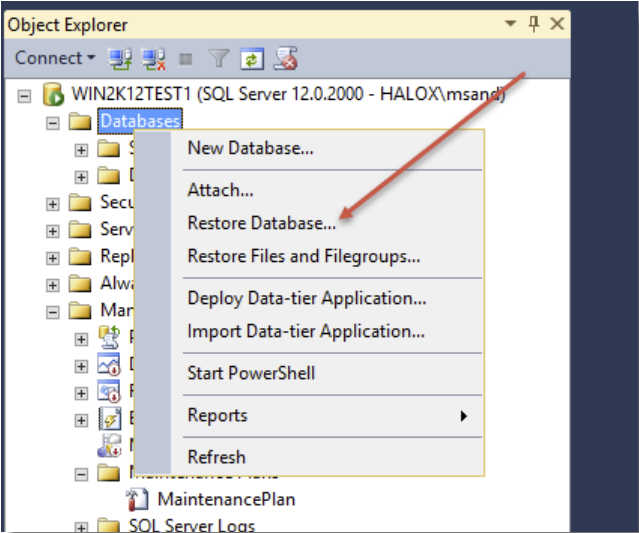 )
)
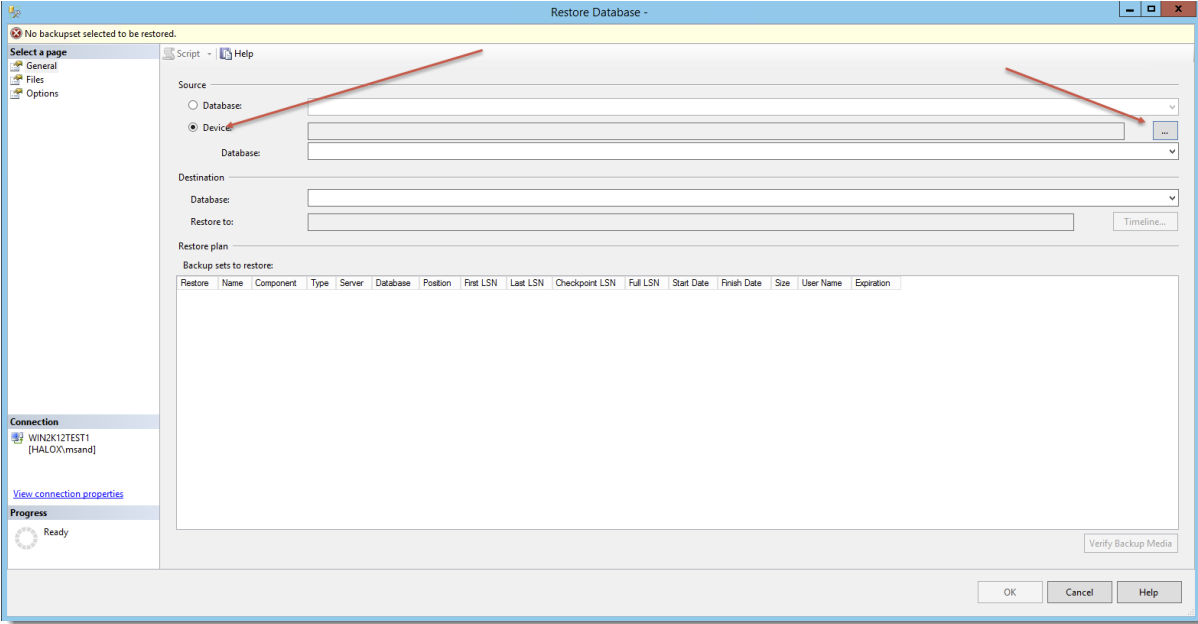
- Click on 'Device', and then on the Ellipsis button so you can select your database backup file
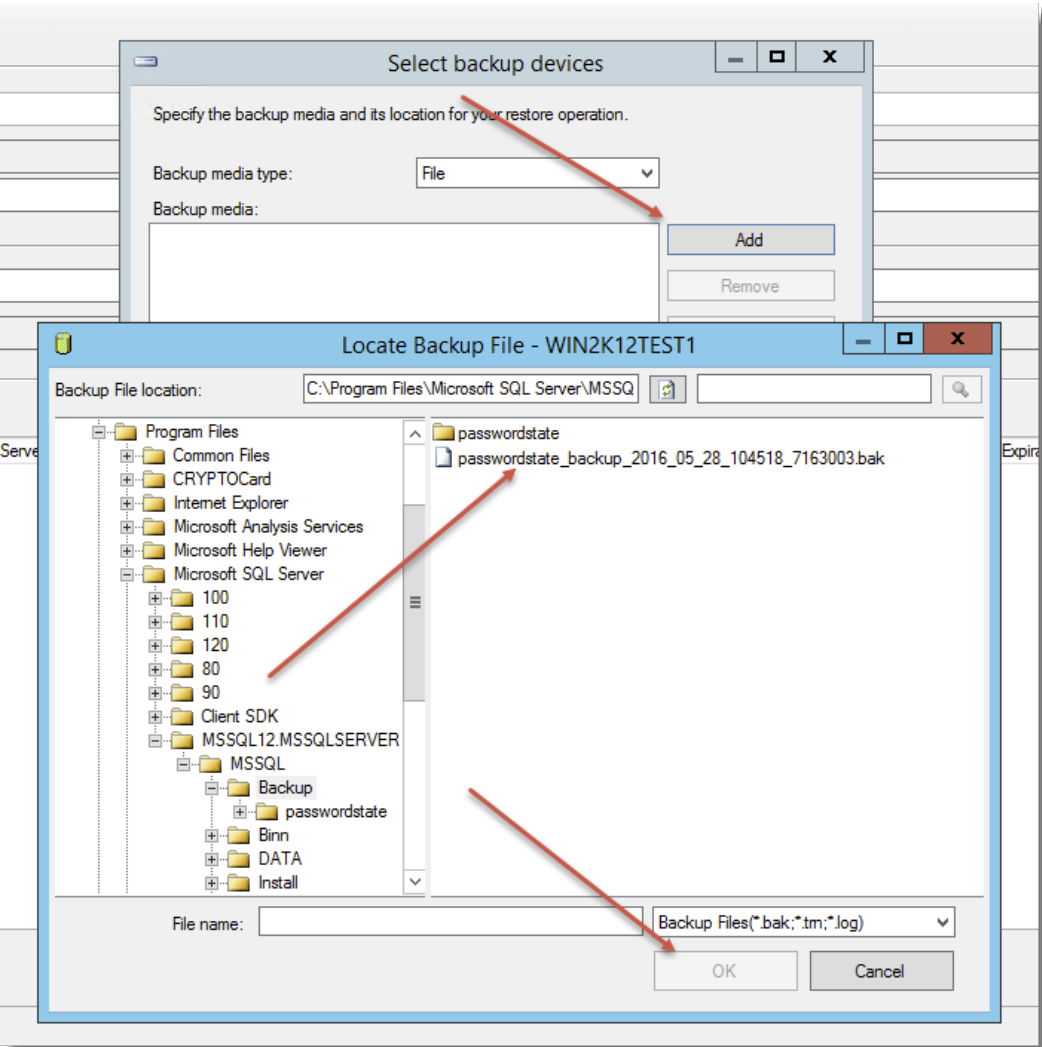
- Click on the 'Add' button and browse and select the location of your latest .bak file
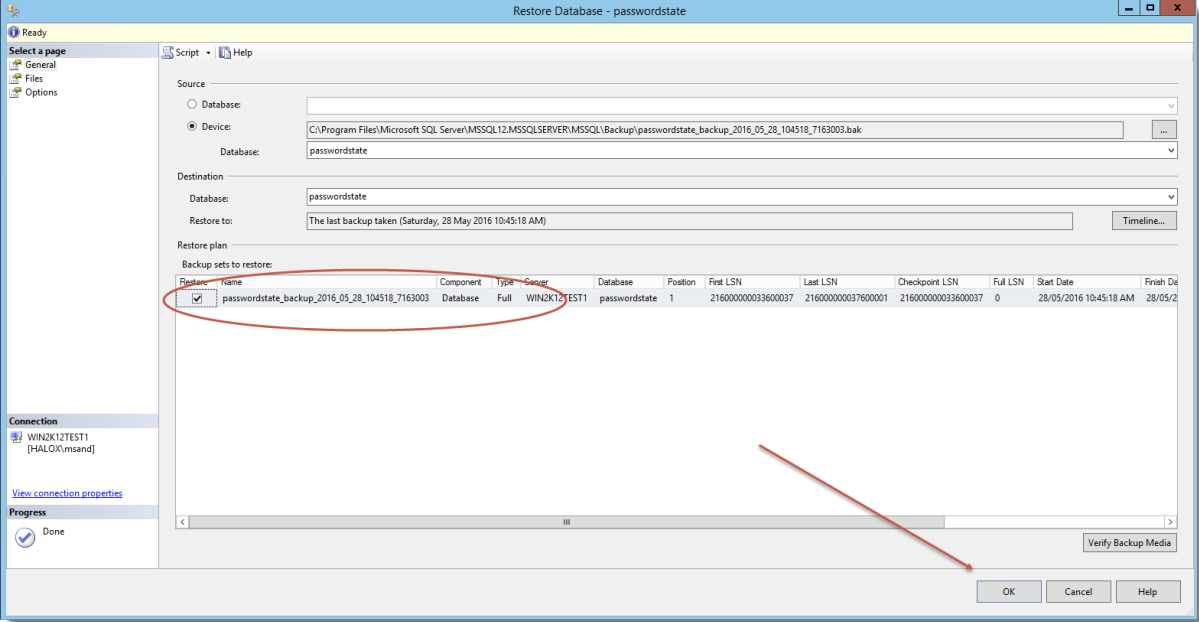
- Once the database is selected as per the screenshot below, click the 'OK' button to restore it
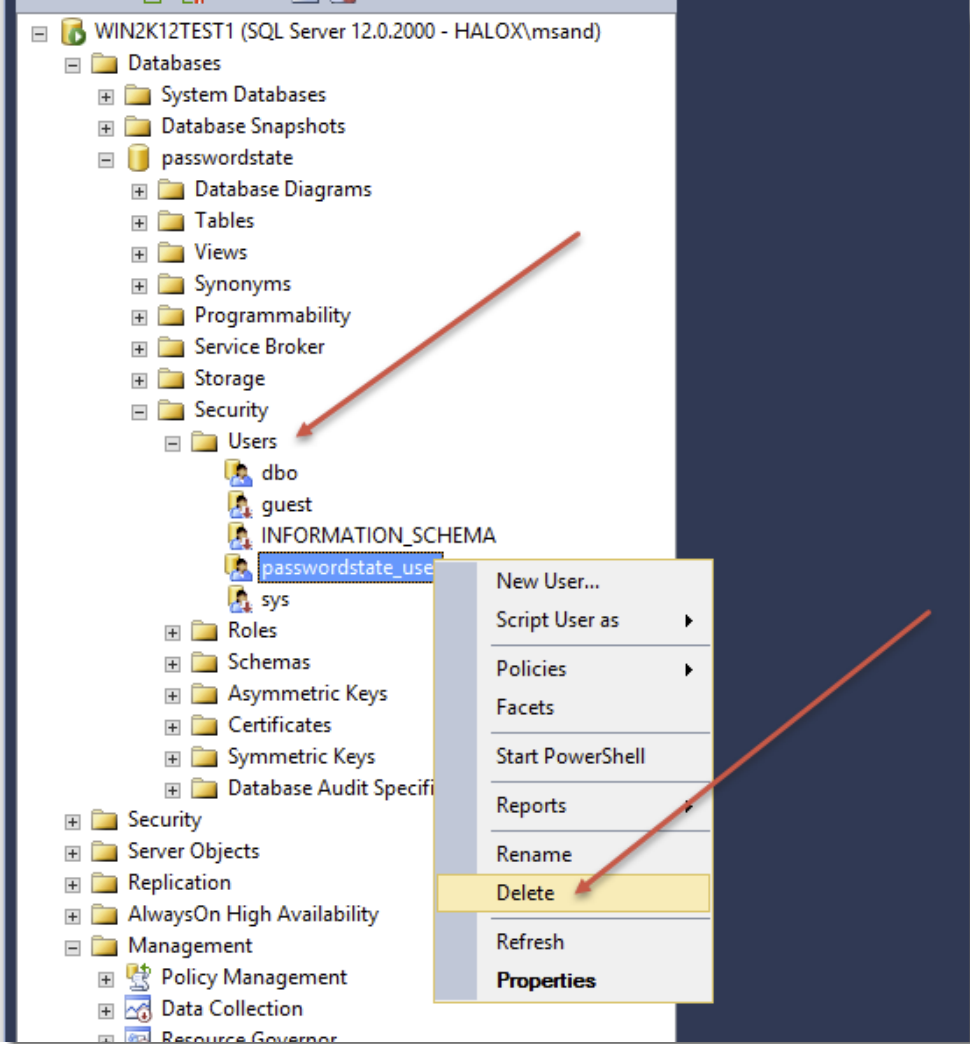
- Now expand the Security -> Users tree within the Passwordstate database, and delete the 'passwordstate_user' SQL Account
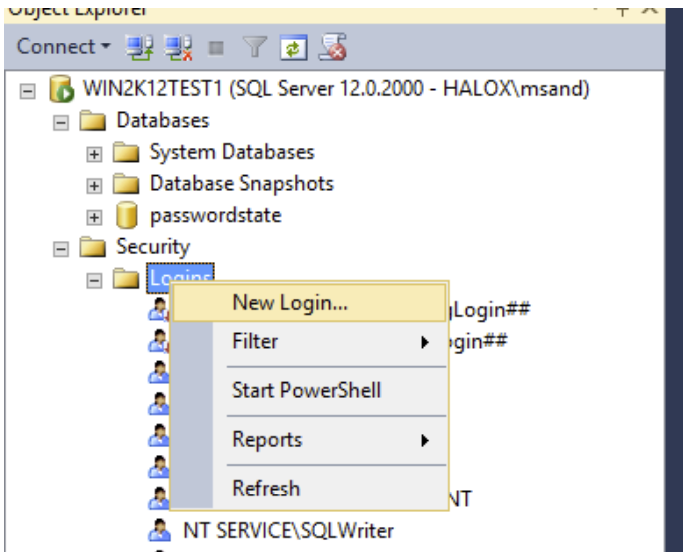
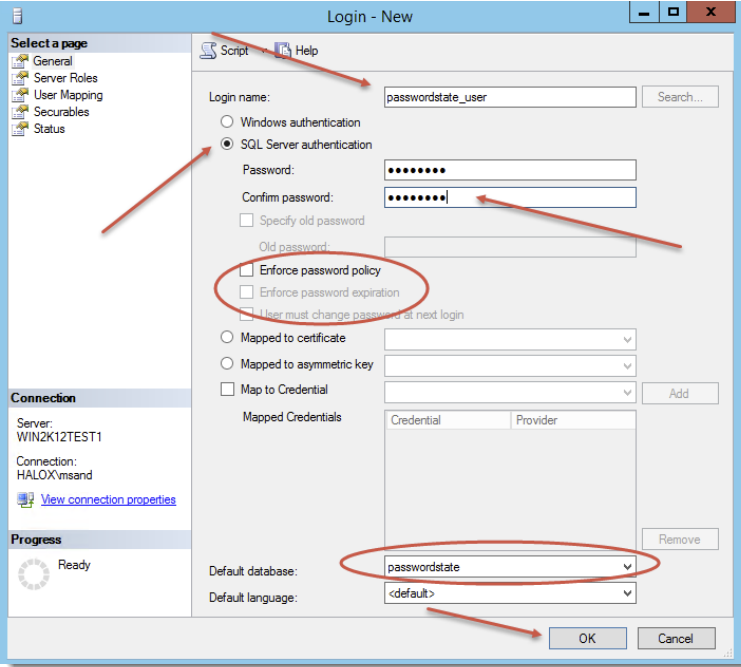
- Now expand the Security -> Logins tree. If you do not see the 'passwordstate_user' SQL Account, follow the next set of instructions for creating it. If it does exist, simply skip to the step below where we apply permissions for this account to the Passwordstate database
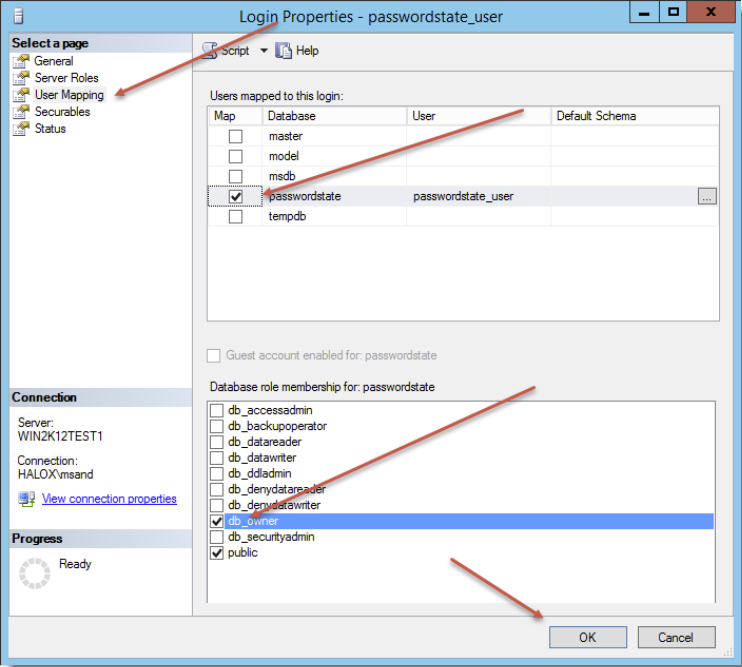
- Now select the 'Properties' menu option for the account
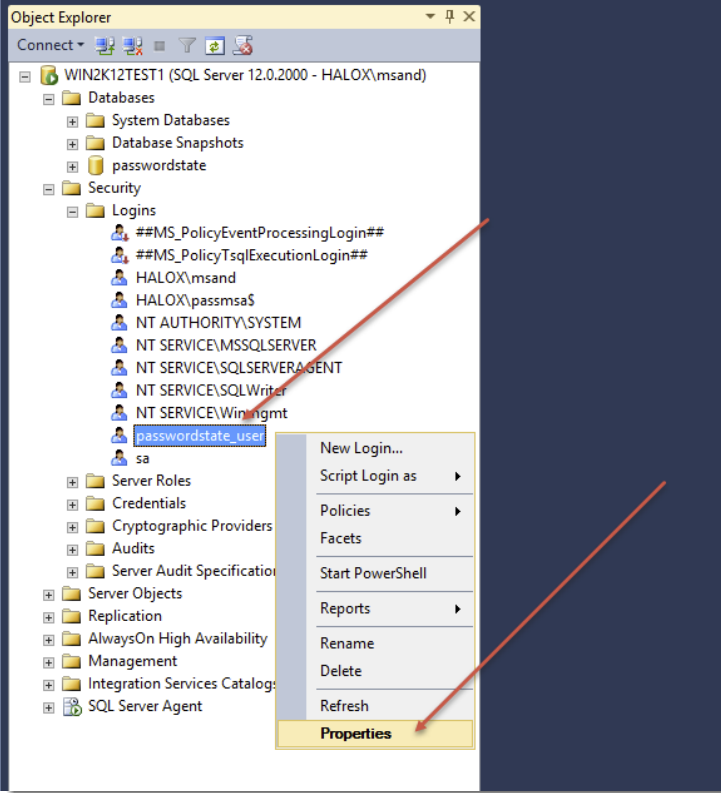
- And select db_owner rights to the Passwordstate database
This is all that's required for restoring your database. As it's likely the password for the account passwordstate_user has changed, you may need to update the value of this password in the database connection string in the web.config file. To do this, simply edit the web.config file as an Administrator, and modify the 'Password' value you see in the screenshot below
