
Troubleshooting
Issue 1
When encrypting or decrypting files, and you receive an error in the command prompt stating the following:
Failed to decrypt using provider 'RsaProtectedConfigurationProvider'. Error message from the provider: The RSA key container could not be opened. (c:\inetpub\passwordstate\web.config line 10)
Fix: You must run the command prompt as administrator when performing the encryption/decryption tasks. Ie, right-click the command prompt shortcut, and select “Run as Administrator”
Issue 2
If you try to decrypt a web.config file on any other machine that it was originally encrypted on, then you will get the following error:
Failed to decrypt using provider 'RsaProtectedConfigurationProvider'. Error message from the provider: Error occurred while decoding OAEP padding. (c:\inetpub\passwordstate\web.config line10)
Fix: You must decrypt the file on the same server where it was encrypted. If this isn’t possible due to a server failure, you will need to rebuild the web.config file by following the section “Rebuilding the Web.config File” in the document Passwordstate Disaster Recovery.
Issue 3
If you have encrypted your files, but you are still getting warnings when logging into Passwordstate stating that your web.config files are not encrypted like the following example:
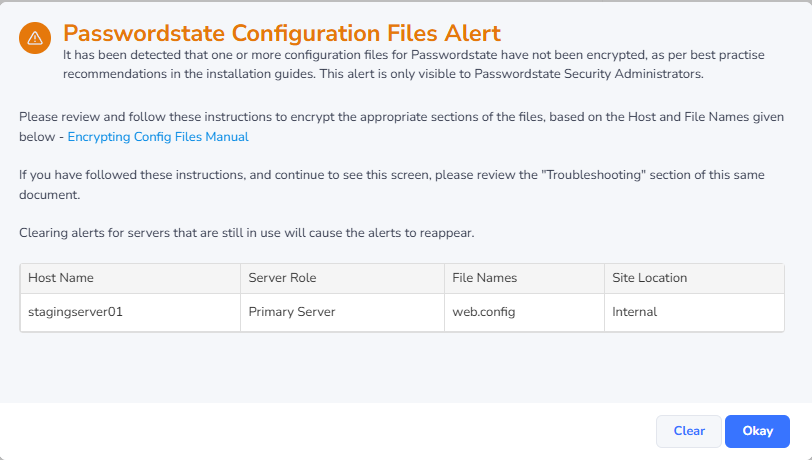
Fix:
There are several suggestions below that can help with this:
Restart the Passwordstate Windows Service, and this should query the files again to see if they are encrypted. If you need to start it, wait one minute and then try logging in again.
Check the Application Event logs on your server and look for any errors related to the Passwordstate Windows Service. If you find any errors and are unsure what they mean, forward to Click Studios Support for analysis
Check the identity of the account that your Passwordstate Windows Service runs under. By default, it runs under an account called “Local System”. Also check your Application Pools identities in IIS, which by default run under and account called “Network Service”. If your Services or Application Pools are running under any other account, whether that be an MSA account, or a privileged Active Directory account, ensure that they have read permissions to the C:\ProgramData\Microsoft\Crypto\RSA\MachineKeys folder on the server.
Ensure both the appSettings and connectionStrings sections of the web.config file are encrypted. If only the connectionStrings section is encrypted, but the appSettings section is not, then the pop-up warning will still alert you when you log into Passwordstate.
If the pop-up warning is related to your High Availability site and it is running in Passive mode (read only), ensure the Base URL under Administration -> System Settings -> Miscellaneous page is correct. Do an open port test to this URL from your High Availability web server to ensure that URL is reachable.
If the warning is for the High Availability website and you have that site running in Passive mode, check the API on the primary website is functioning correctly. You can test this by logging into that primary site, and try generating a random password from the password generator feature up the top right-hand corner of your page. If a random password generates, then the API is working.
On the Administration -> Authorized Web Servers page, ensure you have only one server that has the Primary Server Role. You should have only one server on this page that has the role. If you don’t have any servers with that role, edit the appropriate server and assign the role to it, and then restart the Passwordstate Windows Services on that server
If any of the Host Names listed are no longer in use, you can clear the alerts by using SQL Server Management Studio, and executing the commands below. Please note that if the Host is still in use, the alert will come back if you have not successfully encrypted the appropriate sections of the file.
SQLUSE Passwordstate TRUNCATE TABLE ConfigAlerts
Notes:
- The Passwordstate Service will check the web.config files to see if they are encrypted each time they are started, or they will automatically check once per day
- If this troubleshooting section does not help, please log a support call with Click Studios who will do a number of checks on your system. Make sure you mention which files are being reported as not being encrypted: https://www.clickstudios.com.au/support.aspx