Input/Output Options
In addition to providing fields and their values in a request, you may also specify options to control how your request is interpreted and how the response is generated.
For GET requests, you can specify options in the URL parameters to return data in either JSON or XML format.
format options - JSON or XML (JSON is the default format type if none are specified as a URL parameter)
Important - You must specify the ContentType correctly for the formatted data you are inputting, otherwise the API call will fail.
Boolean Fields - Boolean fields must be specified in the lowercase format i.e. true and false, not True and False.
Important JSON Note: If you are passing JSON data in a HTTP POST or PUT, then any backslashes need to be double-escaped i.e. Domain\UserName.
Powershell
# Powershell Request (GET - Retrieving Data)
$PasswordstateUrl = 'https://passwordstate/api/passwordlists/<PasswordListID>?format=<json or xml>'
Invoke-Restmethod -Method Get -Uri $PasswordstateUrl -Header @{ "APIKey" = "<apikey>" }

# Powershell Options (Append after -Method Get)
1. Display console output in Json format: | ConvertTo-Json
2. Pipe console output to a file: | Out-File c:\temp\output.txt
3. Pipe console output in Json format to a file: -OutFile c:\temp\output.json
Json
# Powershell Request (PUT - Updating Data)
$jsonData = '
{
    "PasswordID":"46411",
    "Password":"JENN-ZHn#3+A^yc"
}
'

$PasswordstateUrl = 'https://passwordstate/api/passwords/'
Invoke-Restmethod -Method Put -Uri $PasswordstateUrl -ContentType "application/json" -Body $jsonData -Header @{ "APIKey" = "<apikey>" }
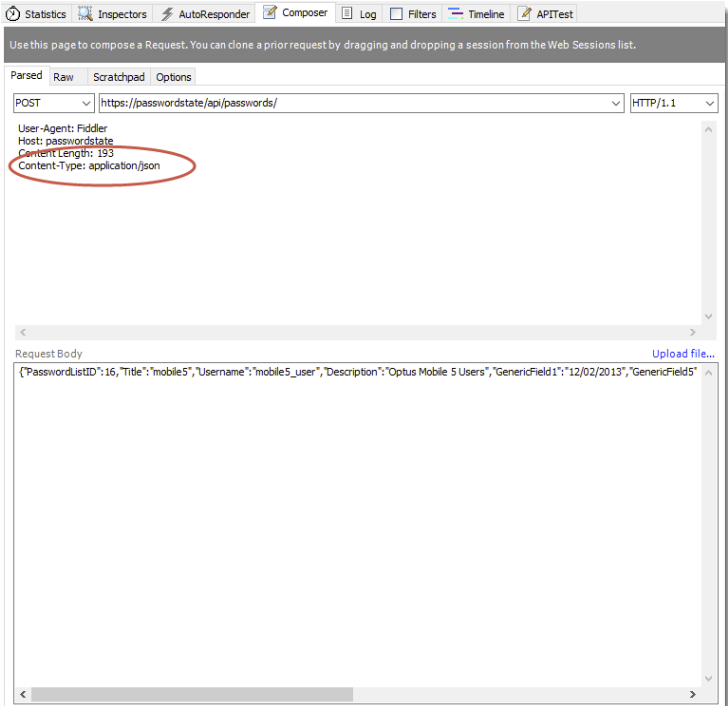
ContentType Example with Fiddler
The following screenshot is an example, using Fiddler, of how you specify a ContentType for your data when Posting data to the API.
The text is included here for your convenience so you can cut and paste if required: Content-Type: application/json