
KB: How to encrypt the certificate password for use with the Browser Based Gateway
Issue:
You have installed the Browser Based Gateway on your Passwordstate web server, but the Passwordstate-Gateway Service will not start. Part of the installation process is to export the Passwordstate certificate to a password protected pfx file, and then that password is encrypted and inserted into the gateway.conf file. If this encrypted password is missing or incorrect, then the service will not start.
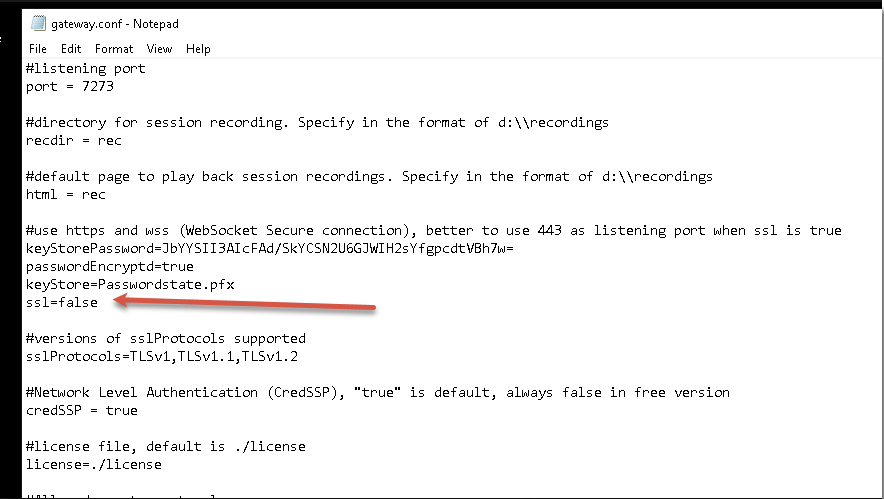
One way to test this is the issue is to set the SSL value to false, as per below screenshot, and then try starting the service again. If the service starts then this indicates a problem with the certificate. Change the SSL value back to true after this test.
To fix this, follow these steps:
Export the certificate by following this section of the document: Exporting Certificate From Passwordstate Server
Confirm the exported certificate is called Passwordstate.pfx and copy it into your c:\inetpub\passwordstate\hosts\gateway folder, overwriting the existing certificate if it exists
Run the following PowerShell script when logged into your web server, and set the password as appropriate - in this example, it's set to Welcome123
Powershell
cd C:\inetpub\Passwordstate\hosts\gateway
java.exe -cp SparkGateway.jar com.toremote.gateway.Encryption Welcome123 -q
This will give an output as per below screenshot:
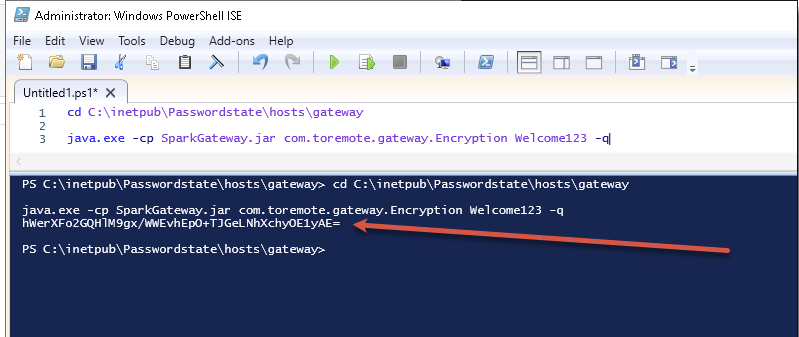
- Copy this value and place it into your gateway.conf file, as per below screenshot, and save this change
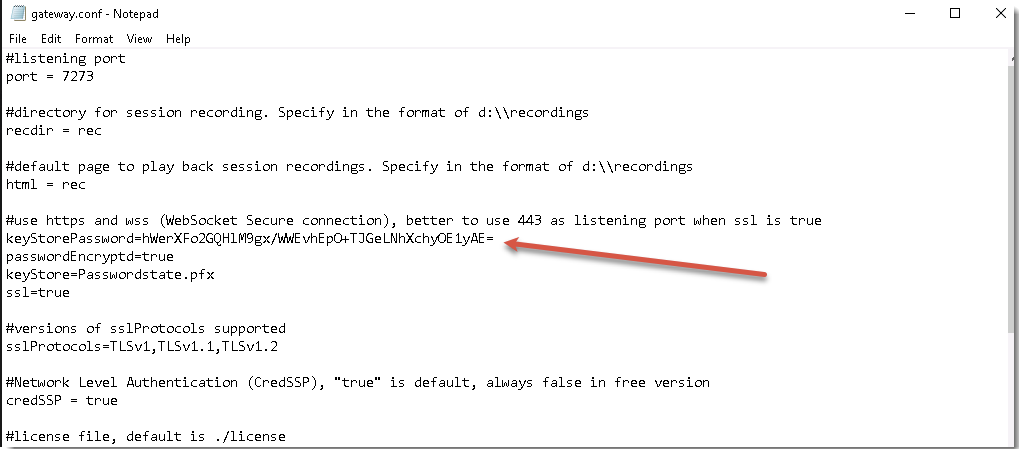
- Now try to start the Passwordstate-Gateway service again.
If this still does not help, please contact Click Studios support.