
KB: Enabling verbose logging for the Browser Based Remote Session Launcher
Issue:
If you are having issues establishing connections to remote devices, it's possible that the Remote Session Launcher will log a error in the Passwordstate Error Console.
If looking in the error console does not give you enough information to troubleshoot the issue, you can try enabling verbose logging for the Browser Based Launcher by following this process: Error Codes for the Browser Based Remote Session Launcher
On the server where you have the gateway installed, which by default it comes pre-installed in your Passwordstate website, run notepad as Administrator
Open the
c:\inetpub\passwordstate\hosts\gateway\gateway.conffile and change the following lines to look like this:
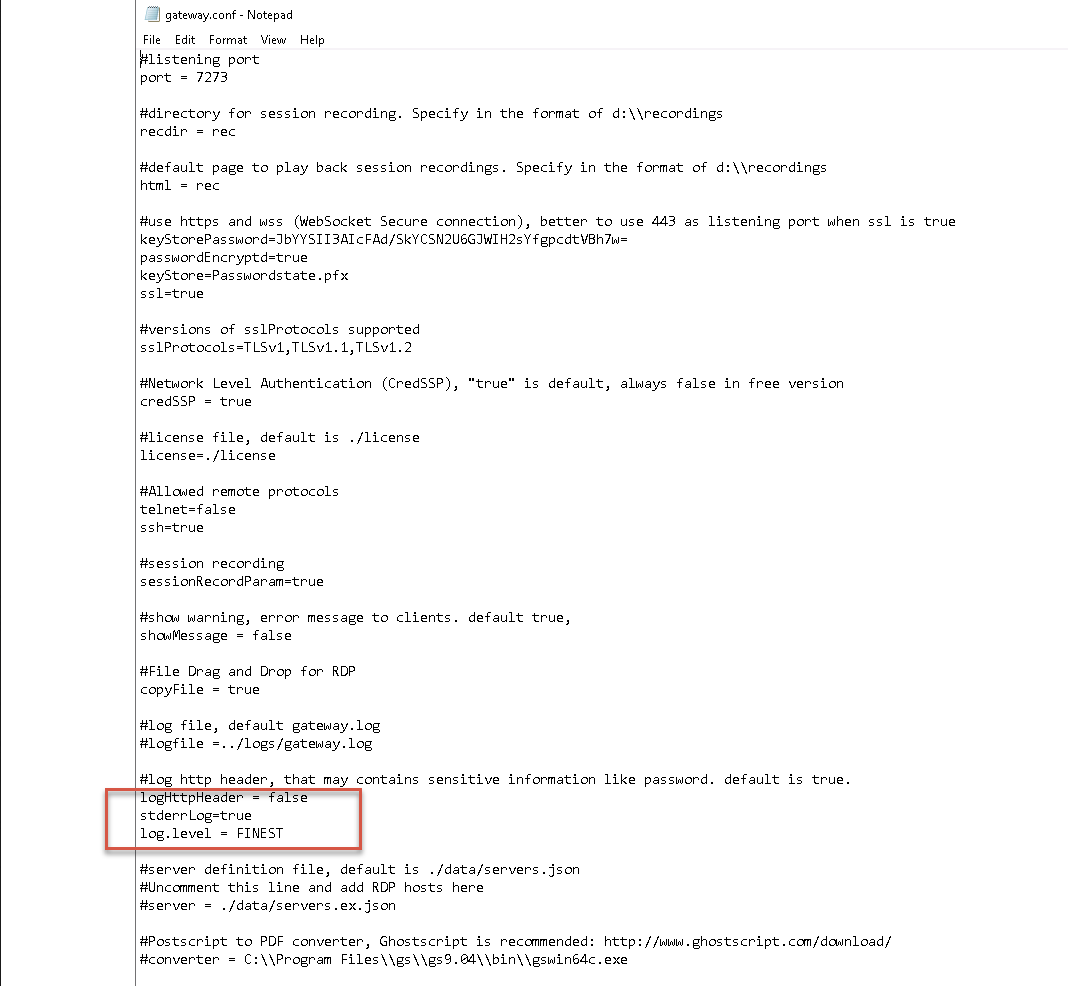
For your convenience, here is the text so you can copy and paste:
#log http header, that may contains sensitive information like password. default is true. logHttpHeader = false stderrLog=true log.level = FINEST
Stop the Passwordstate Gateway Windows Service
Delete the
c:\inetpub\passwordstate\hosts\gateway\gateway.log.0fileRestart the Passwordstate Gateway Windows Service
Now if you try to replicate the issue, you should see some verbose logging in the
c:\inetpub\passwordstate\hosts\gateway\gateway.log.0file.
We'd recommend rolling back these changes to the gateway.conf file after you have finished troubleshooting your issue, as this can leave some potentially sensitive information in the log files.
We hope this helps you identify what the issue is connecting to your hosts, but if you need to send this log file through to Click Studios, please use the following link - https://www.clickstudios.com.au/support.aspx