
KB: Upgrade Considerations Pre Build 9493
This KB Article is only relevant if you upgrading Passwordstate from a build older than 9493.
In Build 9493 of Passwordstate, Click Studios introduced support for Unicode characters for our international customers. This change requires many fields in the database to be changed to a datatype of NVARCHAR.
This change will result in approximately 300% to 400% database growth, possibly even more in some cases, and the upgrade will take longer than normal. Some customers have seen the upgrade take up to 20 minutes. The more data you have stored in your database will result in a longer upgrade through build 9493. If you are upgrading from an earlier build than 9493, then please consider the following recommendations, to ensure a seamless upgrade experience.
Pre-Upgrade Considerations – Check Available Space
It is important that you have not only adequate free disk space for the upgrade, but also that you have not limited database growth within SQL Server for your Passwordstate database. To find the size of your database, right click it in SQL Management Studio Tools and select Properties:
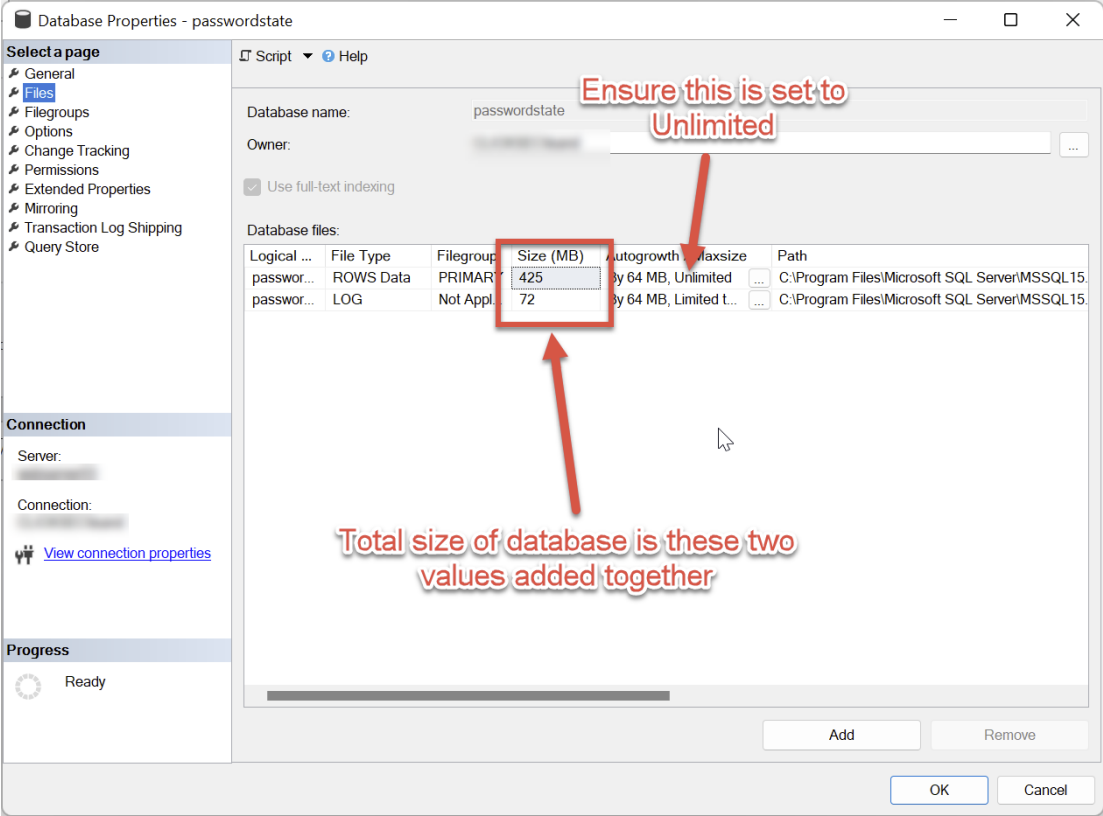
In the example above, the database is just under 500mb in size, so the SQL server will need at very minimum 2GB of free disk space. The more space you have free, the better.
Pre-Upgrade Considerations – Reduce Space within Database
There are a couple of methods to reduce the size of your database, prior to upgrading:
Option #1: Reduce Auditing Records
Passwordstate has two tables for auditing, and these are called Auditing, and AuditingArchive. Older data will automatically be moved from the Auditing table into the AuditingArchive table, and this archived data is generally not referenced by Passwordstate. The purpose of this AuditingArchive table is to increase
website performance but also retain data for compliance reasons. To check the number of rows you can run the following queries in SQL Server Management Studio. If you have millions of rows, you should consider cleaning up this table”
SQL
USE Passwordstate
SELECT COUNT(*) FROM Auditing
SELECT COUNT(*) FROM AuditingArchive
If needed, below is a screenshot of how you can export your AuditingArchive table (if required for compliance reasons), or the following KB Article Export Auditing Archive table explains this in more detail.
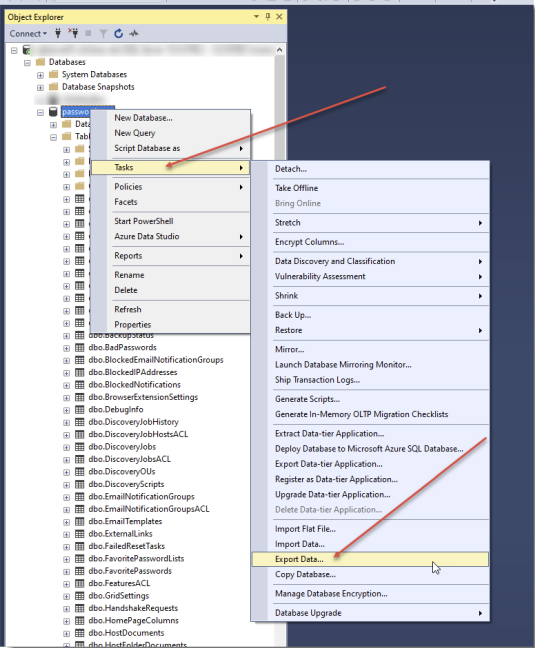
Once you have exported your data, you can remove all data in the AuditingArchive table by running this SQL script:
SQL
USE Passwordstate
TRUNCATE TABLE AuditingArchive
Option #2: Shrinking the Database
If you are not using any form of SQL Server replication, you can change the recovery mode of the database to Simple as per the screenshot below. Check with your database administrator prior to changing this, as this can prevent transaction log restores throughout the day, but does not prevent normal full backups and restores:
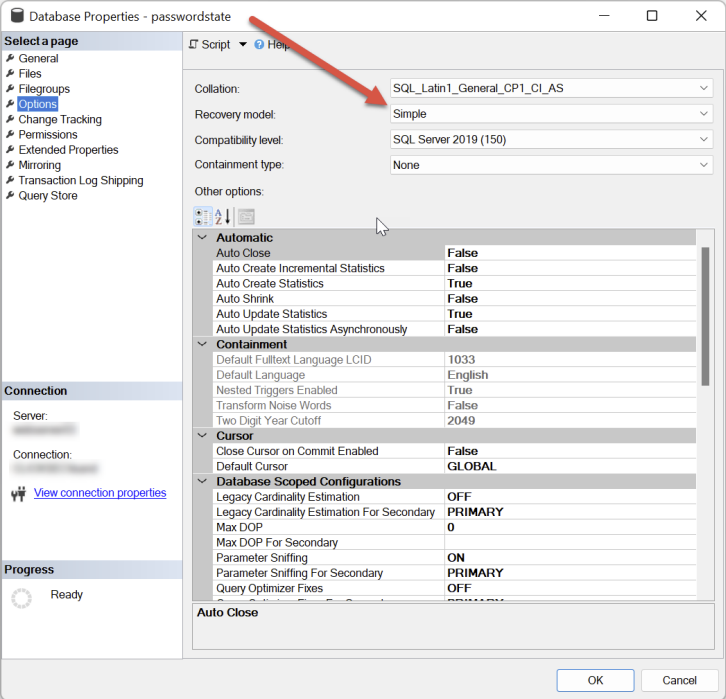
Alternatively, you can run the following command in SQL Server Management Studio – this will try and shrink both the database file, and transaction log file, if possible:
SQL
DBCC SHRINKDATABASE (Passwordstate)Post-Upgrade Considerations – Shrink Database Again
As the conversion to NVARCHAR will increase the size of your database transaction log, it is recommended you shrink the Passwordstate database again after you upgrade, by following one of the options mentioned above.