
KB: How to Manually Export Auditing Archive table, and then remove all data from it
Issue:
Passwordstate has two Auditing tables, and this blog goes into great details about how they are used: https://blog.clickstudios.com.au/auditing-archived-events-and-sql-management/
Occasionally we get customers how need to clean up their old auditing data, and this forum post explains how you can do this. There are a few reasons why you would want to do this:
- You are getting errors in your Administration -> Error Console or the Application Event logs on your webserver advising data could not be moved into the 'AuditingArchive' table due to some sort of error
- Your 'AuditingArchive' table is getting large in size, and you want to reduce the size of your database to ease the impact on your servers, and backup processes.
- To help with speeding up future upgrades of Passwordstate
Note: We would not recommend this process on any other table in the database without logging a support call with Click Studios to confirm. AuditingArchive table is typically the only table in the database that requires this maintenance.
Checking the size of the AuditingAchive Table:
This SQL Script will output the tables sizes of every table in the Passwordstate database. You'll need to connect to your Passwordstate database server using SQL Management Studio Tools with an account that has permissions to run this query.
This query outputs the size of each table in megabytes.
SQL
USE Passwordstate
SELECT
s.Name AS SchemaName,
t.Name AS TableName,
p.rows AS RowCounts,
CAST(ROUND((SUM(a.used_pages) / 128.00), 2) AS NUMERIC(36, 2)) AS Used_MB,
CAST(ROUND((SUM(a.total_pages) - SUM(a.used_pages)) / 128.00, 2) AS NUMERIC(36, 2)) AS Unused_MB,
CAST(ROUND((SUM(a.total_pages) / 128.00), 2) AS NUMERIC(36, 2)) AS Total_MB
FROM sys.tables t
INNER JOIN sys.indexes i ON t.OBJECT_ID = i.object_id
INNER JOIN sys.partitions p ON i.object_id = p.OBJECT_ID AND i.index_id = p.index_id
INNER JOIN sys.allocation_units a ON p.partition_id = a.container_id
INNER JOIN sys.schemas s ON t.schema_id = s.schema_id
GROUP BY t.Name, s.Name, p.Rows
ORDER BY s.Name, t.Name
Exporting Data:
Below is how you can export data to a csv file from the AuditingArchive table:
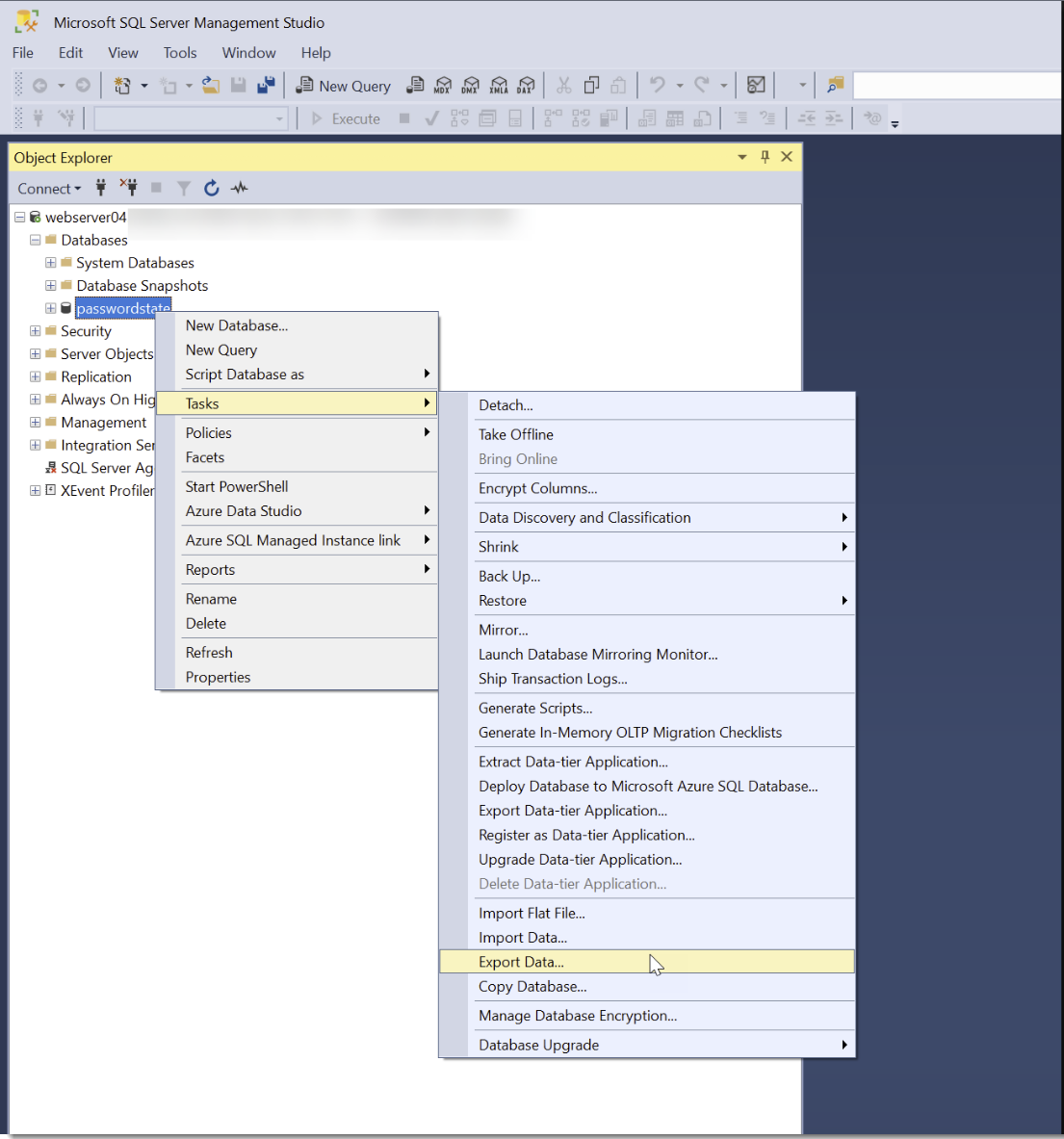
- Connect to database server, right-click the Passwordstate database and choose Export Data:
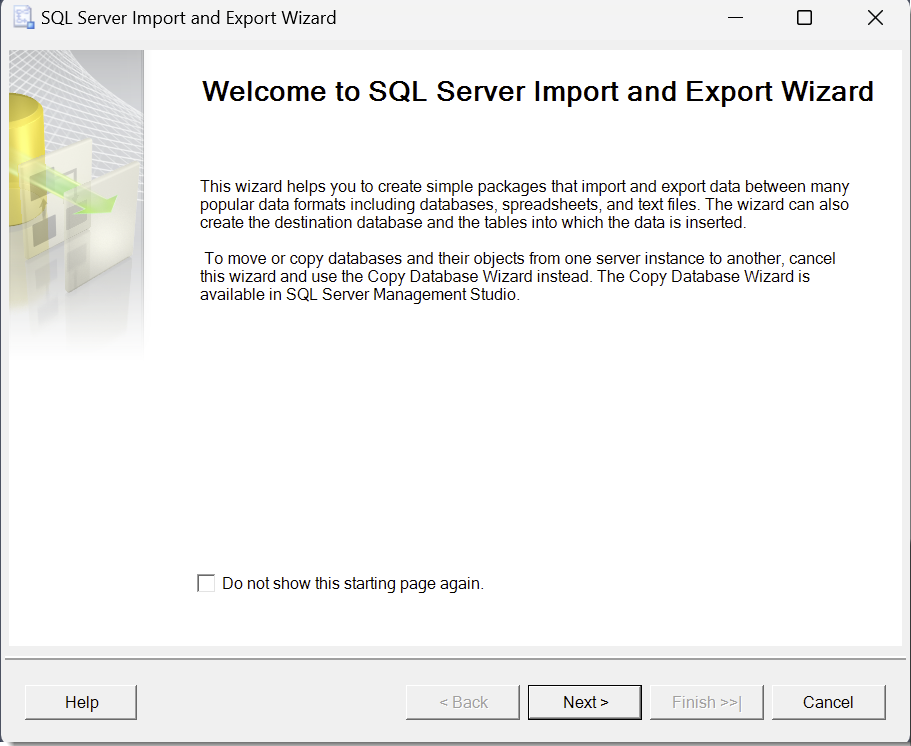
- Click Next
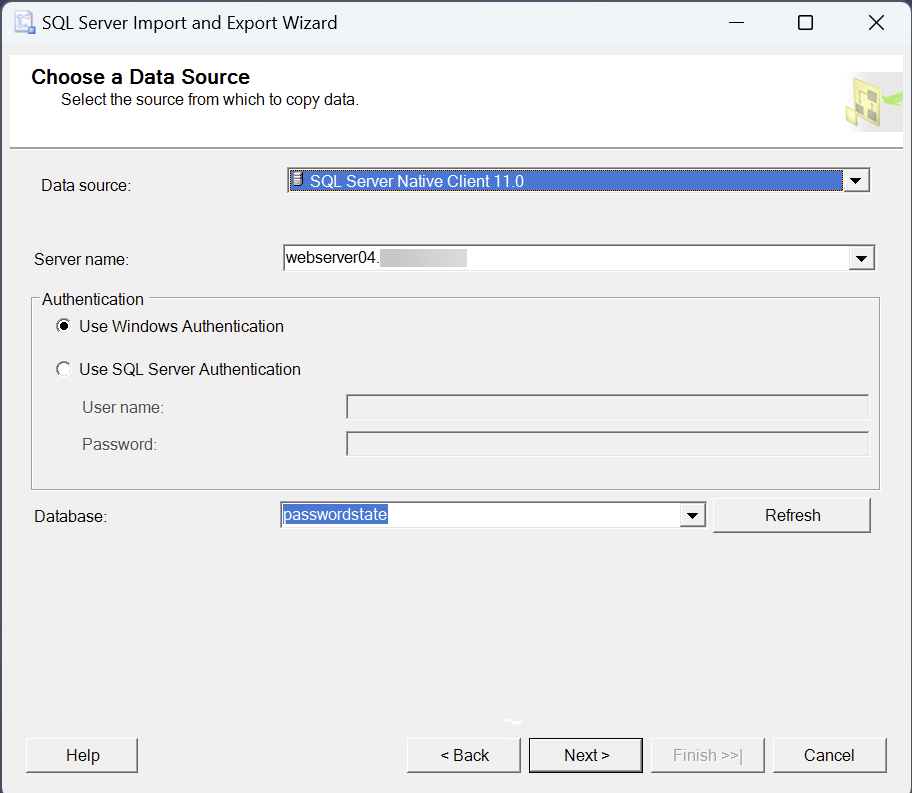
- At the Data Source page, choose the SQL Server Native Client 11.0 data source:
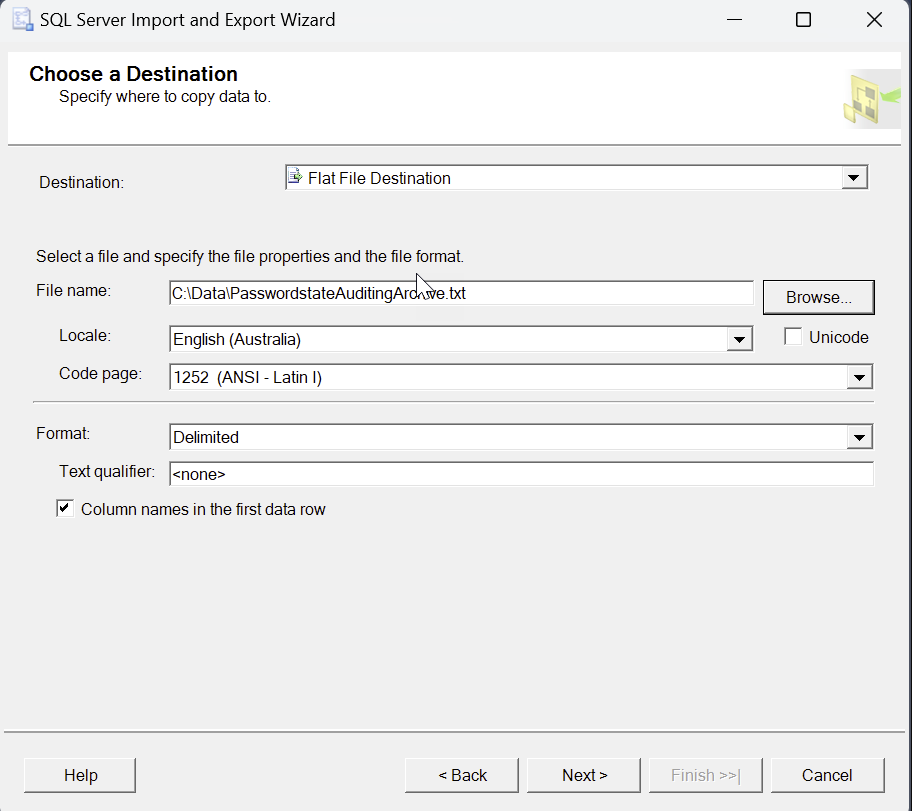
- Select Flat File Destination on the Destination screen. Choose a file name and path to where this will be saved. Ensure the file is a .txt file
- Click Next
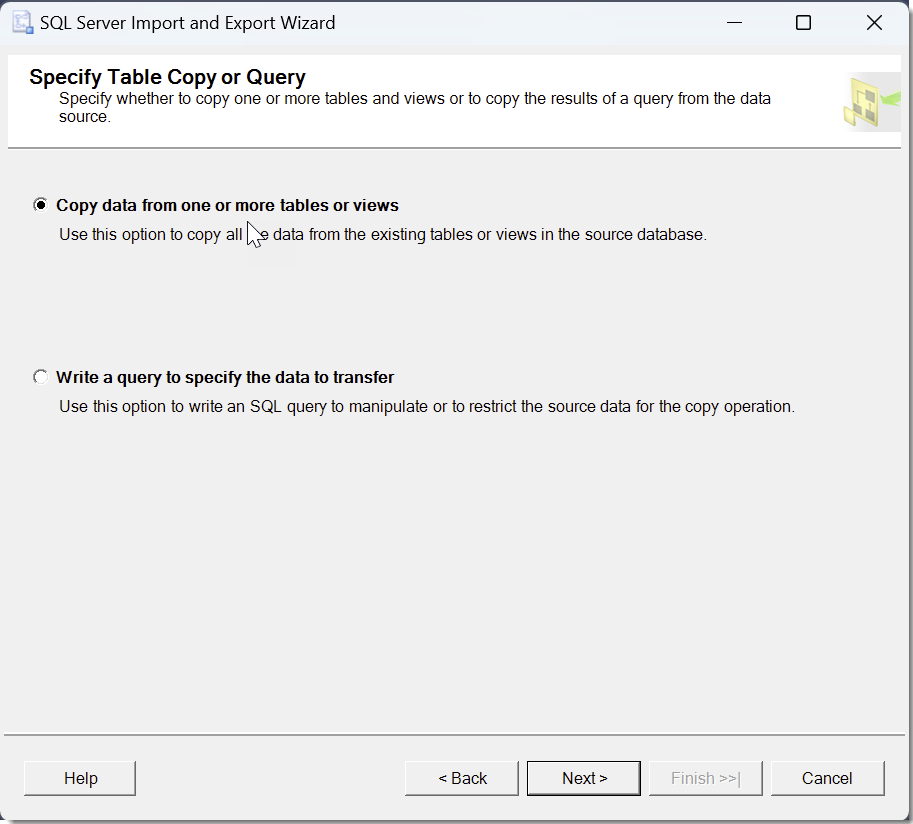
- Choose the
[dbo].[AuditingArchive]table to export, and click Next
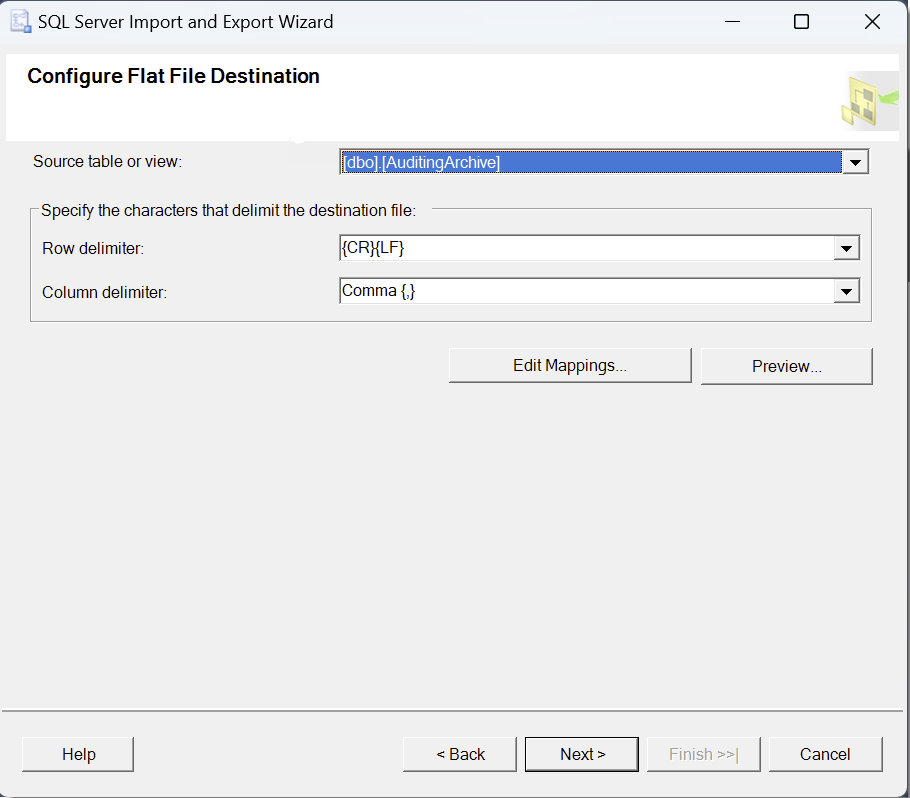
- Click Next
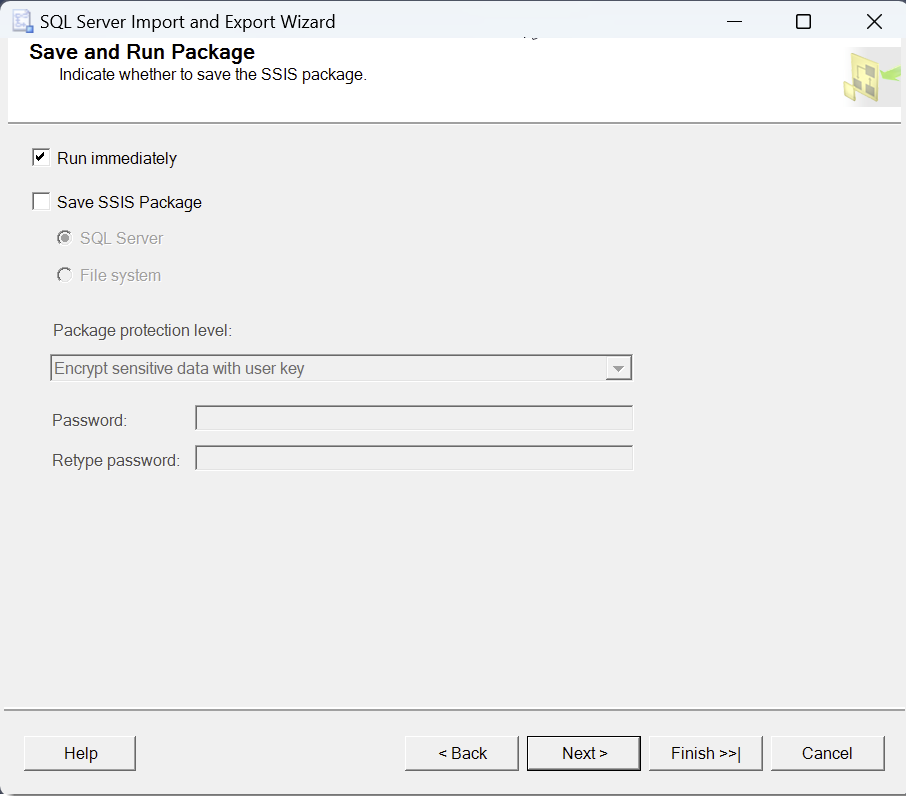
- Click Finish
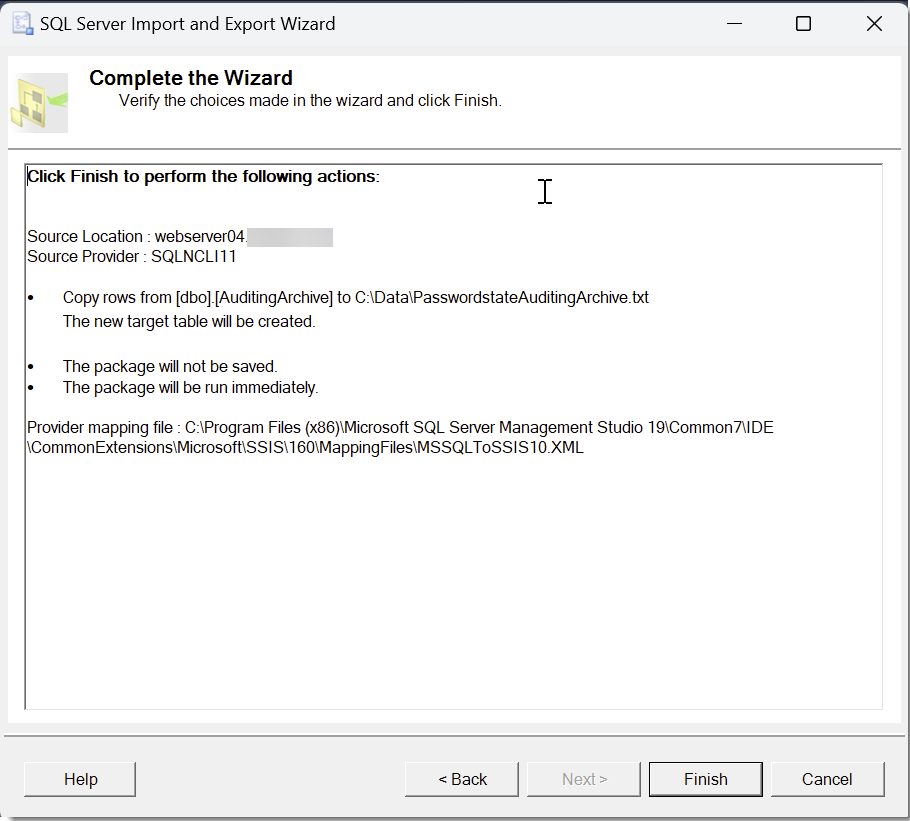
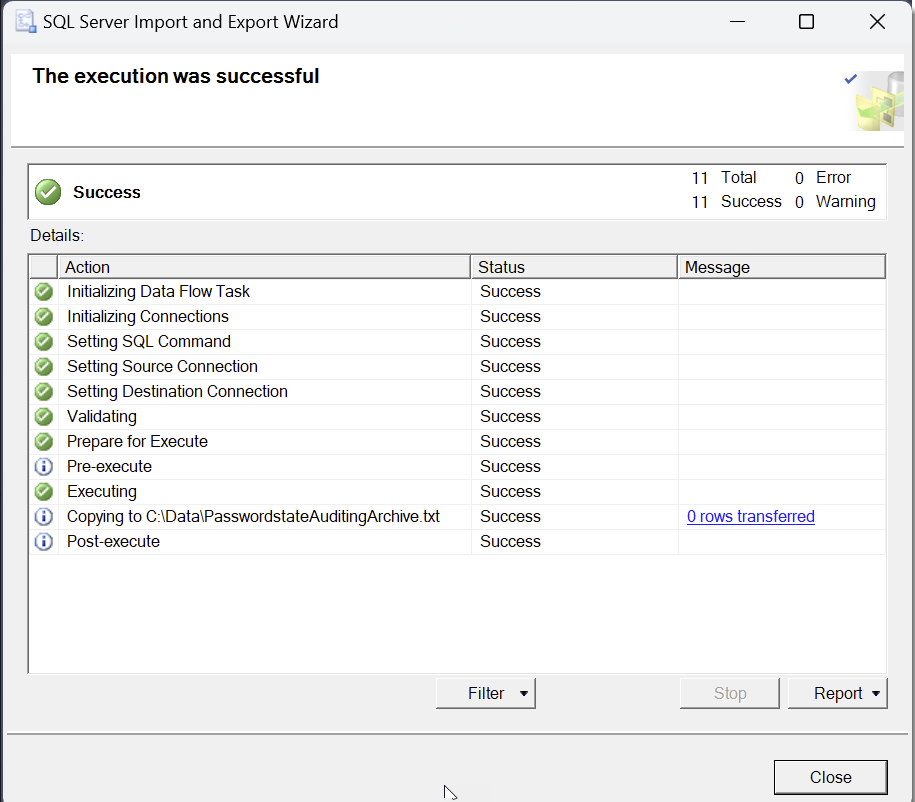
- Results should show Success status
Clean the Auditing Archive Table:
Now that you have exported all the data to that text file, you can safely store that away in case you need to restore at a future date, in the event you ever needed to reference that data again for compliance reasons.
Next you'll need to truncate the AuditingArchive table to remove all data from it. This can be done with another SQL Script, which is below:
SQL
USE Passwordstate

TRUNCATE TABLE AuditingArchive
This completes the process. Your database should be significantly smaller in size now. If you were receiving errors in your error console or event logs about moving data into your auditingarchive table, the we'd recommend restarting your Passwordstate Window Service.
If you have any further enquiries about this, please log a support call with Click Studios Support from this page: https://www.clickstudios.com.au/support.aspx