
Export & Purging Auditing Data
Two tables are used for storing Auditing data - Auditing and AuditingArchive.
By default, when the number of rows in the Auditing table reach 500,000 the Passwordstate Windows Service will start moving records into the AuditingArchive, to ensure the number of records in the Auditing table do not get excessive - helping with performance within the UI.
To count the number of rows in each table, you can use the SQL commands below - use SQL Server Management Studio to execute these queries:
SQL
USE Passwordstate
SELECT COUNT(*) FROM Auditing
SELECT COUNT(*) FROM AuditingArchive
If the number of rows in the Auditing table have exceeded 500,000, then possible causes are:
- The setting to move data between tables on the screen Administration -> System Settings -> Auditing tab, has been disabled
- You do not have a "Primary" server configured on the screen Administration -> Authorised Web Servers
- There is some sort of exception happening in the Passwordstate Windows Service, and these should be logged in the Windows Application Event Log, on your "Primary" Passwordstate web server.
If you require assistance in determining why you have excessive Auditing data, please log a support ticket here https://www.clickstudios.com.au/support.aspx
Exporting Data
If you would like to export some data from either table, before purging the data, you can follow these guidelines:
- Below is a SQL Query that will query all Auditing data older than 3 years - you can modify the number of months as appropriate, or change the FROM clause to instead query the AuditingArchive table
- With this query, you can then use the 'Export' functionality in SQL Management Studio, to export this data - see screenshot below of where to find this Export menu
- When exporting, it is advised to use the text file format for the file, as Excel has row limitations
Select all Auditing records older than X months so they can be archived outside of the Passwordstate database
SQL
USE Passwordstate
DECLARE @OlderThanMonths int = 36 --3 years
SELECT * FROM [Auditing] (NOLOCK) WHERE (AuditDate <= DATEADD(month, -
@OlderThanMonths, GetDate())) ORDER BY AuditID ASC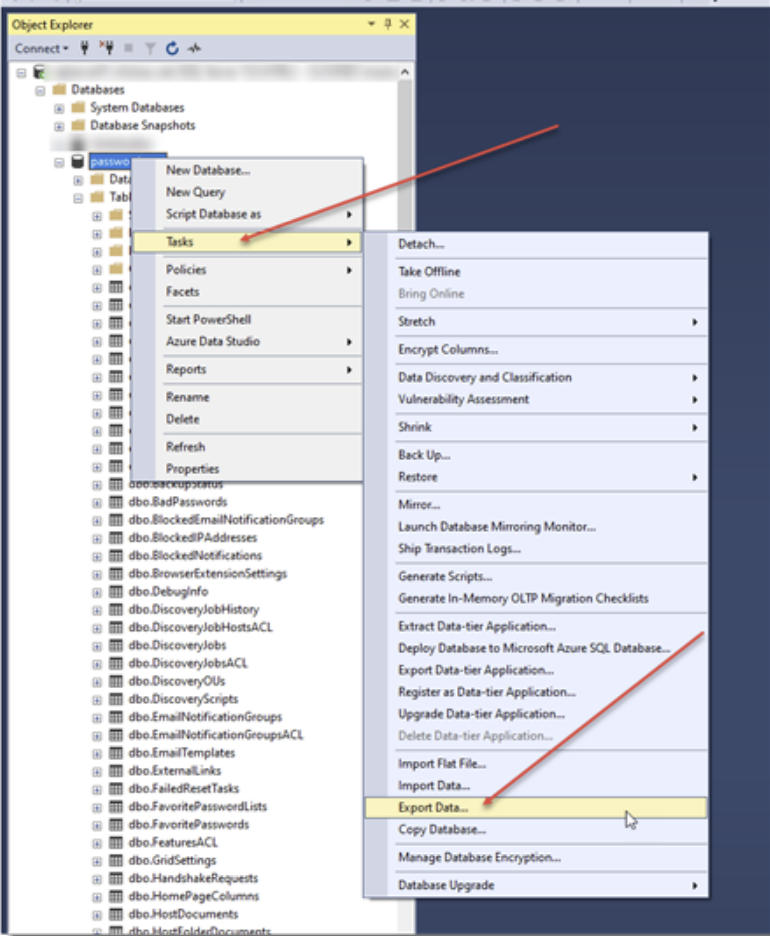
Purging Data
Once you have exported the required data, you can use the SQL code below to purge this data from the database - again, change the table name to AuditingArchive, if you wish to remove data from that table:
Where are using batches here to delete data, to prevent the transaction log from growing too large
SQL
USE passwordstate
DECLARE @OlderThanMonths int = 36 --3 years
DECLARE @BatchSize int = 1000 -- This is the batch size for the number of records we
will process each time
DECLARE @EndID bigint
DECLARE @StartID bigint = (SELECT TOP(1) AuditID FROM [Auditing] (NOLOCK) WHERE
(AuditDate <= DATEADD(month, -@OlderThanMonths, GetDate())) ORDER BY AuditID ASC)
DECLARE @LastID bigint = (SELECT TOP(1) AuditID FROM [Auditing] (NOLOCK) WHERE
(AuditDate <= DATEADD(month, -@OlderThanMonths, GetDate())) ORDER BY AuditID DESC)
WHILE @StartID < @LastID
BEGIN
SET @EndID = @StartID + @BatchSize
-- We don't want to exceed the number of specified rows to keep in the Auditing
table, so this If statement is to ensure the 'Batch Size' does not cause this
IF @EndID > @LastID
BEGIN
SET @EndID = @LastID
END
DELETE FROM [Auditing]
WHERE (AuditID BETWEEN @StartID AND @EndID)
SET @StartID = @EndID + 1
END
Truncating All Data in the AuditingArchive table
If you do not wish to keep any records in the AuditingArchive table, you can remove them all by using the SQL code below:
SQL
USE Passwordstate
TRUNCATE TABLE AuditingArchive