Backup Permissions and Pre-Requisites
All examples below are using a local account that has previously been created on our Passwordstate webserver called “Passwordstate”. This account is a Local Administrator.
The Passwordstate webserver, which also hosts the SQL database is called testserver03.
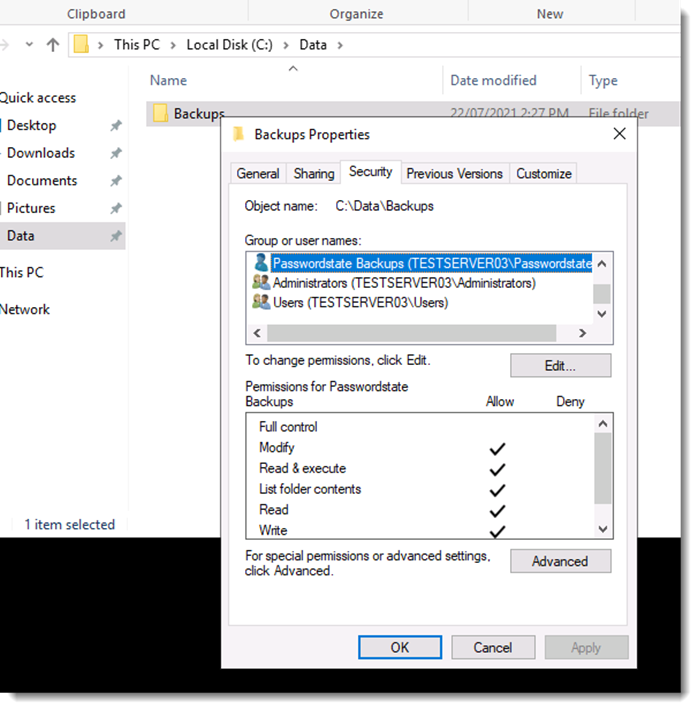
The backup folder that we’ve created on our Passwordstate webserver for this example is C:\Data\Backups.
Add Passwordstate Server into Passwordstate
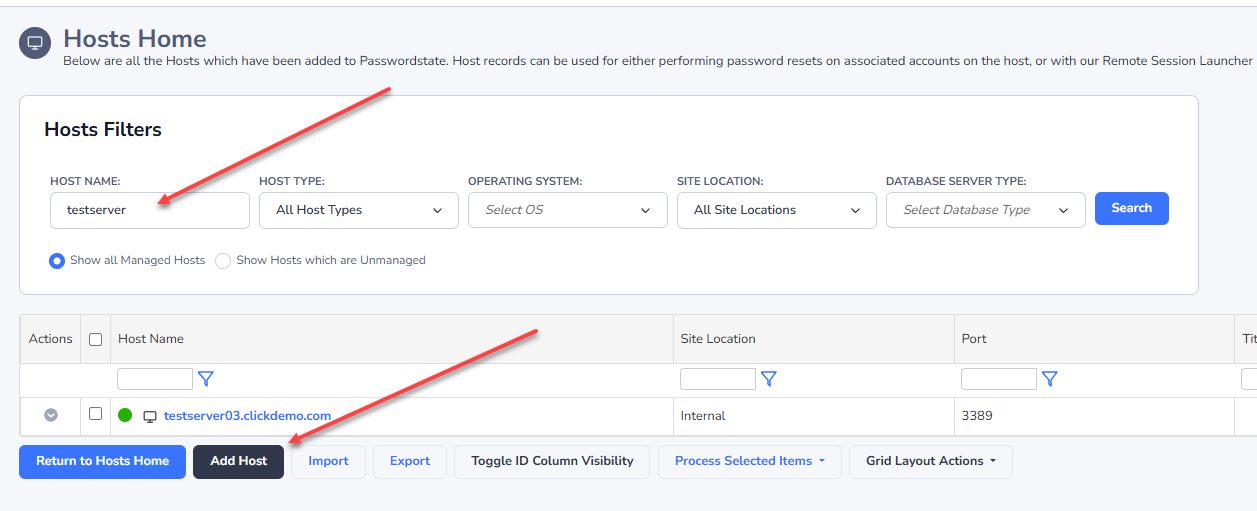
You will need to add your Passwordstate web server into Passwordstate, specifically under the Hosts tab. If you do not see your server already listed, then use the Add Host button and fill out the appropriate details:
Create Password List with the Enabled for Resets Option Selected
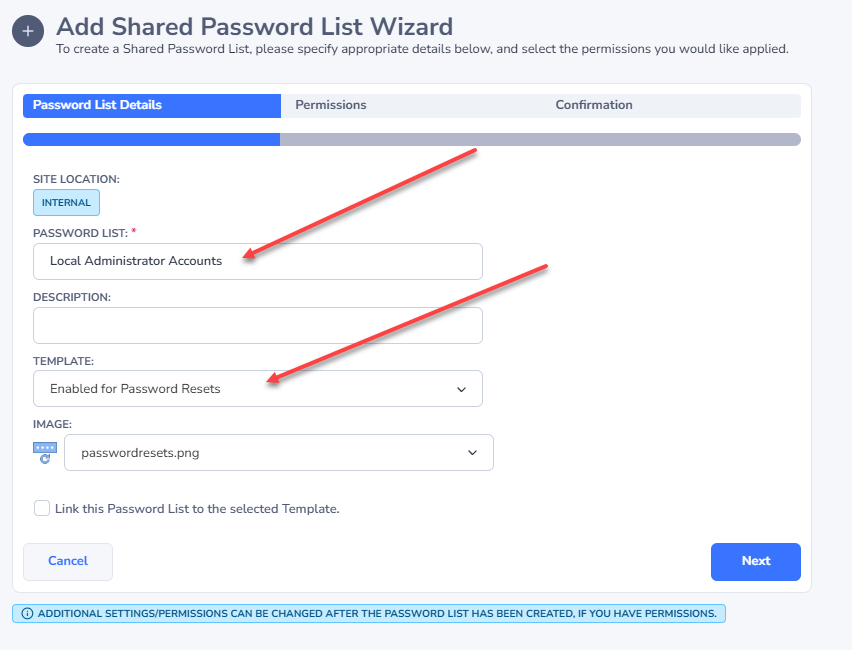
You may already have a Password List that is enabled for resets, but if you don’t then you’ll need to create one. Creating a List with this option will allow you to add in a Password Record that can automatically reset and validate the Local Windows account you will be using for backups:
Create Password Record
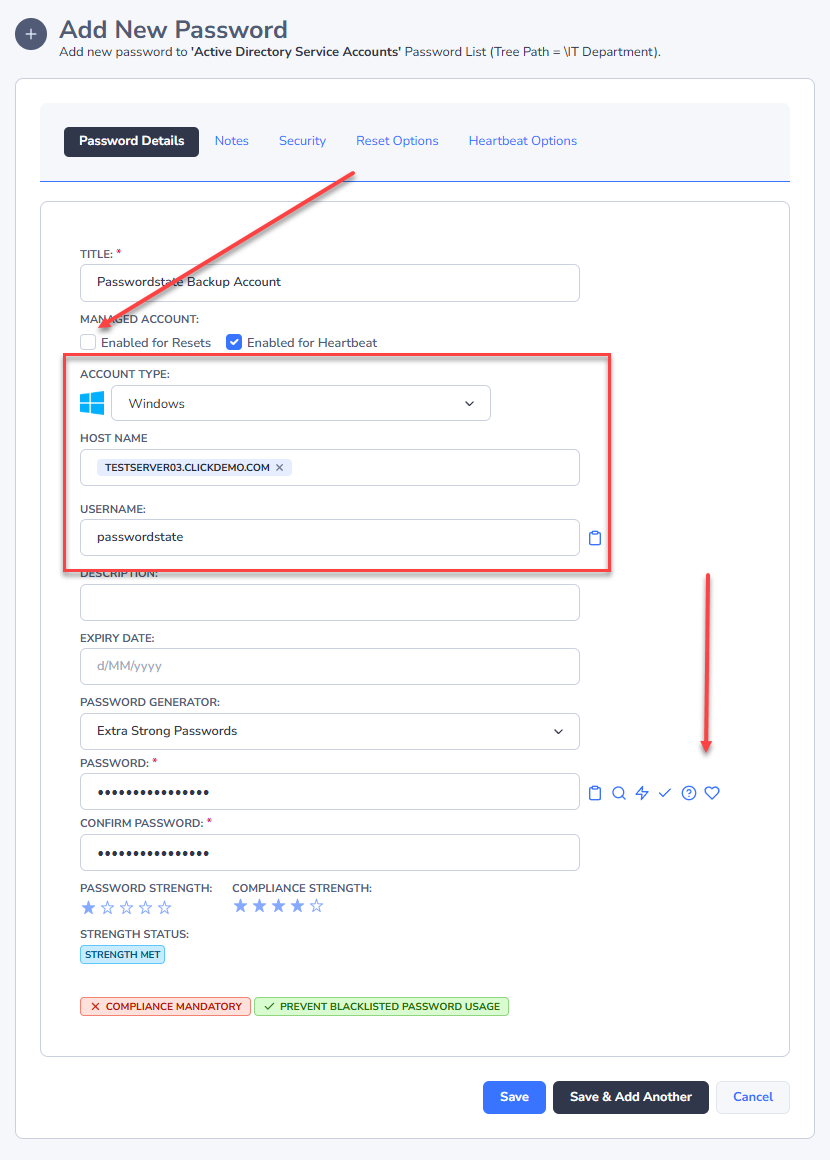
Once you have a Password List ready, you can now add in a new Password Record. When creating this record, deselect the option “Enabled for Resets”. By deselecting this option, Passwordstate will not try to automatically reset the password for the account. More information about this in the FAQ at the end of this document.
You should then choose the “Windows” account type, set the Server Name, Username and finally add in the current Password for the account. You can test the password is valid by clicking the heartbeat icon:
PowerShell Requirements on Database Server
As a once off process, the SQL Server PowerShell module must be installed on your Passwordstate database server, which in this guide is the same server where the Passwordstate website is installed. This module can be installed by opening an elevated PowerShell ISE session on your server, and execute the following lines of PowerShell code:
powershell
[Net.ServicePointManager]::SecurityProtocol = [Net.SecurityProtocolType]::Tls -bor
[Net.SecurityProtocolType]::Tls11 -bor [Net.SecurityProtocolType]::Tls12

Install-Module sqlserver -Force -AllowClobber
Installing this module will reach out to some online Microsoft repositories to which you should agree to any prompts to ensure a successful install. More information about this can be found here.
Backup Folder Permissions
Even though the account you are using is a Local Administrator, you will still need to grant that account Modify permissions to the Backup folder. This is due to the way we impersonate the account when performing the backup operations:
SQL Database and Server Permissions/Requirements
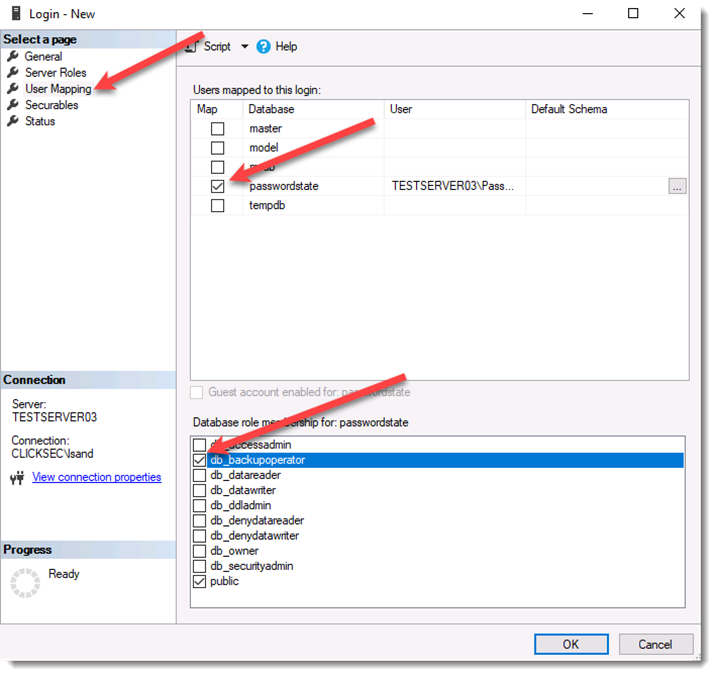
Using SQL Management Studio tools, connect to testserver03 with any SQL admin account of your choice, and add in the Passwordstate account user under Security -> Logins. When adding this user, ensure you give it db_backupoperator permissions to the Passwordstate database:
Screenshot #1: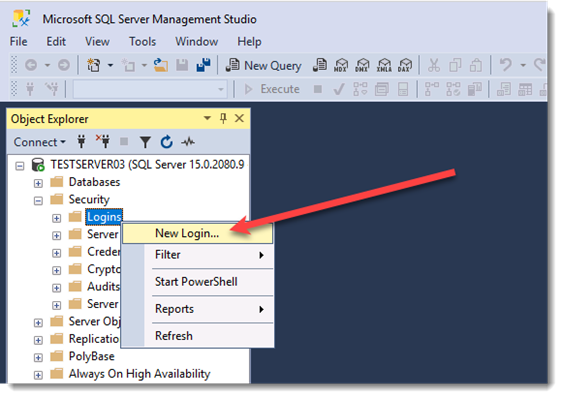
Screenshot #2: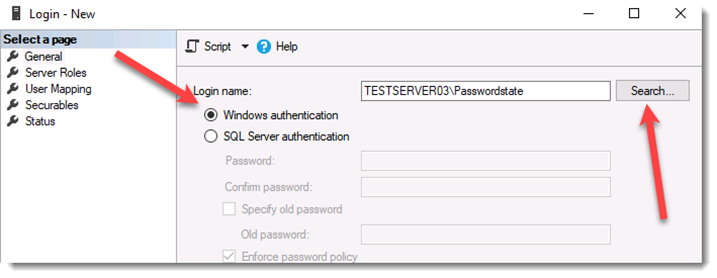
Screenshot #3: