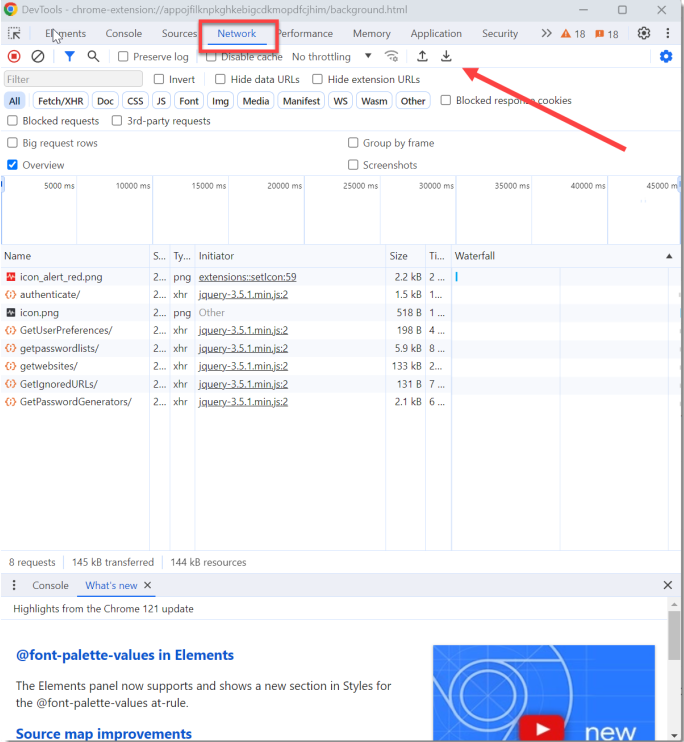
KB: Use browser Developer Tools to capture network traffic for Browser Extension
Issue:
You are trying to configure the Passwordstate browser extension but are getting a Connection error, server not available error message, or Error, connection timed out and the browser extension icon stays Red in colour
Troubleshooting Steps:
Please follow this process below to capture the network traffic when this issue occurs, and forward that onto Click Studios support for analysis.
Step 1:
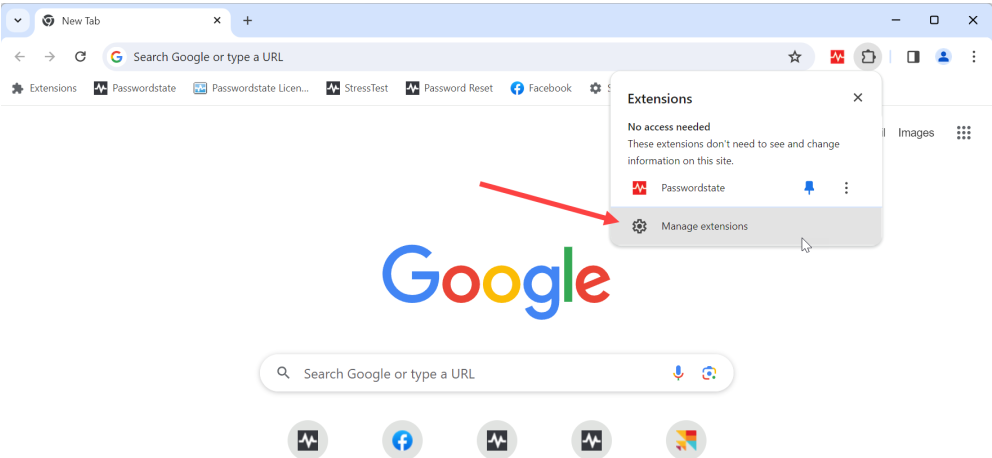
Click on the Manage Extensions button
Step 2:
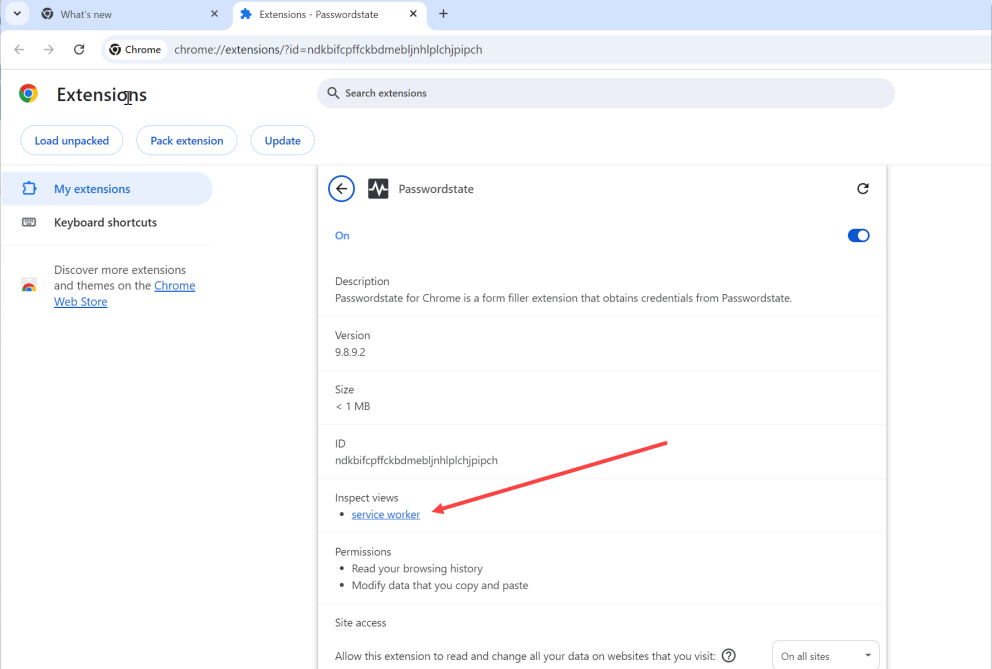
Enable the Developer Mode option, and then click Service Worker link, and this will open a separate browser window with the developer tools
Step3:
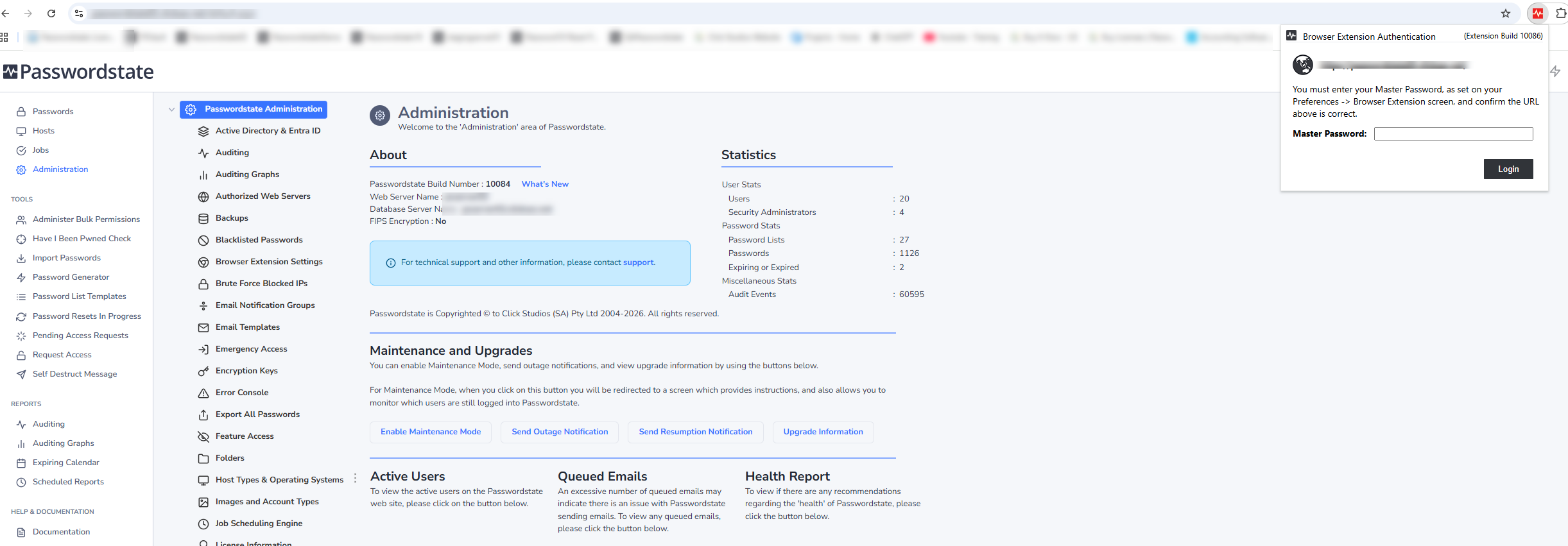
Log into Passwordstate, then try Logging into the extension
Step 4:
This will generate some traffic under the Network tab in the Developer tools window. Save the output to a .har file and forward that onto Click Studios support to look at.