
KB: Test Privilieged Account password used to query domain is current and correct
Issue:
If you are trying to add a new using or security group in from Active Directory, or you find your AD sync process is failing, the a good first step in troubleshooting is to test that your Privileged Account used to query your domain is valid.
How to Test:
First navigate to Administration -> Active Directory Domains, and open the domain you are having issues with. Confirm that the domain details are correct, and if you have a domain controller set that it is a valid server:
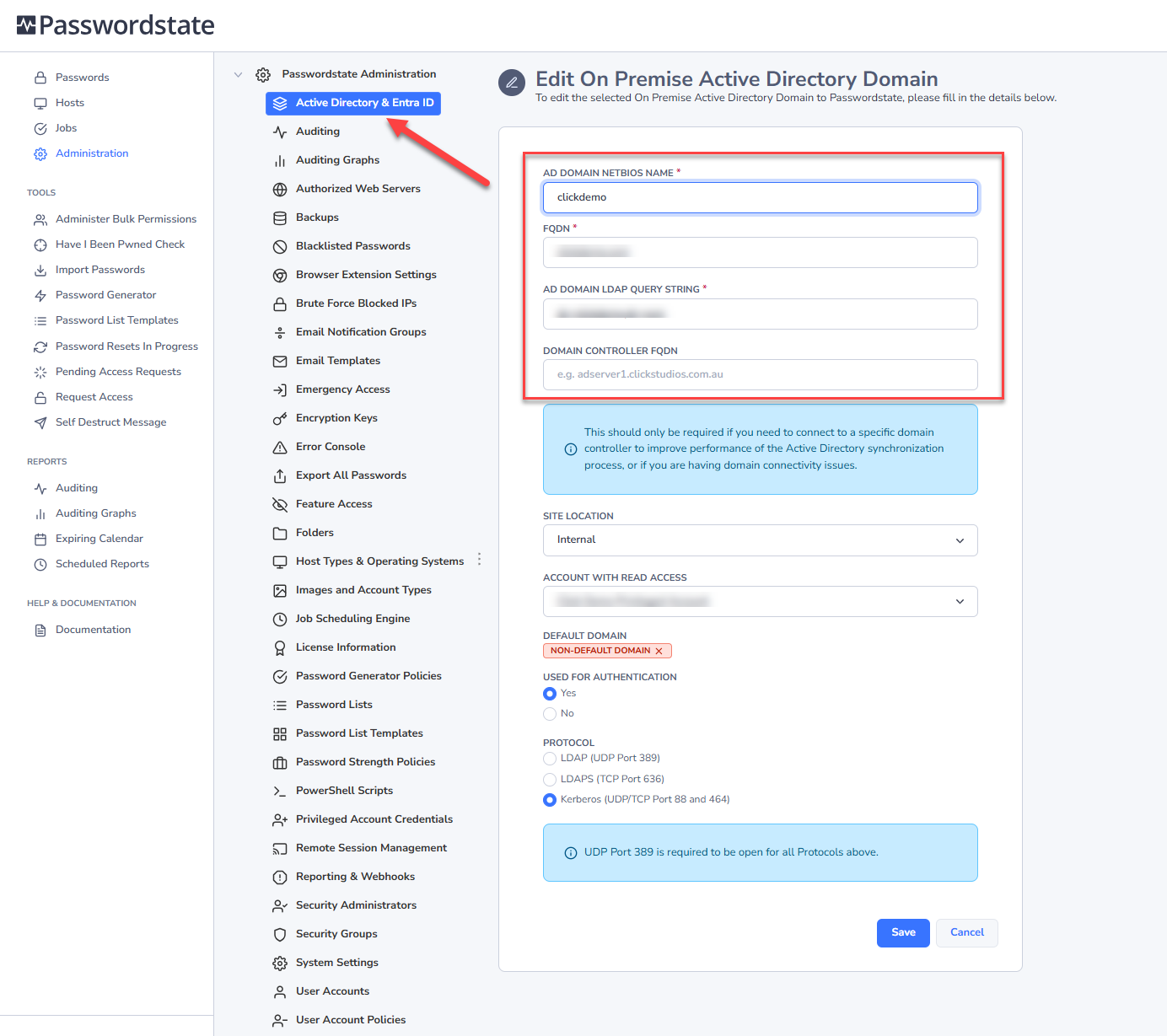
If you need to confirm that your domain details are correct, log into a machine that is joined to the domain and run the following two commands in a command prompt:
command
set userdomain

set userdnsdomain
The NetBIOS Name for your Active Directory settings should match the result of set userdomain
The FQDN should match the result of set userdnsdomain
The LDAP Query String for your Active Directory settings should match the result of set userdnsdomain
Whilst you have your domain open, take note of the Account with Read Access name. Now browse to Administration -> Privileged Account Credentials, and open this account. You will find a heartbeat icon on the page, and this will do a live test to the domain to confirm if the username and password is correct.
If the password test fails, try resetting the password in Active Directory and then update it on the privileged account screen, and this should fix the issue.