
KB: Passwordstate Test Instance
A question Click Studios gets frequently is "Can I have a test instance of Passwordstate? If so, what license key do I use?".
The answer is "Yes, and we'd strongly encourage you to set one up, and leave it running permanently if you have the capacity to do so."
The benefit to having a test instance, is you can always practice using new features before implementing them in your production instance, and you can practice performing any upgrades before attempting them in your production environment.
License Keys
When purchasing any kind of licenses with Click Studios for Passwordstate, your license agreement allows you to use your license keys on your Production instance and one Test instance.
This applies to any additional module you may have purchased, such as High Availability or the Password Reset Portal. If you have purchased these, you are also set these up in your test instance.
Other modules that don't require purchasing will also work well in your test instance, such as the Browser Based Remote Session Launcher, or the Push Pull Self Destruct Portal.
System Requirements
Full system requirements to install a new instance of Passwordstate can be found on the Click Studios Website: https://www.clickstudios.com.au/system-requirements
Different Ways to Set Up a Test Instance
You can either install a brand new instance of Passwordstate on a new server with an empty database, or you can use a copy of your production database with your test instance
If you were to backup and restore a copy of your production database to this test instance so you can do testing with production data, then the license keys will already be set as they are stored in the database. This guide explains how you can achieve this: https://www.clickstudios.com.au/downloads/version9/Move_Web_and_Database.pdf
When moving a copy of you production database across, this will duplicate all data from that instance, which includes users, passwords, permissions, all settings, license keys, reports, auditing etc. It should look identical in terms of how your data is displayed.
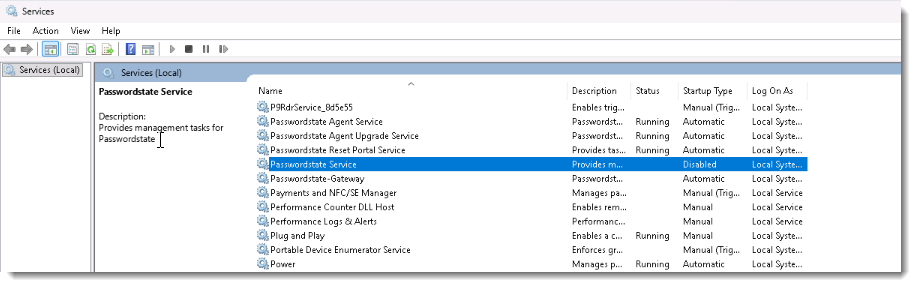
If using production data in your test environment, we’d recommend disabling the Passwordstate Windows Service on this server so it does not perform any background tasks, such as automatic password resets, or sending out emails to end users:
If you prefer to install a brand new instance for your Test environment, then by default this will enable a 30 day Enterprise Trial. You should apply your production license keys to this instance under Administration -> Licensing Information. You can copy these directory form yoru production instance.
Authorizing your Test Server
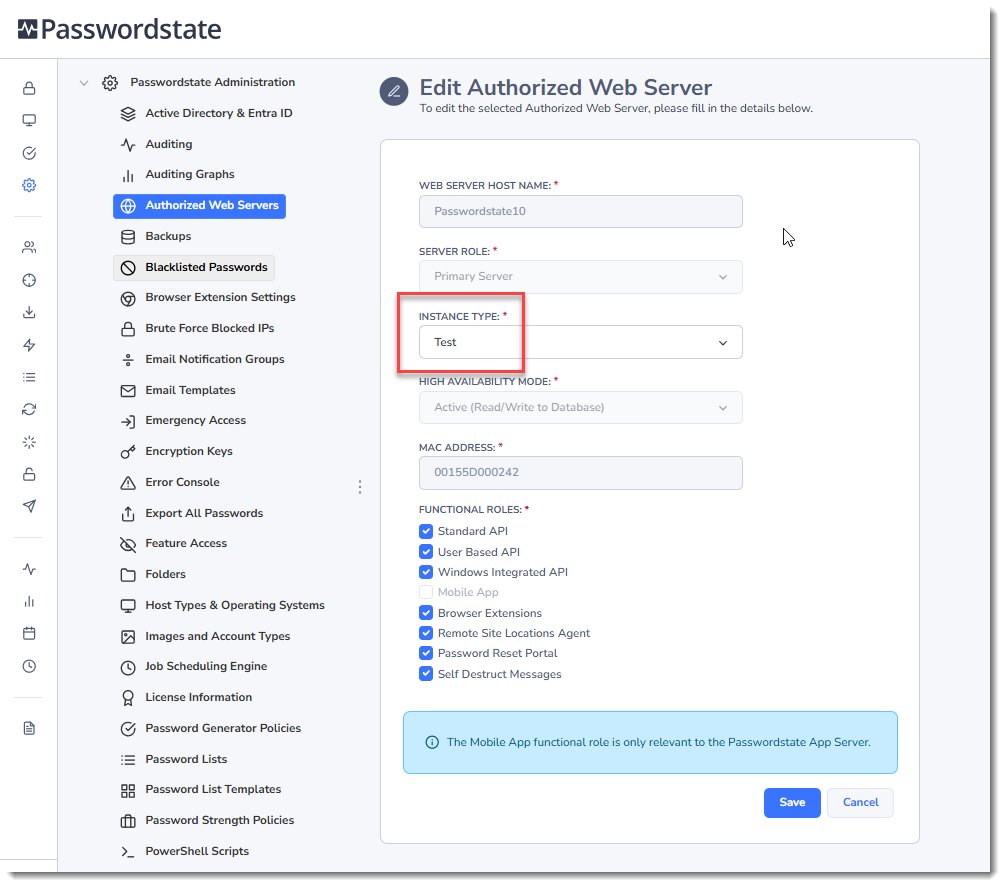
All Production instances of Passwordstate require you to register and authorize the webserver with Click Studios as a once off process. This is not required for your Test instance. If you moved your Production database over for this Test instance, then you should go to Administration -> Authorized Web Servers and change your instance type to Test as per the below screenshot:
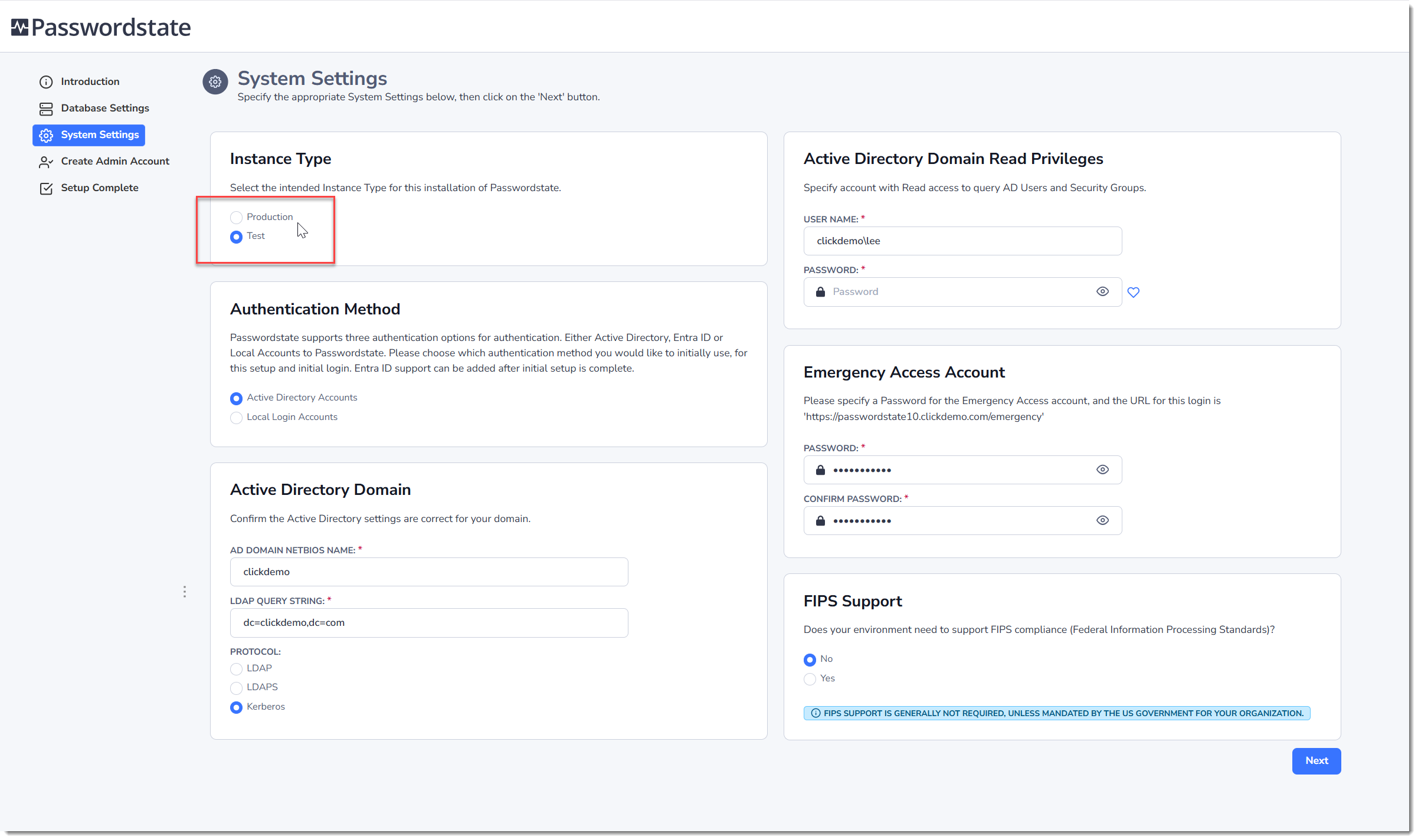
If you are installing a brand new empty instance, you can either change the instance type as per the screenshot above once you are logged into the website, or during the initial install you can configure the install be to Test, like this screenshot below:
All Test instances will show a pop up message upon logging in everytime, plus there will also be a banner across the bottom of the page indicating it is a test instance.