
KB: Create New Self Signed Certificate
Scenario:
If you need to create a Self-Signed Certificate to use for testing purposes, or maybe to replace an expired one on your Passwordstate website, then please follow this process below.
Please remember, it's not advised to use Self Signed Certificates as the end user experience will be impacted by the Browsers consistent warnings. If possible, any certificate issued from your internal Certificate Authority or a purchased certificate from an online trusted authority will provide a much better experience foe your users.
Process:
Step 1:
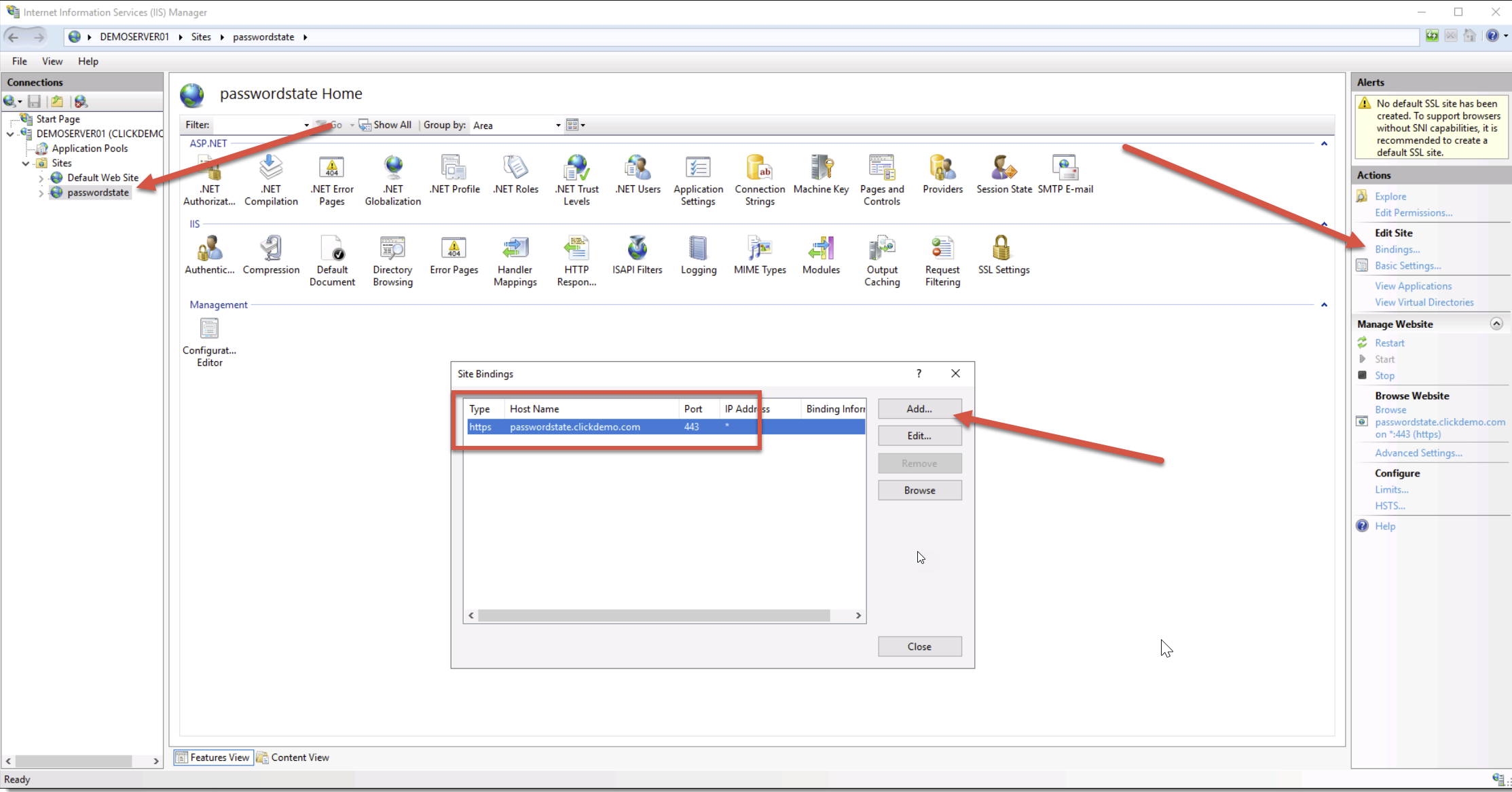
First you will need to identify the HTTPS binding you have for Passwordstate on your server. Open IIS and check the binding as per below screenshot. If you do not already have a HTTPS binding, or would like to create a new one with a new name, you can select the Add button on this screen
Step 2:
Open Powershell ISE "as Administrator and paste in the code below. Ensure you change the [Example.com] text in the first line to match the Host Name you identified in the step above.
Run the script and this will create a certificate on your server with a 5 year expiry date:
powershell
$HostName = "[Example.com]"

#########################################################################################################
# Perform a check to ensure Powershell is running as Administrator
#########################################################################################################
If (-NOT ([Security.Principal.WindowsPrincipal][Security.Principal.WindowsIdentity]::GetCurrent()).IsInRole([Security.Principal.WindowsBuiltInRole] "Administrator"))
{
$wshell = New-Object -ComObject Wscript.Shell
$wshell.Popup("This script requires your Powershell session to be elevated.`n`nPlease run again in a new shell that is run as Administrator", 0, "Warning", 0x0)
Break
}

# Import Module
Import-Module WebAdministration

# Create SSL Certificate
$StartDate = '01/01/' + (Get-Date).Year
$EndDate = '01/01/' + (Get-Date).AddYears(5).Year
$newCert = New-SelfSignedCertificate -DnsName $HostName -CertStoreLocation Cert:\LocalMachine\My -FriendlyName $HostName -NotBefore $StartDate -NotAfter $EndDate

$wshell = New-Object -ComObject Wscript.Shell
$wshell.Popup("The new Self Signed certificate has now been created with expiry date of $EndDate.`n`nPlease assign the new certificate to the $HostName binding in IIS for Passwordstate website.", 0, "Success", 0x0)
Break
Step 3:
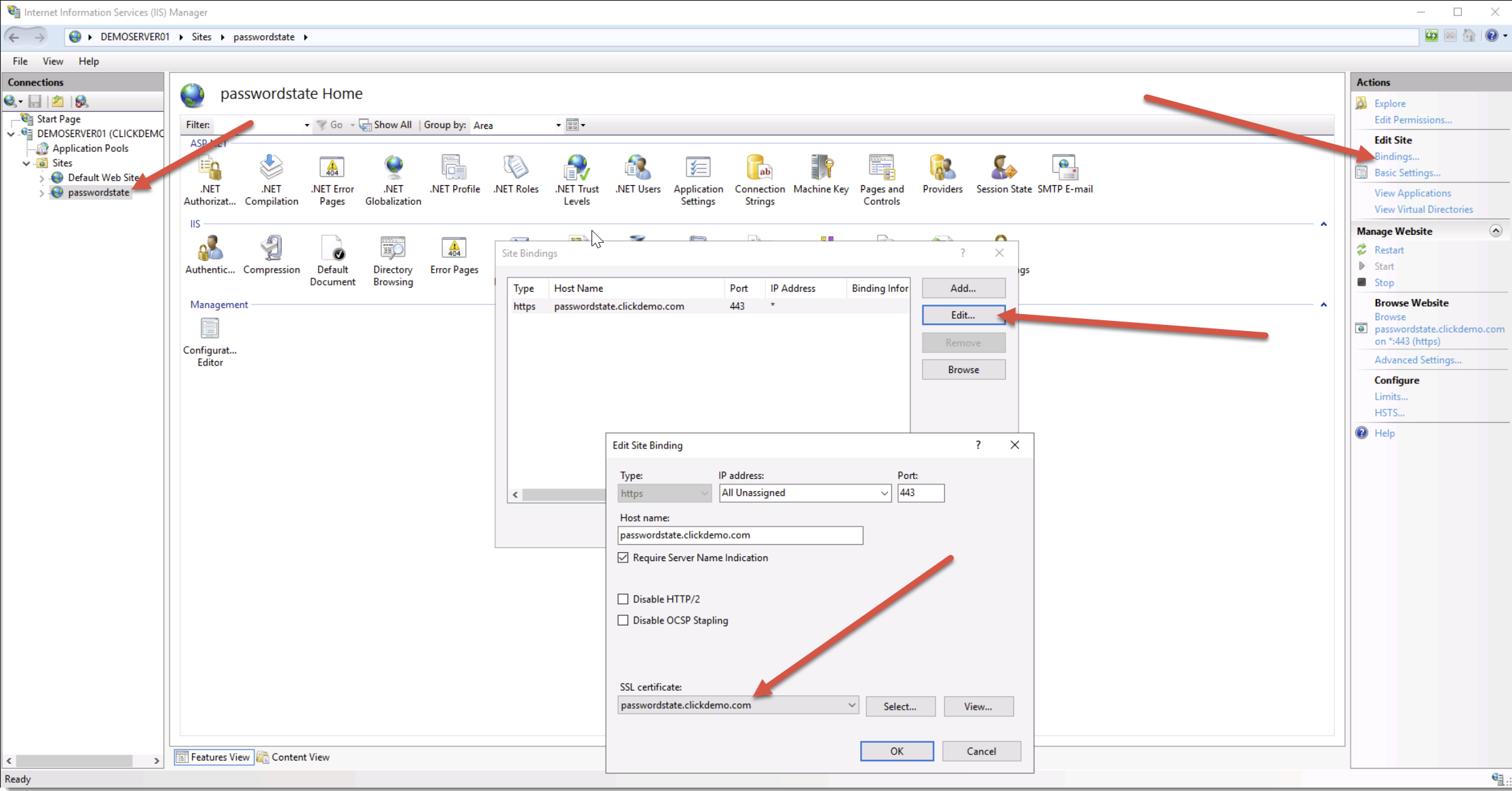
Assign the new certificate to the binding as per below screenshot:
Step 4:
If you haven't already, you should create a CNAME record in DNS that matches the Host Name you identified above, and this CNAME record should direct traffic to your Passwordstate server.
This should complete the process.